
Dedicated ISP Proxies (DISP) are a premium proxy solution built for scenarios where consistency, performance, and trust are critical. They provide fully dedicated, static IP addresses sourced from top-tier ISP providers (premium ASNs). This guarantees predictable behavior, unlimited-duration sessions, and reliable access even on the most challenging targets.
Plus, unlike with regular ISP proxies, you can also explicitly choose your preferred ISP provider during setup, giving you maximum control over IP reputation and performance from the get-go.
This quick start guide will show you all the basics on how to set up and start using Oxylabs Dedicated ISP Proxies: from accessing your proxies to making your first request and understanding common responses. In addition, you can connect your AI agent to Dedicated ISP Proxies in just a few steps with Agent Skills. Learn how.
Setting up Self-Service Dedicated ISP Proxies
1. Register and purchase IPs
Start by accessing the Oxylabs Dashboard and creating an account.
There, add a product instance, select ISP Proxies, choose the Pay per dedicated IPs proxy type, pick the quantity of IPs, specify the proxy locations and the ASN if necessary, and create the product instance.
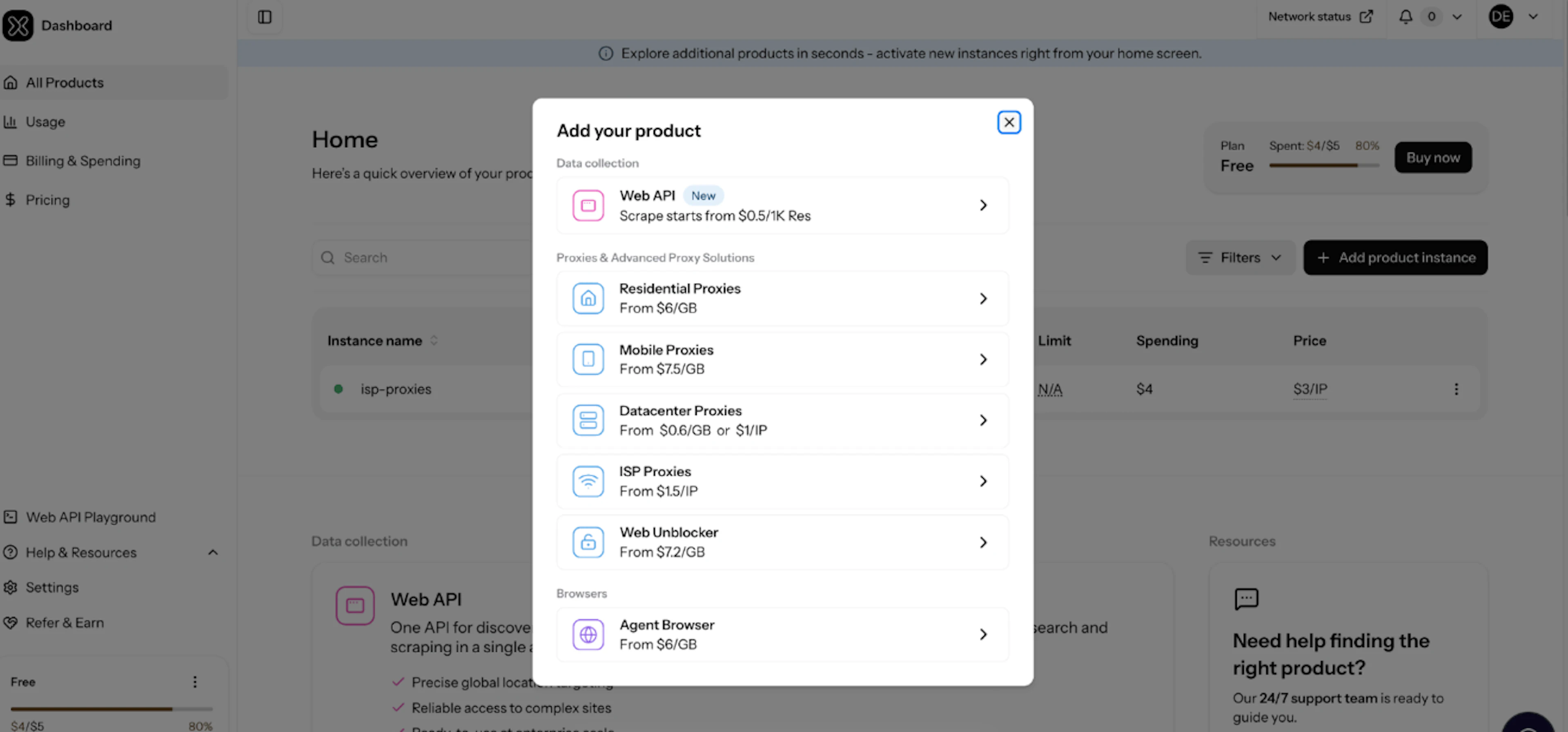
Note: Dedicated ISP proxies are provided as static IPs mapped to specific ports. Each proxy remains assigned to you for the duration of your subscription.
2. Get instance credentials
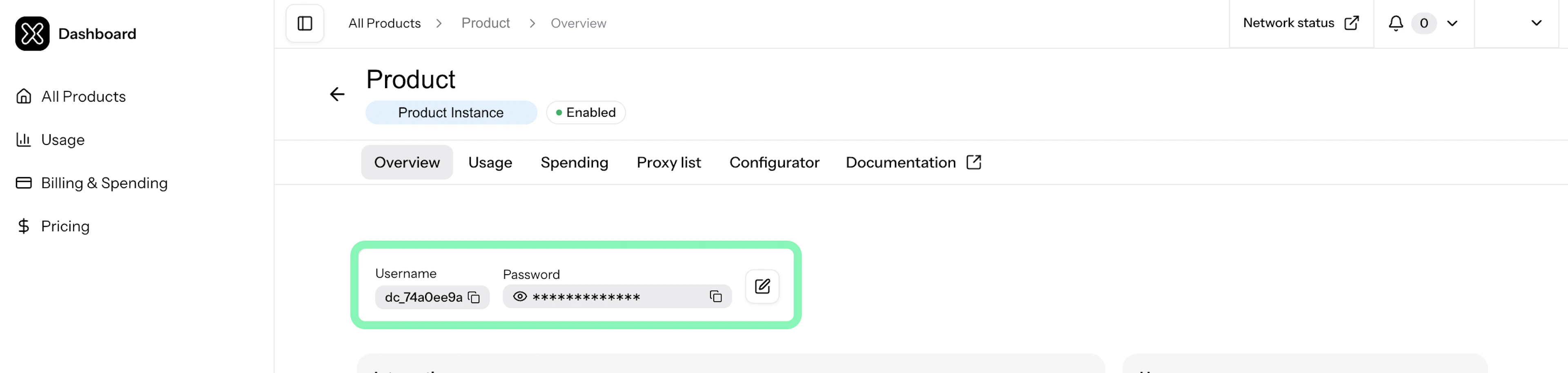
First, open your Dedicated ISP Proxies instance from the dashboard home section. Then, look for your new proxy instance credentials at the top of the overview. These credentials are your access to the IPs.
3. Run a request
Once credentials are ready, you can test your Dedicated ISP proxies by sending a simple cURL request through a terminal or any appropriate environment. The example request below will check the outgoing IP address of your first Dedicated ISP proxy IP:
curl -x https://disp.oxylabs.io:8001 -U user-USERNAME:PASSWORD https://ip.oxylabs.io/locationHere, the request consists of:
Host: disp.oxylabs.io
Port: 8001 (the first IP on your proxy list)
Credentials: user-USERNAME:PASSWORD (“user-” prefix is mandatory, replace placeholders with your credentials)
Request target: https://ip.oxylabs.io/location
If the request is successful, the response will display the IP address linked to the selected port. Because the IP is fixed, the same address will be used across repeated or long-running sessions.
You can use the same technique to test all your IPs by incrementing the ports (8002, 8003, etc.). To find the full list of your IPs and their ports, open the Dedicated ISP Proxies product instance from the Overview page, then select Proxy list tab.
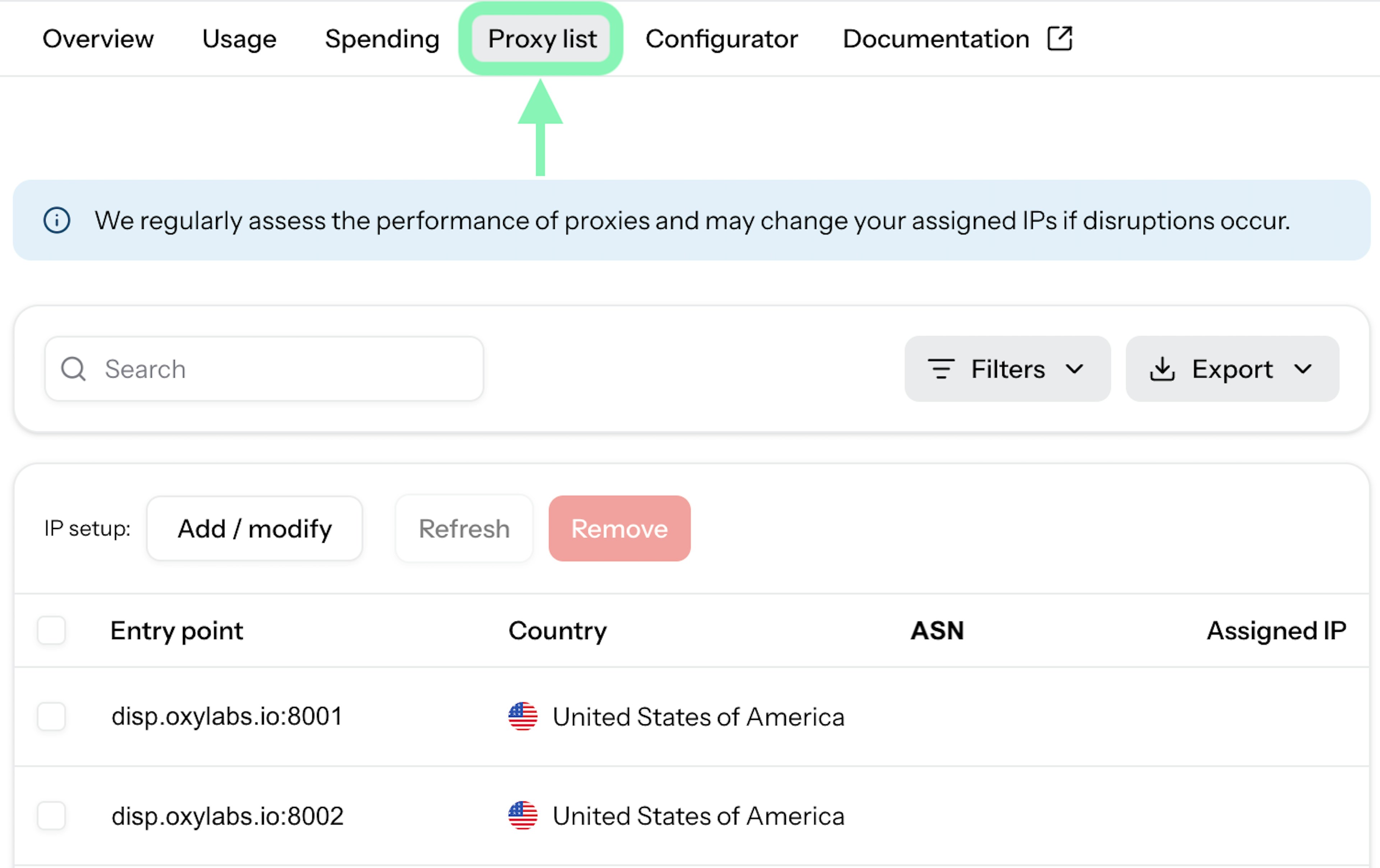
What's included in a proxy list?
| Column | Description |
|---|---|
| Entry point | The gateway to connect to your proxies and the port number that allows you to access a specific proxy from your list |
| Country | The geographic location of your proxies |
| ASN | The provider and ASN identifier of your proxy |
| Assigned IP | A specific proxy IP assigned to the chosen port |
You can export this list in CSV or JSON format directly from the dashboard for easier integrations.
Location & ISP Info
Dedicated ISP proxies are tied to fixed locations. To access an IP with a specific location, you do not need to provide any additional parameters. Simply send a request to the port associated with the IP address of the desired location.
However, if you ever need to verify the network provider of your ISP IPs and have the most accurate, real-time data, we recommend checking the ISP provider and ASN data in the RIPEstat database.
Supported protocols
Dedicated ISP proxies support multiple connection protocols:
HTTP
HTTPS
SOCKS5 (TCP and UDP)
To set the desired protocol, such as HTTPS, add https:// before the entry point, like in the following example:
curl -x https://disp.oxylabs.io:8001 -U user-USERNAME:PASSWORD https://ip.oxylabs.io/location Here’s a code example with the SOCKS5 protocol:
curl -x socks5h://user-USERNAME:PASSWORD@disp.oxylabs.io:8001 https://ip.oxylabs.io/locationNote: Make sure that the libraries or third-party tools you intend to use are compatible with HTTPS and SOCKS5 protocols.
Response codes
If a request fails, the Dedicated ISP proxies may return one of the following response codes that explain the reasons for failure:
| Response code | Error message | Description |
|---|---|---|
| 400 | Bad Request | The request did not specify a host to connect to, or if there was a general error in parsing the HTTP request. Ensure that the request is correctly formed, including the URL, and try again. |
| 404 | Not Found | The domain you specified in your request could not be found. This can often occur due to the misspelling of the target URL or other niche factors. |
| 407 | Proxy Authentication Required | The request lacks proxy authentication information, or the username or password is invalid. Include the Proxy-Authorization header in your request, verify that your username and password are correct, then try again. |
| 500 | Internal Server Error | The proxy server has encountered an internal error. Retry the request at a later time. |
| 503 | Service Unavailable | Failed to connect to the target server. DNS failed to resolve the target server address. |
| 504 | Gateway Timeout | A proxy server timed out, waiting for a response from the target server. It usually takes about 60 seconds. |
| 522 | Timeout | The proxy server did not get a response from the upstream server in time. Retry the request. |
Important: When sending a request, be sure to specify the port number rather than the IP address.
Usage statistics
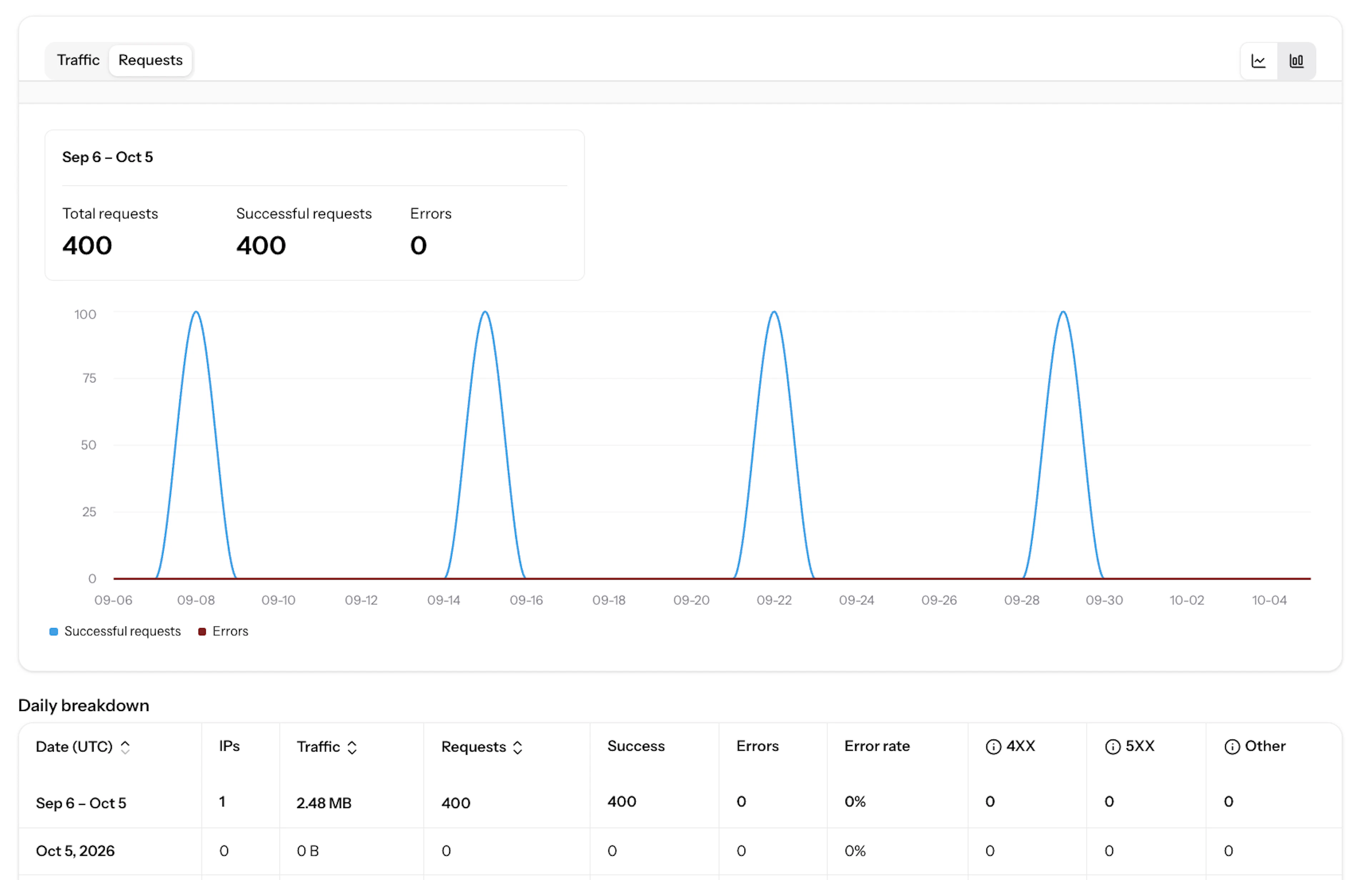
You can monitor traffic usage, request counts, and error rates directly in the Oxylabs Dashboard. Because Dedicated ISP Proxies are assigned only to you and include unlimited bandwidth under a fair usage policy, performance is affected only by your own workload.
Additionally, there is an option to filter the statistics and view metrics for a specific time period. Here’s what the dashboard looks like:
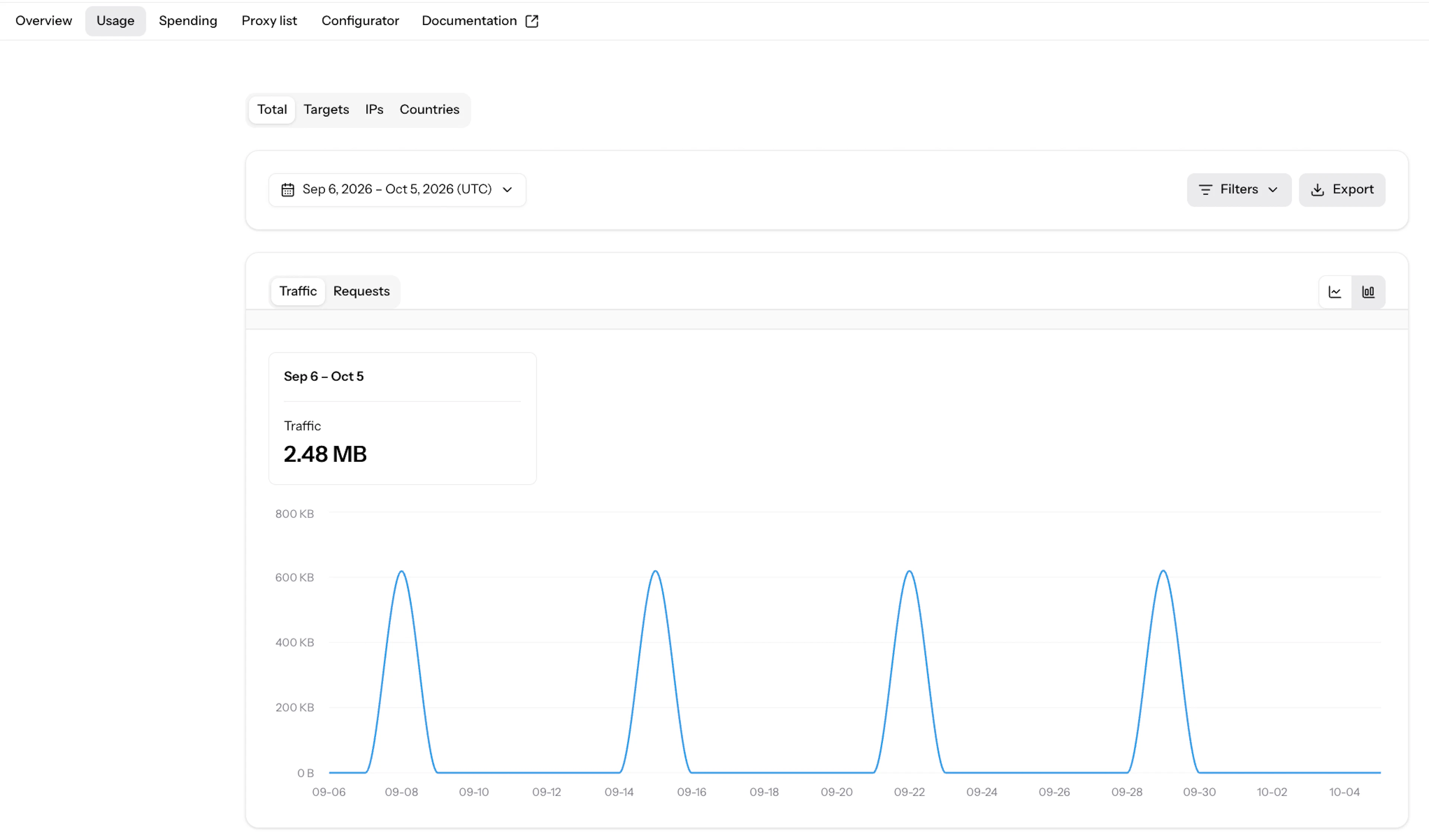
You can also filter the information by targets, IPs, or countries. Additionally, you will also be able to see the number of errors you’ve received.
Next steps
With your Dedicated ISP proxies set up, you can integrate them into your scraping, monitoring, or automation workflows. For advanced configurations, scaling possibilities, or troubleshooting, please reach out to our Support Team via live chat or email, or explore our in-depth Dedicated ISP proxies documentation.
Also, if you're interested in other proxy types, such as residential proxies, check them out and find the best proxy servers for your needs.
We offer a wealth of content to address most queries and provide new learning opportunities, so feel free to explore:
Forget about complex web scraping processes
Choose Oxylabs' advanced web intelligence collection solutions to gather real-time public data hassle-free.
About the author

Dovydas Vėsa
Technical Content Researcher
Dovydas Vėsa is a Technical Content Researcher at Oxylabs. He creates in-depth technical content and tutorials for web scraping and data collection solutions, drawing from a background in journalism, cybersecurity, and a lifelong passion for tech, gaming, and all kinds of creative projects.
All information on Oxylabs Blog is provided on an "as is" basis and for informational purposes only. We make no representation and disclaim all liability with respect to your use of any information contained on Oxylabs Blog or any third-party websites that may be linked therein. Before engaging in scraping activities of any kind you should consult your legal advisors and carefully read the particular website's terms of service or receive a scraping license.
Related articles





Get the latest news from data gathering world