
Muse Integration With Web API
Muse is Meta's personal AI agent. It runs on its own cloud computer with access to a full browser, keeps working after you close the app, and can connect to almost any tool with an API to use it in any workflow.
In this tutorial, we'll show you how to connect the Oxylabs Web API to Muse and set up a workflow that searches and scrapes live web data.
Before the setup process, make sure you have an Oxylabs account with a Web API instance set up or create a free account in the Oxylabs Dashboard. You'll also need access to Muse, which you get by signing in with your Meta account on muse.ai.
1. Building your workflow
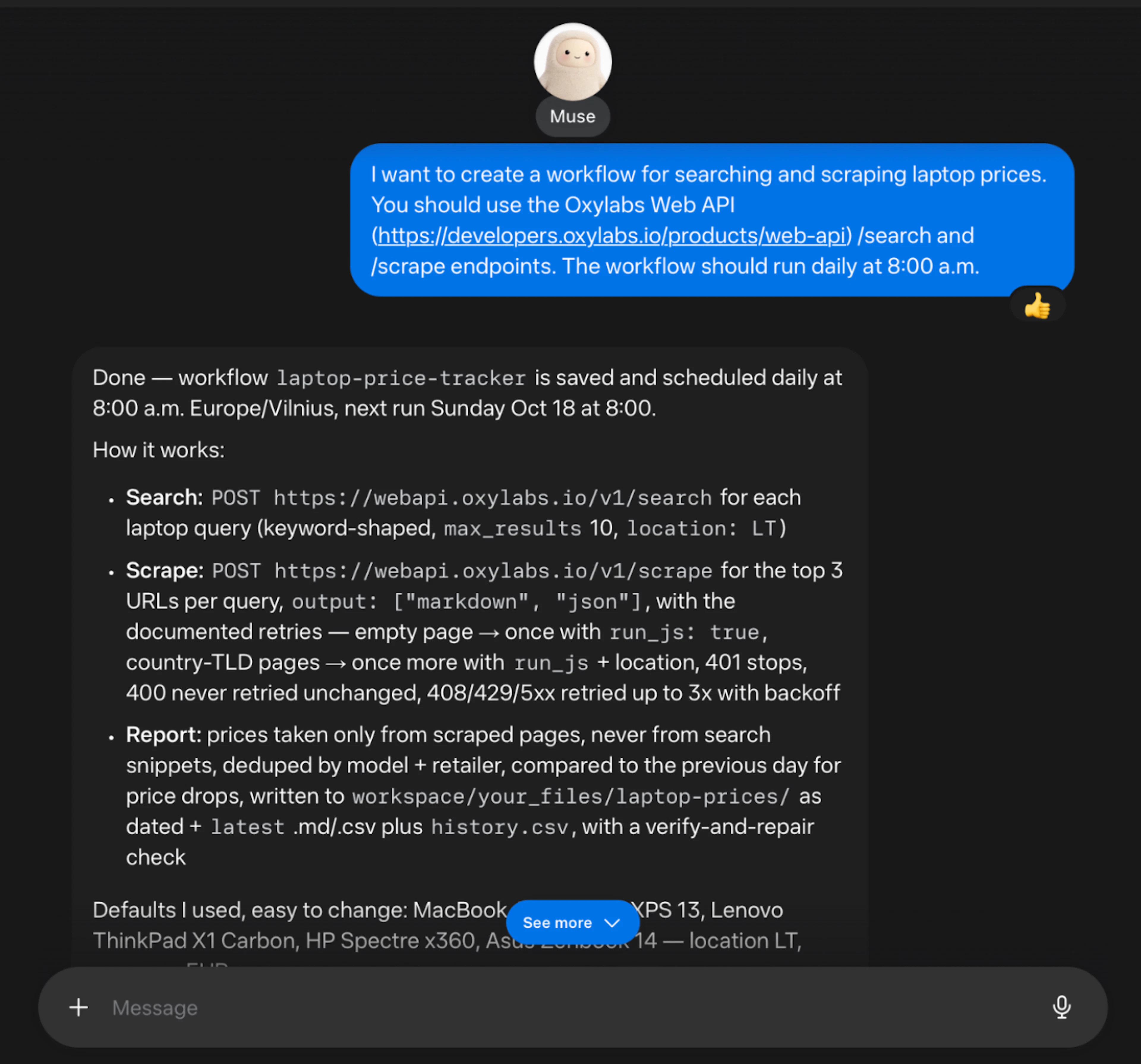
Describe the task you want Muse to do in the chat interface. For example, name the API, provide Web API documentation link, the endpoints to use, and the schedule it should run (if you want a recurring task for your agent). In this demo, the following message is used:
I want to create a workflow for searching and scraping laptop prices. You should use the Oxylabs Web API (https://developers.oxylabs.io/products/web-api) /search and /scrape endpoints. The workflow should run daily at 8:00 a.m.Muse should save the workflow and schedule it right away. It then breaks down the process step by step. In the demo case, a /search call runs for every laptop query, the top 3 URLs from each are read with the /scrape endpoint, and the final report includes only prices found on the scraped pages.
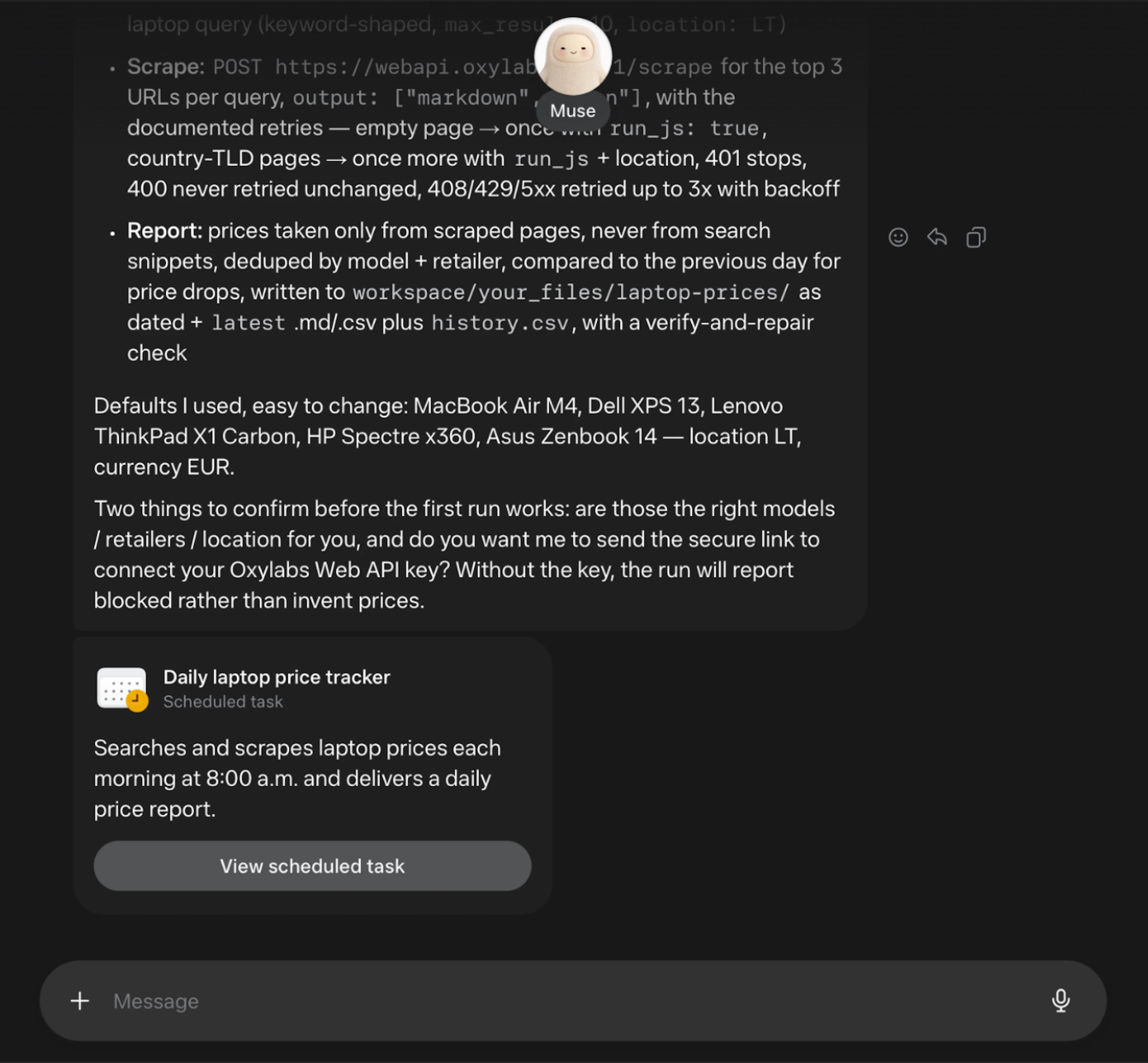
If a message leaves out specific models and a location, Muse fills those in with defaults of its own. At this point, the scheduled task already exists, but it can't fetch any data until the Oxylabs Web API key is connected, which is what has to be done next.
It's worth checking these defaults carefully. If you want different models, retailers, or a different location, specify it your next message before moving on.
2. Connect your Oxylabs Web API key
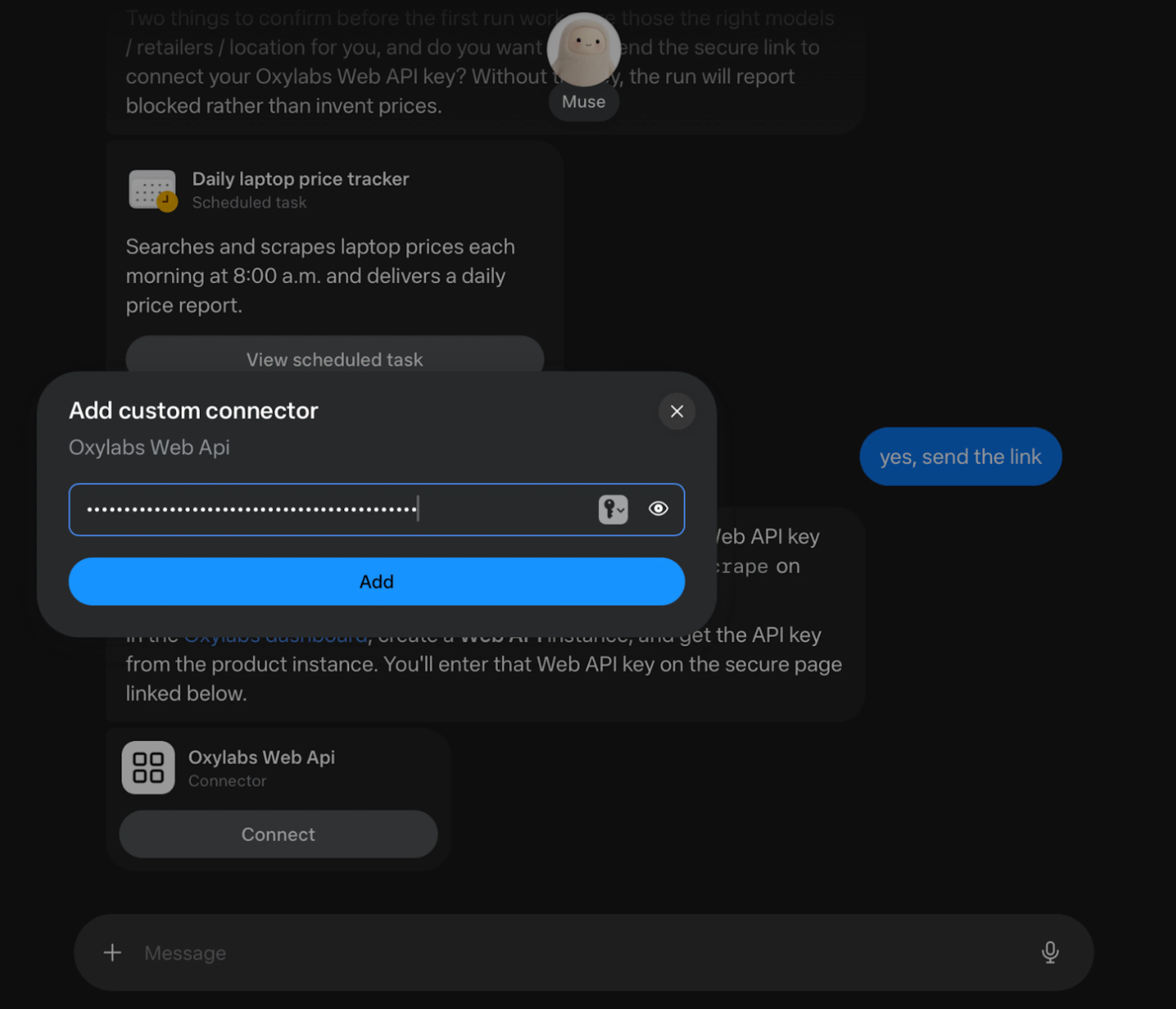
In the next message to Muse, ask it to send the link for secure tool connection. Muse should explain that the connector will let the workflow call the required endpoints, and show a connector card with a Connect button.
Note: Do not paste your API key into the chat itself – use the a connector link instead.
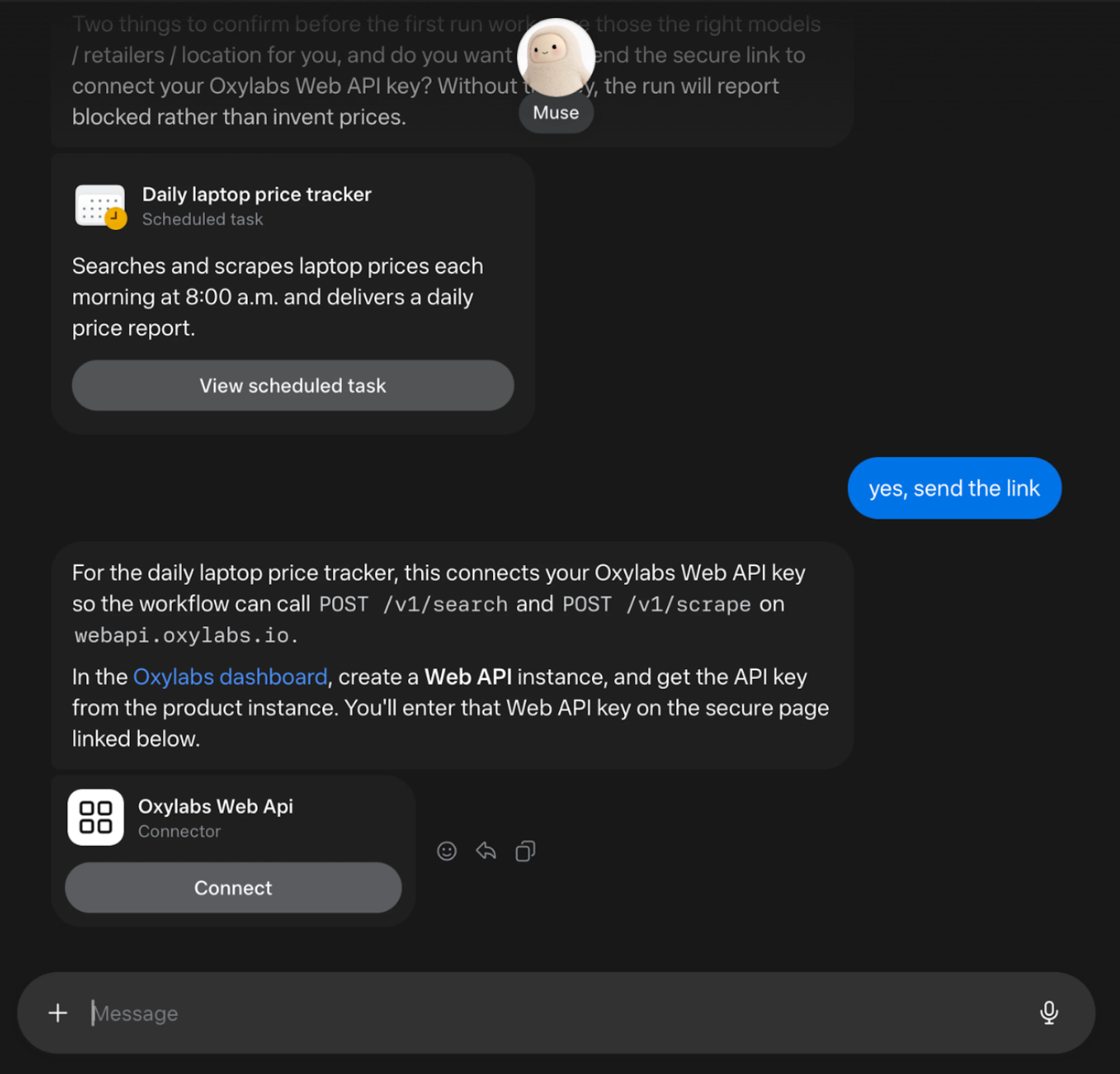
Click Connect to open the window for adding a custom connector. Paste your Oxylabs Web API key (found in the Oxylabs Dashboard Web API product instance overview page) into the field and click Add.
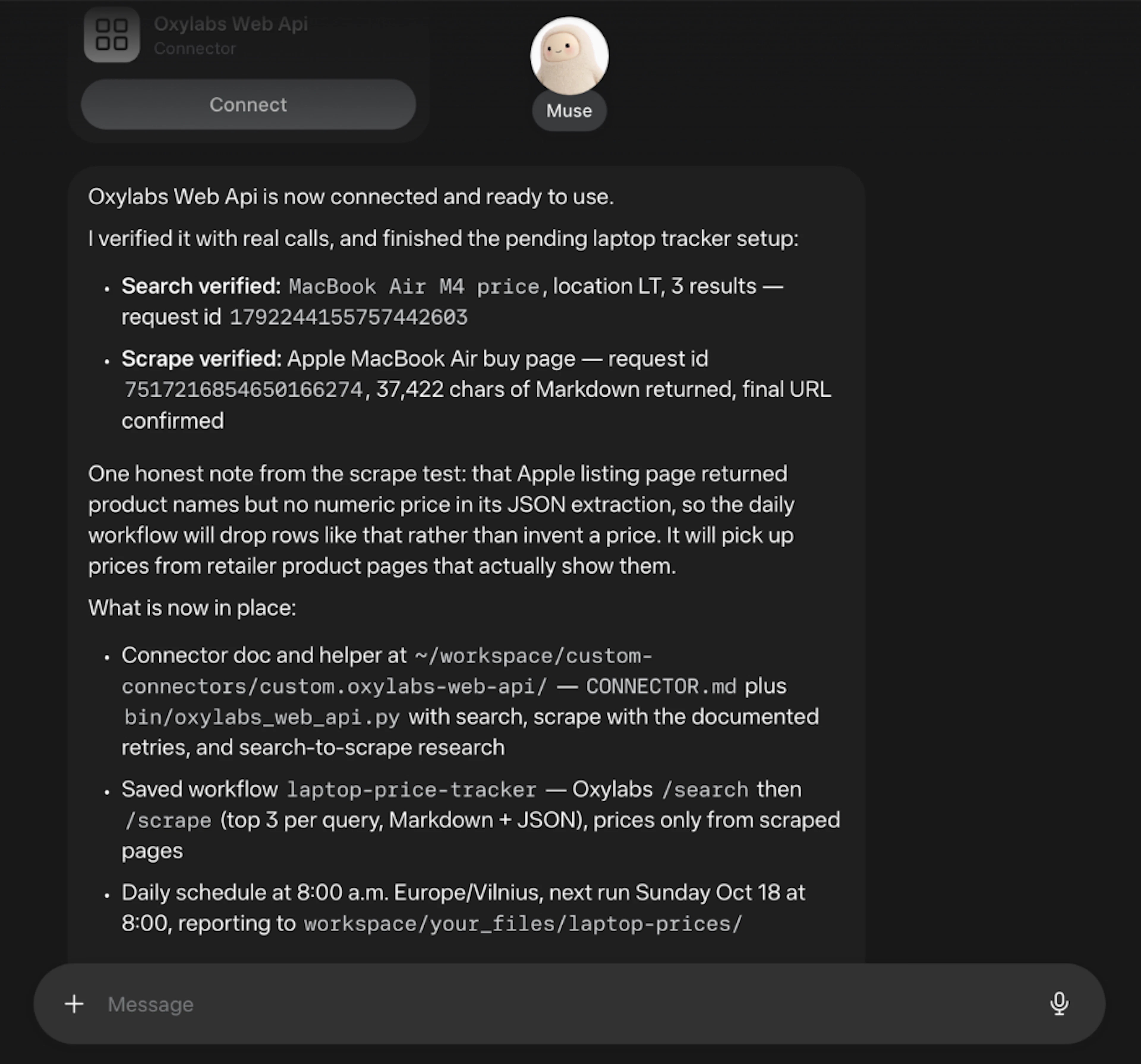
Muse will confirm that the Oxylabs Web API is connected. Before finishing the setup, it verifies that the API connection works with one real call to each endpoint. If everything is confirmed, it returns a summary of the created workflow.
3. Run a test
To confirm your workflow works, ask Muse to try the workflow right away, like this:
run a test run now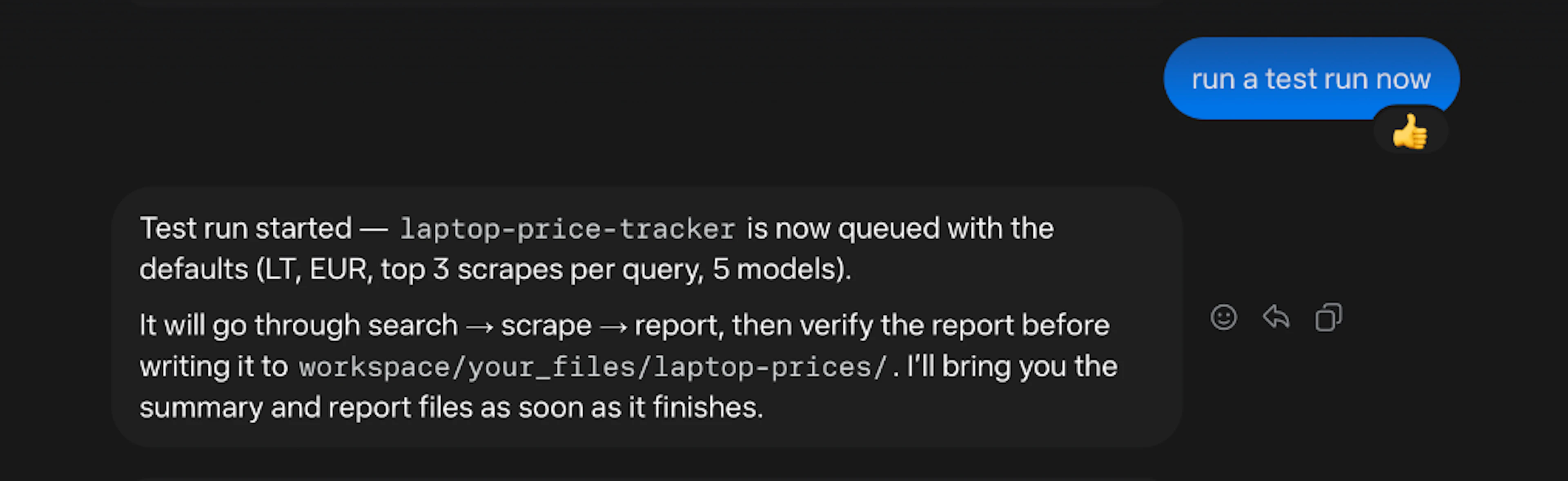
Muse should queue the workflow and let you know once it’s done. If the API key is correct, it should give you a summary of the results.
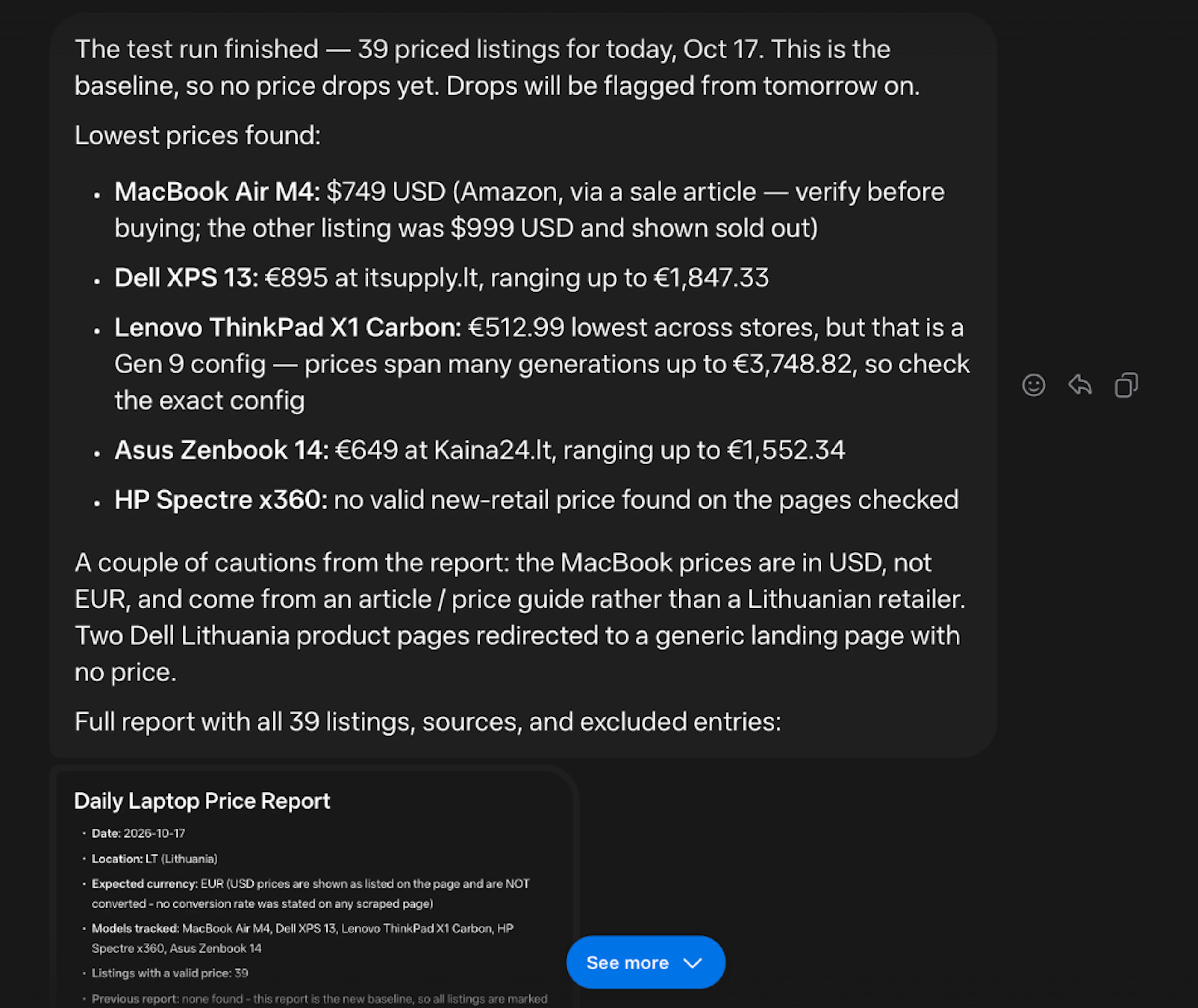
In our demo example, once the run finishes, Muse has the scraped laptop-price data in its context, so it can provide a summary of that day's listings.
4. Review the report files
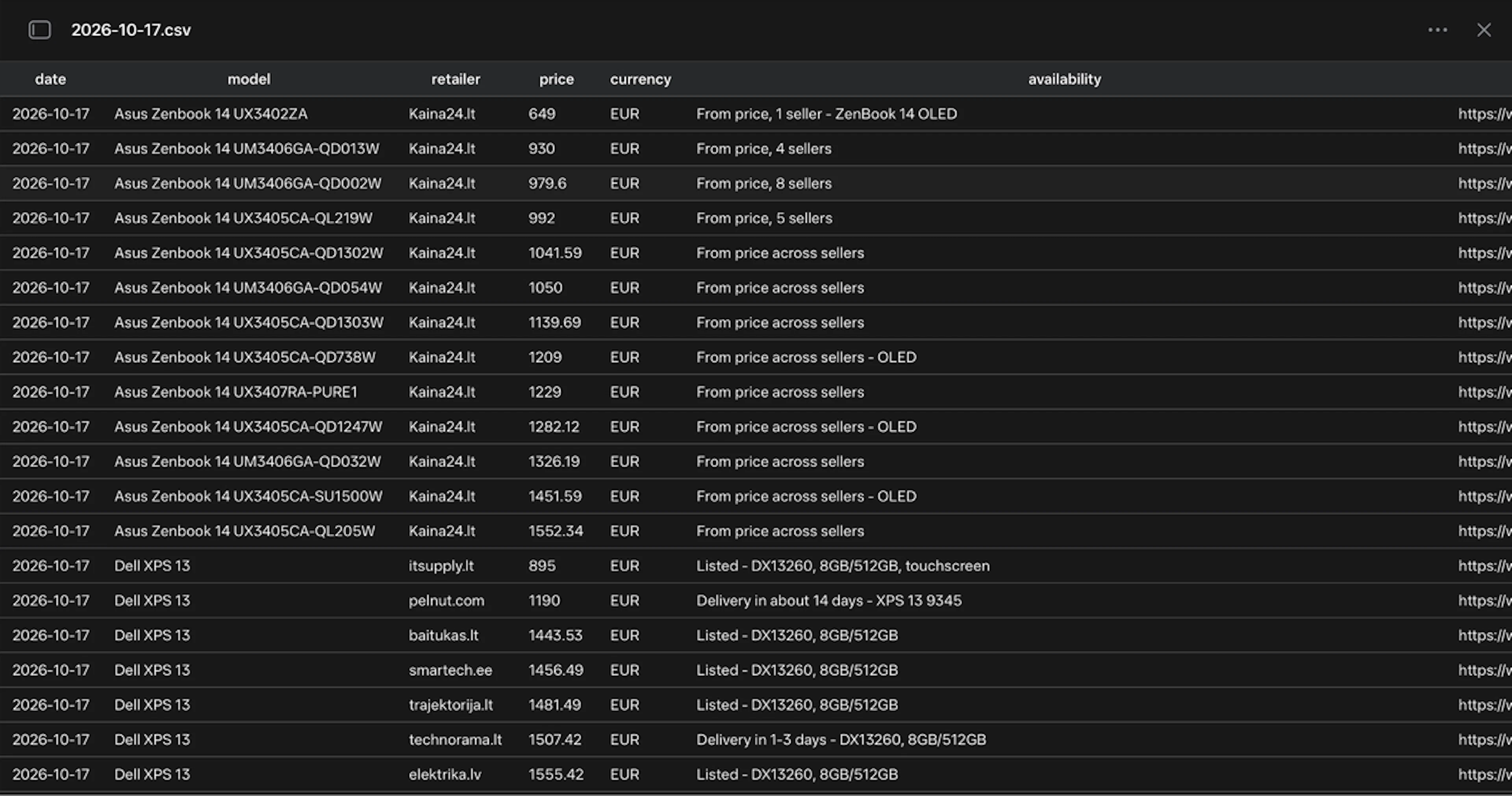
Along with the chat summary, Muse saves the full workflow report and a CSV file with the scraped data to its workspace. You can find it by going to Library and selecting Documents, if Muse doesn't reference it after the workflows is complete.
Inside the file of our demo sample, you can see formatted Markdown files with the compiled information for that day's scraped items.
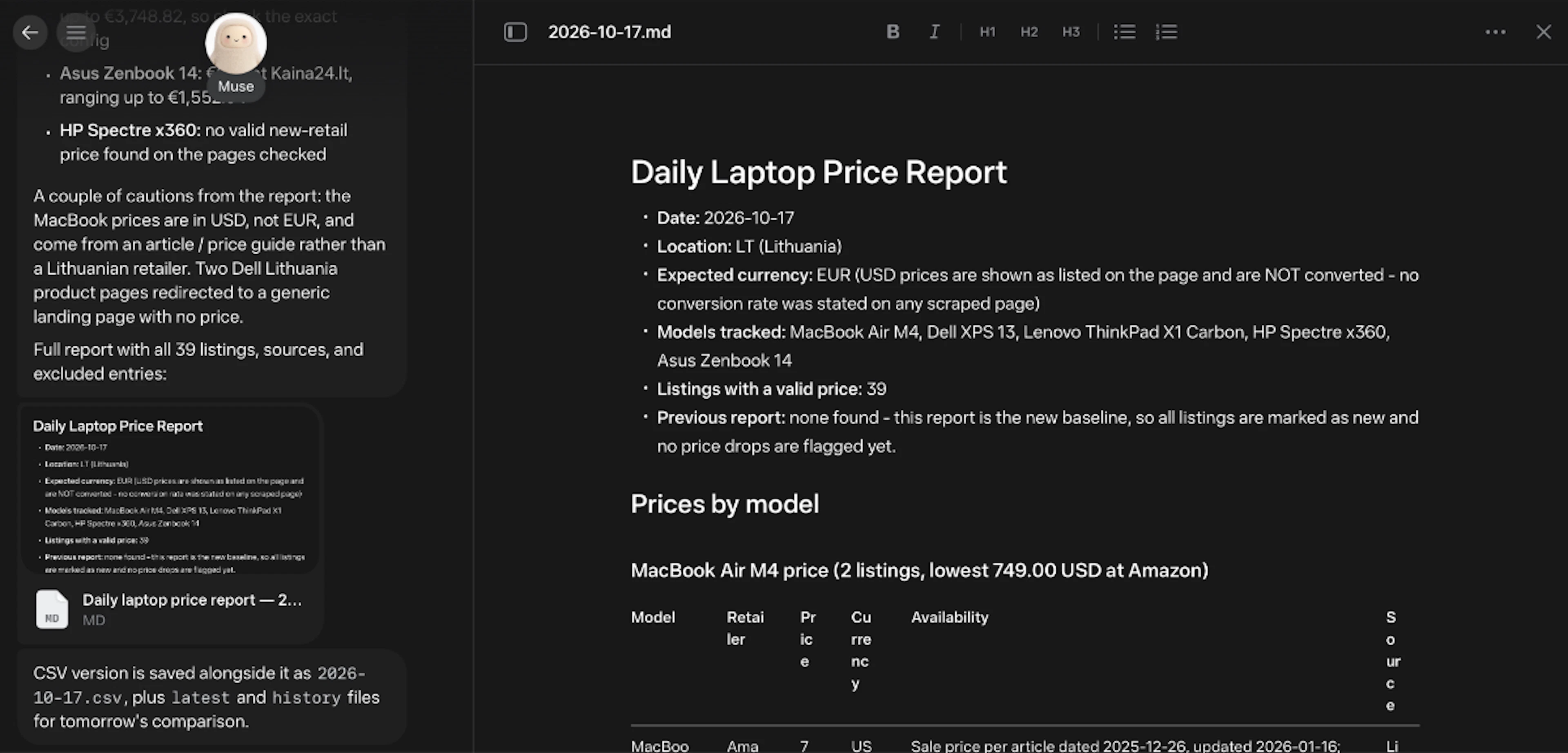
You can also find the raw CSV file in the Documents directory as well:
5. Run the workflow
With the connector added and the test passing, your workflow is set up and ready.
With our scheduled scraper example, every day at 8:00, Muse will run the search through the Oxylabs Web API, save a new report, and flag any price drops compared to the previous day. You can check or change the schedule anytime on the right side of the dashboard in the Upcoming tab, or just message Muse in the chat as shown before.
Conclusion
Muse and Oxylabs are a great way to set up a full data retrieval and analysis pipeline with the simplicity of just asking. The same setup works for plenty of other recurring jobs, like monitoring competitor prices, spotting stock changes, collecting industry news, or seeing how your brand shows up in search. If you have any questions about Oxylabs products, reach out to us via live chat or email.
Please be aware that this is a third-party tool not owned or controlled by Oxylabs. Each third-party provider is responsible for its own software and services. Consequently, Oxylabs will have no liability or responsibility to you regarding those services. Please carefully review the third party's policies and practices and/or conduct due diligence before accessing or using third-party services.
Useful resources
How to Navigate AI, Legal, and Web Scraping: Asking a Professional
In this interview, we sit down with a legal professional to shed light on the ever-changing legal framework surrounding web scraping.
Web Scraping With Instinct & Oxylabs Web API
Follow our quick guide on combining Instinct AI agent with Oxylabs Web API for an easy no-code agentic web scraping workflow.

Get the latest news from data gathering world