
Agent Browser Quick Start Guide


Vytenis Kaubrė
Last updated by Dovydas Vėsa
2026-02-26
3 min read
 AI Summary:
This guide introduces a cloud-hosted infrastructure that handles CAPTCHAs and proxy management. It provides remote Chrome-based browsers, integrating with CDP-compatible tools and AI applications, to automate complex web browsing tasks without infrastructure overhead.
Oxylabs Agent Browser is designed for handling CAPTCHAs and proxy management. It's AI-ready, scales instantly, and gives you full control over remote Chrome-based browsers, so you can focus on your goals instead of maintaining infrastructure.
Follow this guide for everything you need to get started quickly. In addition, you can connect your AI agent to the Agent Browser in just a few steps with Agent Skills. Learn how.
Set up Agent Browser
1. Register and create an instance
Start by heading to the Oxylabs Dashboard and create an account. If this is your first time with us, you’ll receive a $5 welcome credit to try Agent Browser for free.
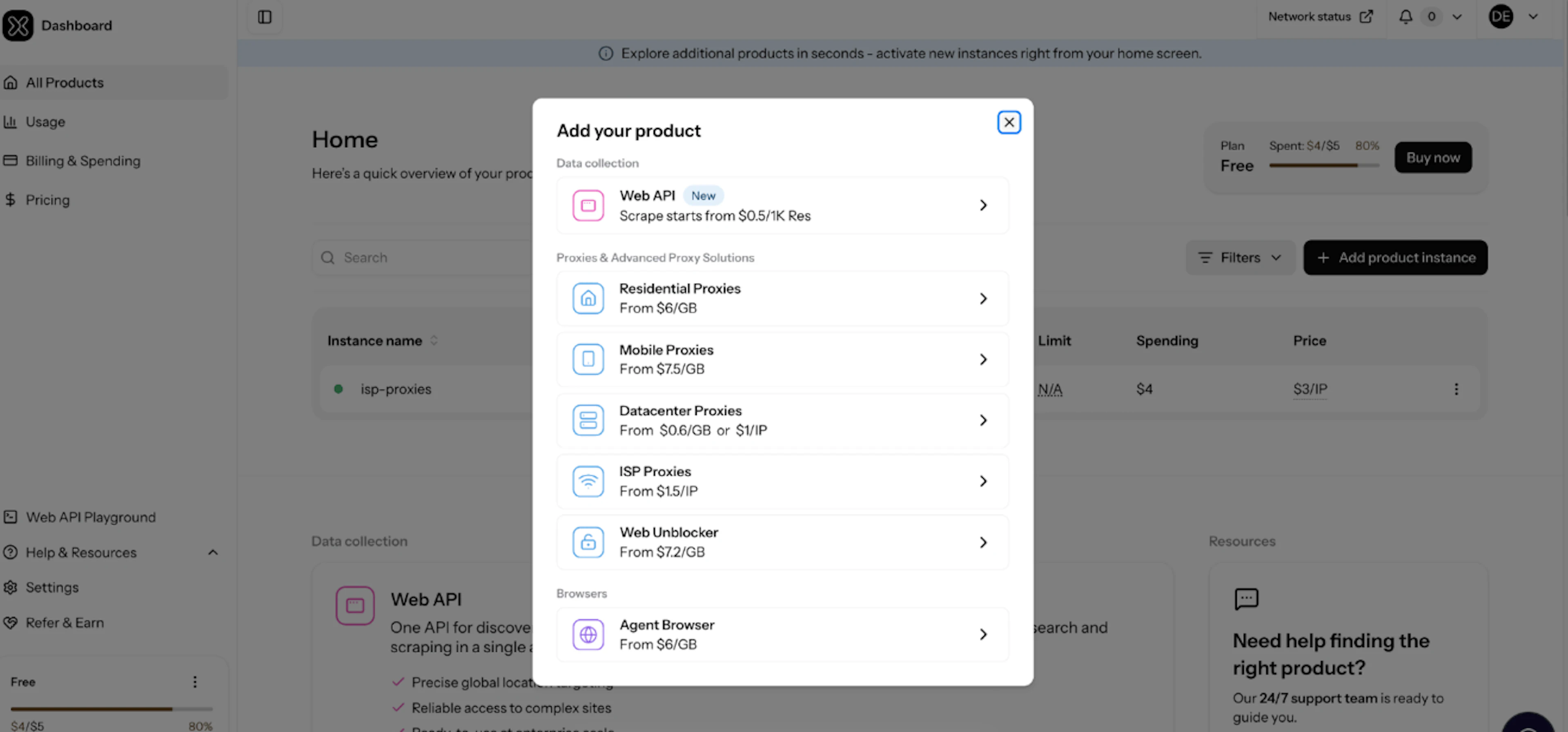
Then, click + Add product instance and select Agent Browser in the Broswers category. Finally, choose the instance name, if required – set product usage limits, and create the instance.
2. Get Agent Browser credentials
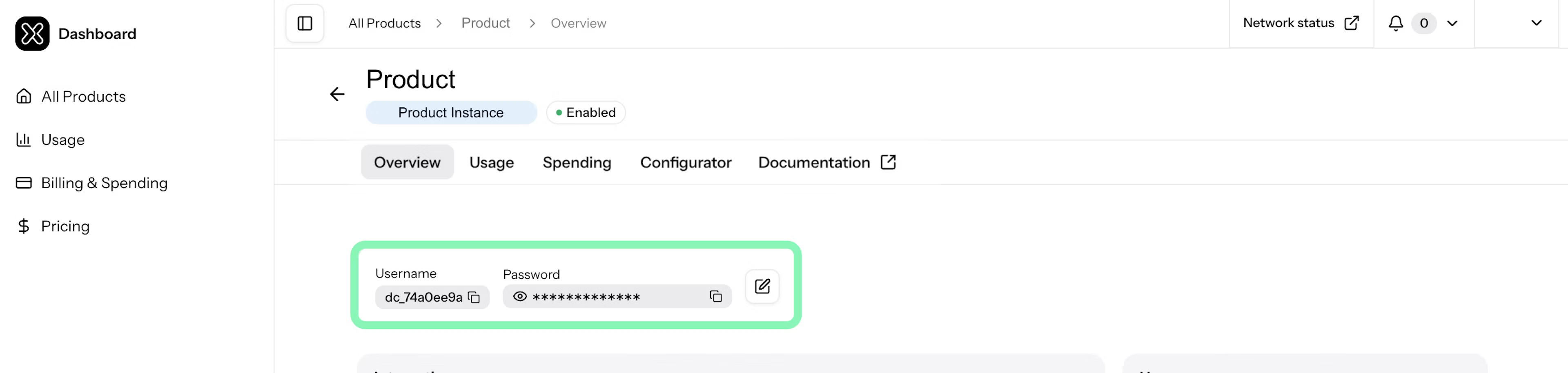
Open your Agent Browser product instance from the dashboard home section. There, look for your new instance username and password at the top of the overview. These credentials are your access to the Agent Browser.
Test your first request
Use Playwright, Puppeteer, and other tools compatible with Chrome DevTools Protocol (CDP) to connect to Agent Browser. You may also integrate directly with AI applications via the Model Context Protocol (MCP), allowing you to automate every browsing process.
Playwright example in Python
Install the Playwright library through your terminal:
pip install playwrightUse your Agent Browser credentials and run the code:
from playwright.sync_api import sync_playwright

username = "your-username"
password = "your-password"
endpoint = "ubc.oxylabs.io"
browser_url = f"wss://{username}:{password}@{endpoint}"

with sync_playwright() as p:
    browser = p.chromium.connect_over_cdp(browser_url)
    page = browser.new_page()
    page.goto('https://oxylabs.io/')
    print(page.title())
    browser.close()
Playwright example in JavaScript
Install Playwright via your terminal:
npm init -y
npm install playwright
Enter your Agent Browser credentials and run the code:
const { chromium } = require('playwright');

(async () => {
    const username = 'your-username';
    const password = 'your-password';
    const endpoint = 'ubc.oxylabs.io';
    const browserUrl = `wss://${username}:${password}@${endpoint}`;

    const browser = await chromium.connectOverCDP(browserUrl);
    const page = await browser.newPage();
    await page.goto('https://oxylabs.io/');
    console.log(await page.title());
    await browser.close();
})();
Use with AI apps via MCP
You can give full control of Agent Browser to any AI application, such as Claude Desktop, Cursor, LangChain, and other AI-focused apps that support MCP. This allows you to automate complex web browsing tasks with human-like precision. Find more details in our documentation.
Here’s an example of an MCP configuration connecting Claude Desktop to Agent Browser:
{
  "mcpServers": {
    "oxylabs_headless_browser": {
      "command": "npx",
      "args": [
        "@playwright/mcp@latest",
        "--cdp-endpoint",
        "wss://USERNAME:PASSWORD@hb.oxylabs.io"
      ]
    }
  }
}
With this setup, Claude can easily navigate websites, handle CAPTCHAs, and perform various browser actions like clicking, typing, and scrolling.
Browser types
At the moment, Agent Browser offers remote Chrome-based browsers that have unique strengths. The Chrome browser is the fastest and most reliable, handles CAPTCHAs, emulates devices, and supports browser arguments.
Endpoints reference
Agent Browser uses the WebSocket protocol and has different connection endpoints for each browser:
Chrome: wss://ubc.oxylabs.io
If you’re located in the United States, connect via our US-based infrastructure for faster loading time and better browsing efficiency:
US-based Chrome: wss://ubc-us.oxylabs.io
Check out our Chrome documentation to find more details and examples.
Additional functionalities
Built-in proxy servers
By default, the Chrome environment uses proxy servers to route requests through specific geographic locations. You can control the geolocation of your session by adding targeting parameters directly to the connection endpoint:
p_cc – country (2-letter ISO code, e.g., US, DE)
p_city – city (lowercase, e.g., berlin, los_angeles, requires p_cc or p_state)
p_state – state/region (US only, lowercase, e.g., texas, ohio)
For example, to route Chrome web requests through a UK-based proxy pool, connect to:
wss://username:password@ubc.oxylabs.io?p_cc=UKTo target a more precise location, such as Los Angeles, US:
wss://username:password@ubc.oxylabs.io?p_cc=US&p_city=los_angelesDevice type (Chrome only)
You can specify the device type to emulate, making it easy to handle responsive layouts, mobile content, and device-specific behavior like CAPTCHAs or UI elements. Use the p_device= parameter with the supported values: desktop, mobile, or tablet.
For instance, to emulate mobile devices, your endpoint should look like this:
wss://username:password@ubc.oxylabs.io?p_device=mobileCAPTCHA management (Chrome only)
The Chrome environment automatically detects and handles CAPTCHAs. You can track the event logs (start, end, and error) for debugging and specific use cases. Check out the documentation to learn more.
Additionally, you can manually trigger CAPTCHA detection and handling at any point during your session. This is useful in situations where CAPTCHAs appear after submitting forms or after specific user interactions.
Browser arguments (Chrome only)
For the Chrome-based Agent Browser, you can specify additional browser arguments using the bargs= parameter. This GET parameter defines the command-line arguments for browser startup.
For example, to hide scrollbars, your connection endpoint should be:
wss://username:password@ubc.oxylabs.io?bargs=hide-scrollbarsRefer to the table below for available browser arguments and see the documentation for more details.
| Argument | Description |
|---|---|
force-color-profile:<profile> |
Force all monitors to be treated as though they have the specified color profile. |
window-position:X,Y |
Specify the initial window position. |
hide-scrollbars |
Prevent creating scrollbars for web content. |
enable-features:<feature1>,<feature2>,<feature3> |
Comma-separated list of feature names to enable. |
disable-notifications |
Disable the Web Notification and the Push APIs. |
Session inspection
The Session Inspection Tool provides a graphical interface for debugging browser automation sessions. It's particularly useful when you need to visually observe page rendering, diagnose issues not visible in logs, or troubleshoot unexpected behavior in real-time.
Enable the tool by adding the o_vnc=true parameter to your connection endpoint:
wss://username:password@ubc.oxylabs.io?o_vnc=trueVisit our documentation to see an example of how to use the Session Inspection Tool.
Resources
If you have questions, feel free to contact our 24/7 support team. Take a look at Agent Browser’s documentation for more details, code samples, and guides:
Feel free to explore other developer resources for additional insights:
People also ask
When should I use a headless browser?
Use a headless browser when you need to fully render JavaScript-based content, handle dynamic web page elements, or emulate browser behavior. Headless browsers are essential for modern web scraping, automating repetitive browser tasks, testing web interfaces, and navigating access interruptions where simple HTTP requests aren't enough.
What is the pricing of Agent Browser?
About the author
Vytenis Kaubrė
Technical Content Researcher
Vytenis Kaubrė was a Technical Content Researcher at Oxylabs. Creative writing and a growing interest in technology fueled his work, where he researched and crafted technical content while honing his skills in Python. Off duty, he could often be found working on personal projects, learning about cybersecurity, or relaxing with a book.
All information on Oxylabs Blog is provided on an "as is" basis and for informational purposes only. We make no representation and disclaim all liability with respect to your use of any information contained on Oxylabs Blog or any third-party websites that may be linked therein. Before engaging in scraping activities of any kind you should consult your legal advisors and carefully read the particular website's terms of service or receive a scraping license.
Related articles




Get the latest news from data gathering world