
How to Integrate Proxies with Afina Browser
Websites and search engines use browser fingerprinting to recognize emulated sessions and track users. Every browser leaves identifying traces, and pairing an undetectable browser with reliable proxies helps keep accounts and sessions separate. This guide shows how to use Oxylabs proxies with Afina Browser.
About Afina
Afina is a desktop browser built for multi-account management and automated web tasks for Windows (x64) and macOS (Intel and Apple Silicon). Its main functions are:
Isolated browser profiles, each with its own cookies, storage and fingerprint
Per-profile fingerprint settings (WebRTC, Canvas and others)
Per-profile proxy configuration (HTTP, HTTPS, SOCKS5)
Built-in automation (visual scenario editor, Node.js scripts)
Step 1: Download Afina and create a profile
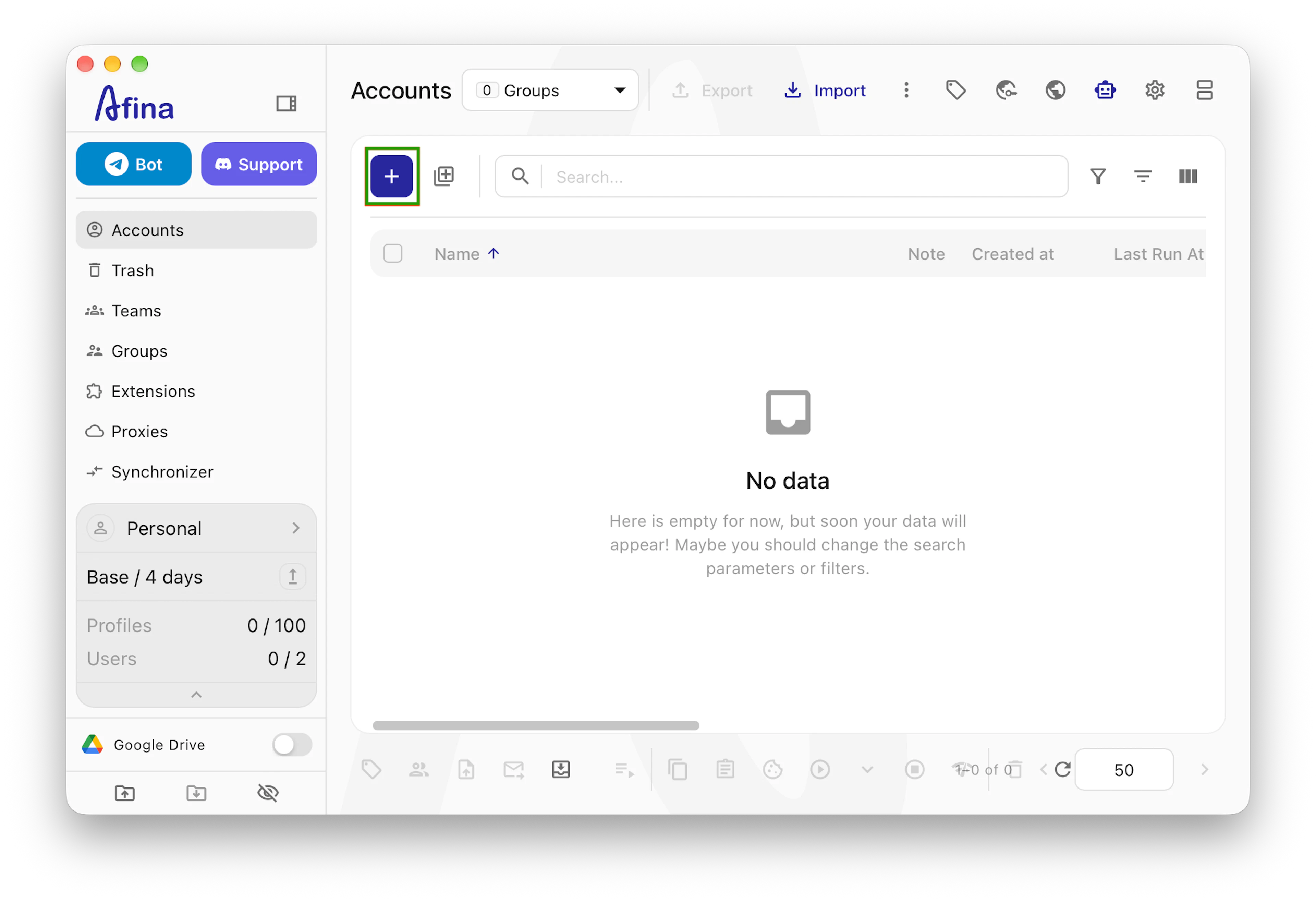
Download Afina from the official website, install it, and log in or register. Then open the app and click on Add account.
Step 2: Create a new account
In the Add account window, enter a profile name, then choose a User-Agent and OS version. Match the OS version of your computer.
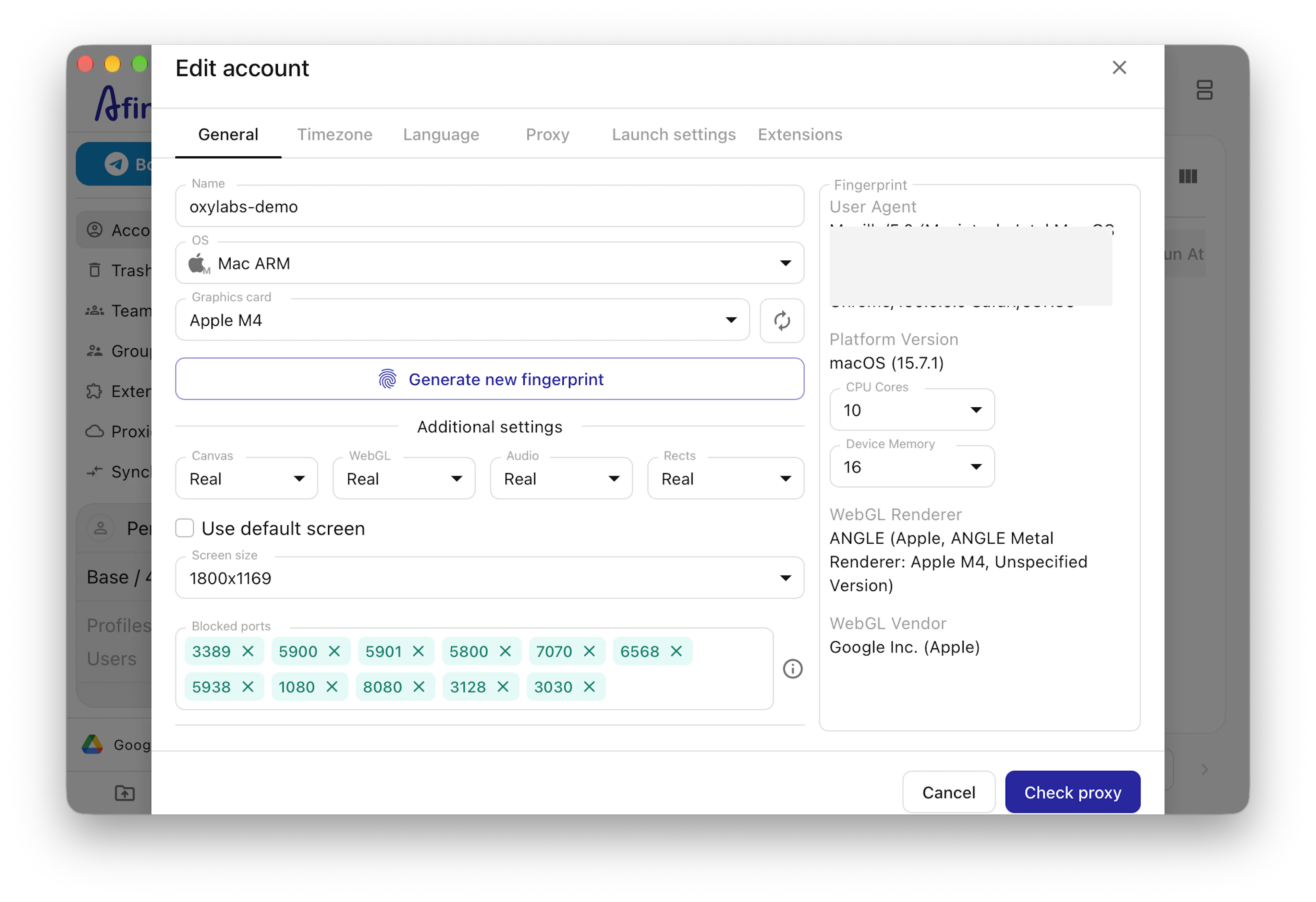
After that, go to the Proxy tab next to it, and click on Set proxy.
Step 3: Add Oxylabs proxies
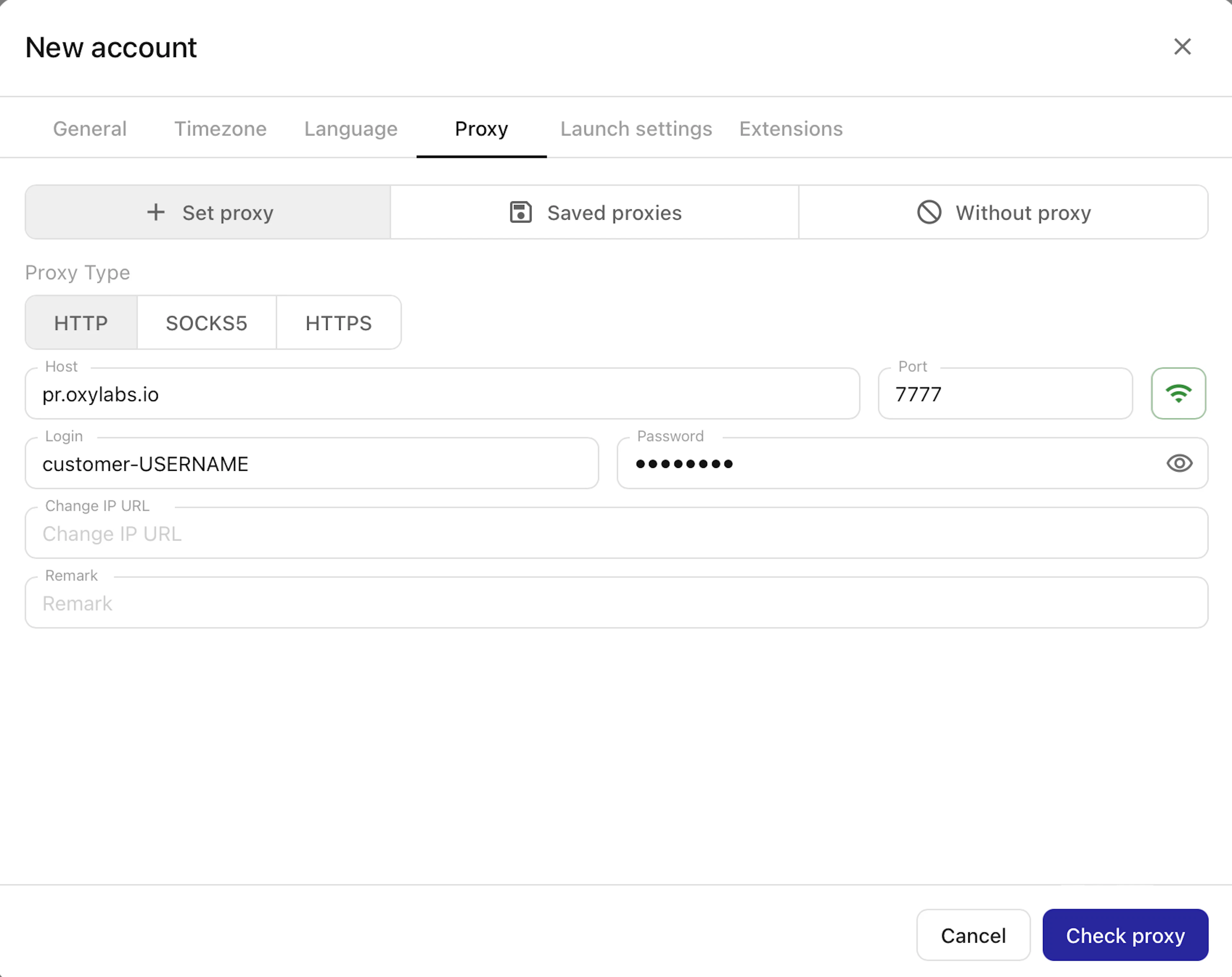
In the proxy settings, fill it out as shown in the examples below for Oxylabs proxies.
Residential and Mobile Proxies
Proxy type: HTTP, HTTPS, or SOCKS5
Host: pr.oxylabs.io
Port: 7777
Proxy username: customer-USERNAME
Proxy password: PASSWORD
Note: Append customer- to your username.
You may also use additional parameters with Residential Proxies to set the geo-location (country, state, city, and etc.) and control sessions. Check out the Residential Proxies documentation to learn more.
| Proxy Parameter | Example |
| Country entry node | Host: us-pr.oxylabs.ioPort: 10000 |
| Country | Username: customer-USERNAME-cc-DE |
| City | Username: customer-USERNAME-cc-US-city-los_angeles |
| State | Username: customer-USERNAME-st-us_california |
| Continent | Username: customer-USERNAME-cn-NA |
| ZIP/Postal code | Username: customer-USERNAME-cc-US-postalcode-90012 |
| ASN Targeting | Username: customer-USERNAME-ASN-21928 |
| Session (up to 10 minutes) | Username: customer-USERNAME-sessid-abcde12345 |
| Session time (up to 1440 minutes) | Username: customer-USERNAME-sessid-abcde12345-sesstime-1440 |
| Sticky proxy entry node | Host: us-pr.oxylabs.ioPort: 10001 |
Datacenter Proxies
Proxy type: HTTP, HTTPS or SOCKS5
Host: dc.oxylabs.io
Port: 8001
Username: user-USERNAME
Password: PASSWORD
Note: Append user- to your username.
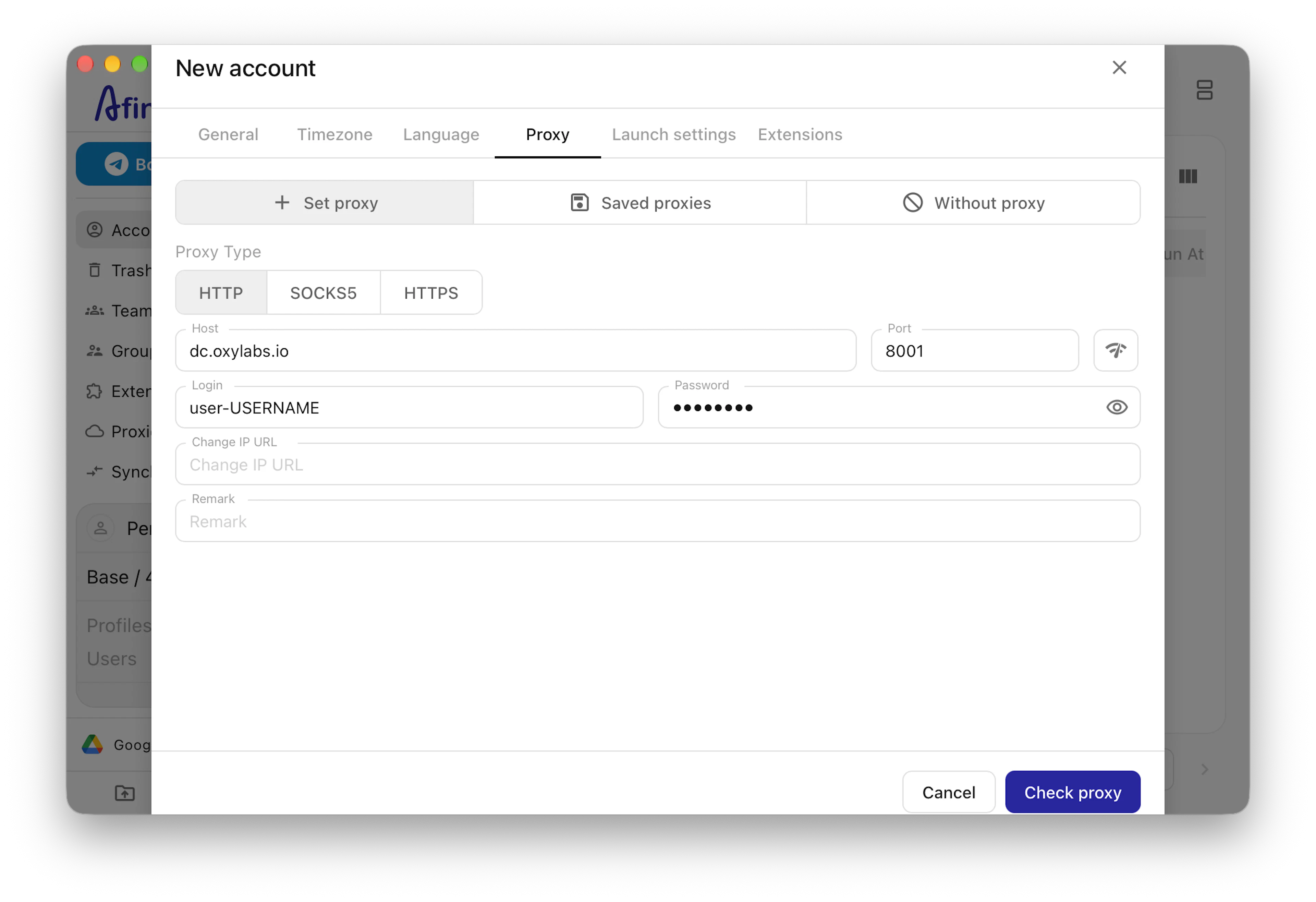
Pay-per-IP subscription
The port is the sequential number assigned to an IP address from the proxy list. Thus, port 8001 uses the first IP address from your list. You may also enable proxy IP rotation by setting the port to 8000.
Furthermore, you can specify the geo-location, for example, the US, by setting the Proxy username to user-USERNAME-country-US.
Pay-per-traffic subscription
The port 8001 picks a random IP address but stays consistent during a session. Alternatively, you can rotate proxy IPs with each request by using port 8000.
If you want to use a specific geo-location, for example, the US, set the Proxy username to user-USERNAME-country-US.
Enterprise Dedicated Datacenter Proxies
Proxy type: HTTP or SOCKS5
Host: 1.2.3.4 (IP address from your proxy list)
Port: 60000 (HTTP) or 1180 (SOCKS5)
Username: USERNAME
Password: PASSWORD
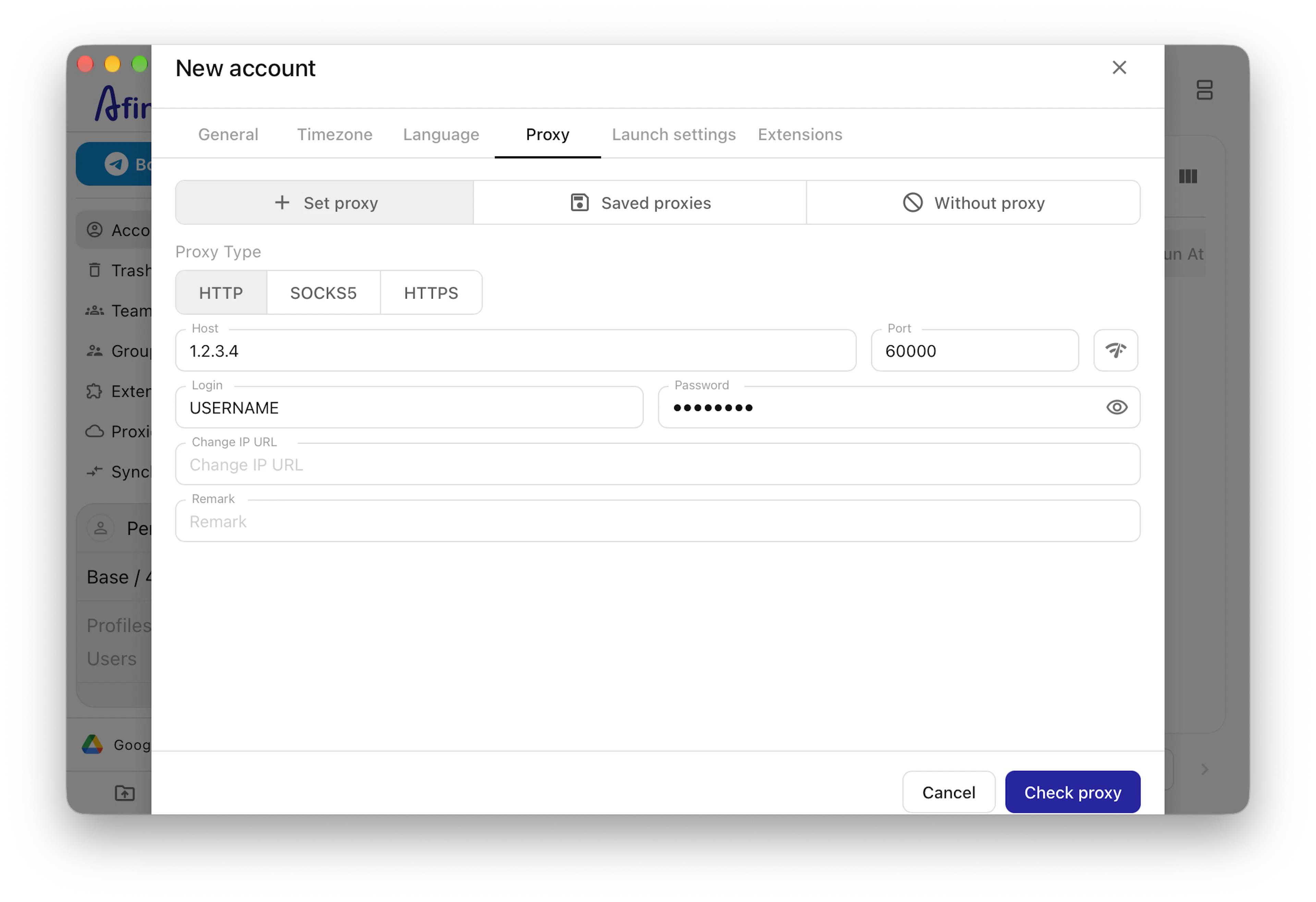
Self-Service Dedicated Datacenter Proxies
Proxy type: HTTP, HTTPS, or SOCKS5
Host: ddc.oxylabs.io
Port: 8001
Proxy username: user-USERNAME
Proxy password: PASSWORD
Note: Append user- to your username.
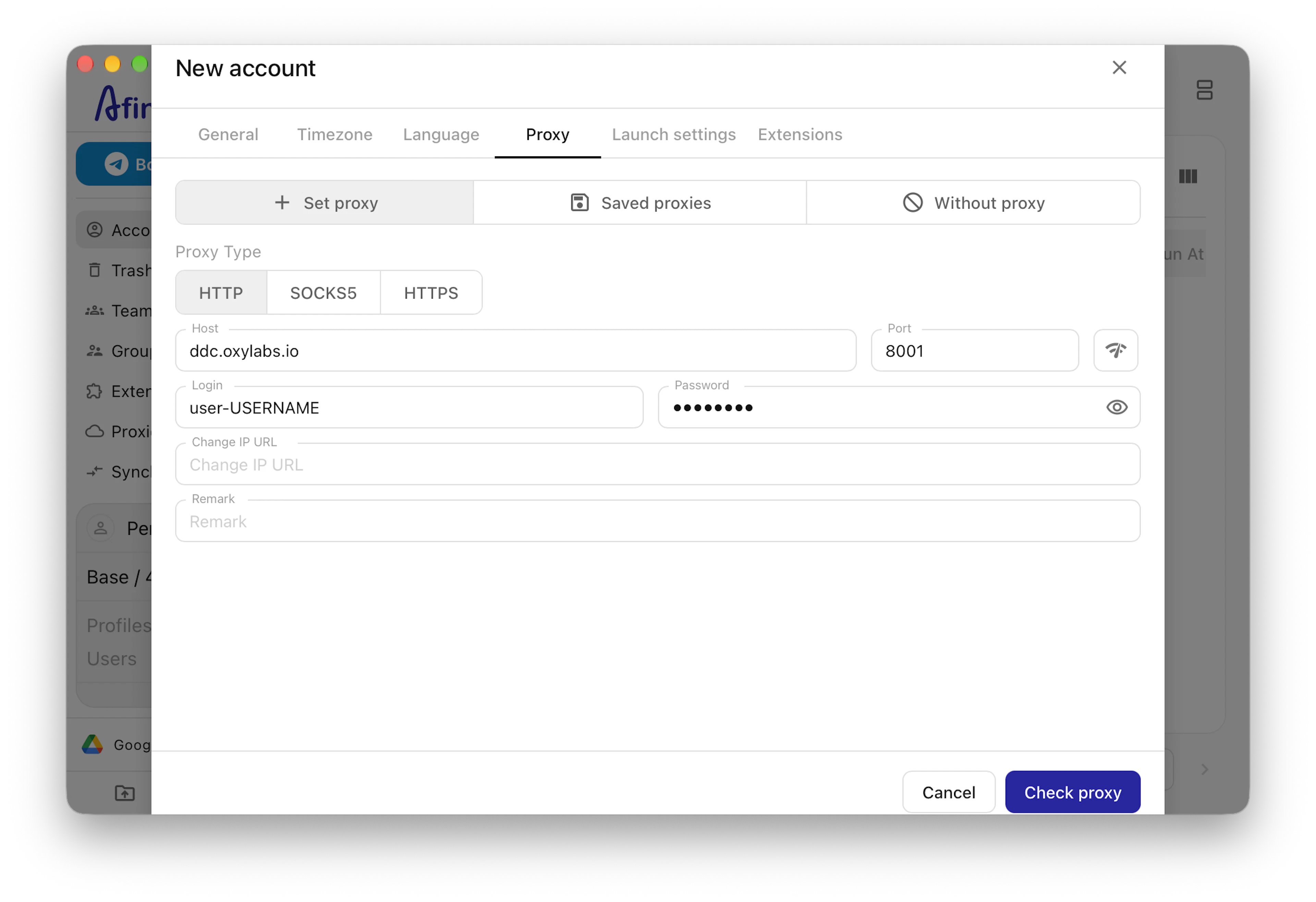
For Self-Service Dedicated Datacenter Proxies, the port indicates the sequential number of an IP address from the acquired proxy list.
If you want to get a different IP with each request, change the Port to 8000 to enable proxy rotation. Check our documentation for more details.
ISP Proxies
Proxy type: HTTP, HTTPS or SOCKS5
Host: isp.oxylabs.io
Port: 8001 (8000 enables rotation)
Username: user-USERNAME
Password: PASSWORD
Note: Append user- to your username.
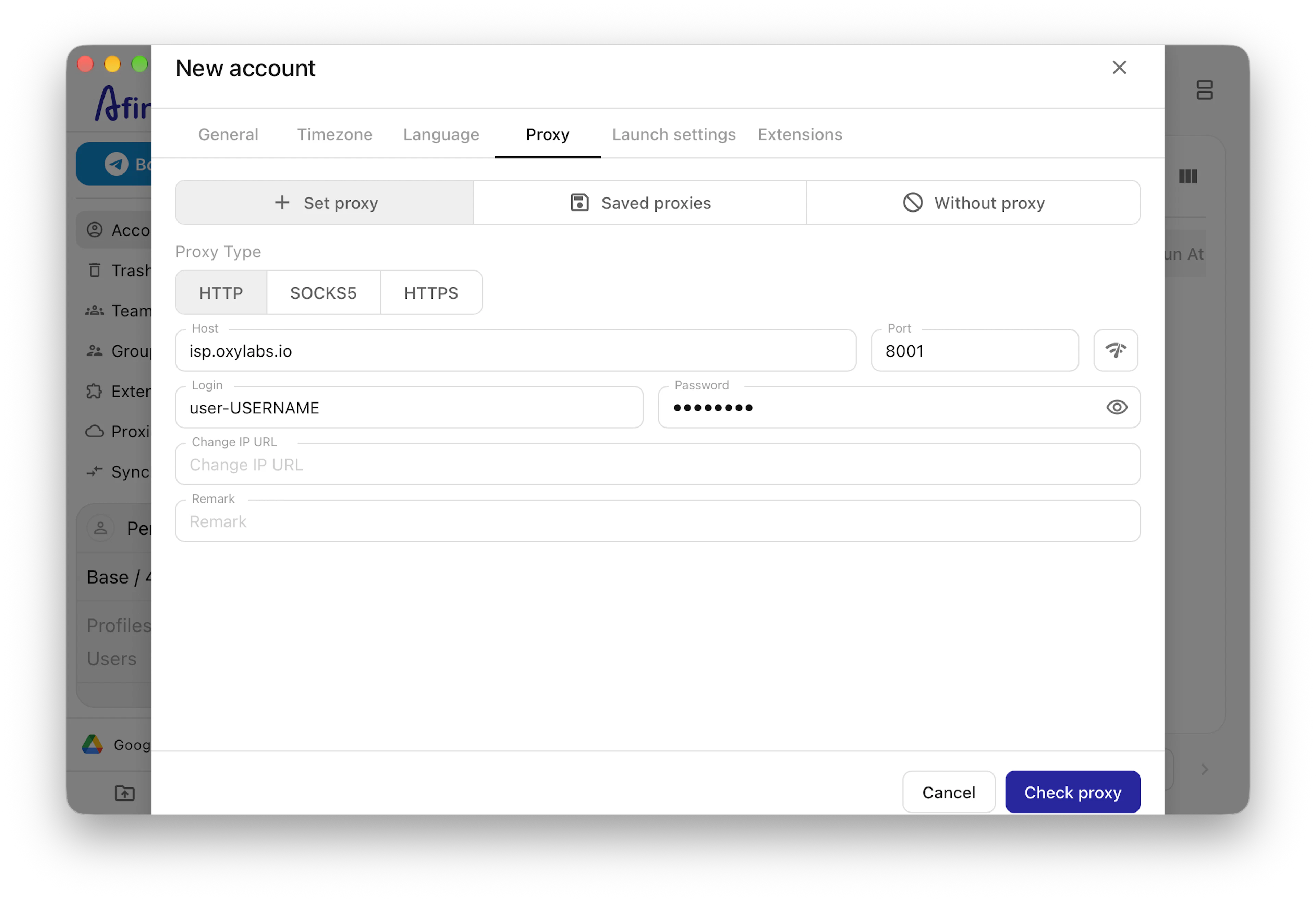
Dedicated ISP Proxies
Proxy type: HTTP, HTTPS or SOCKS5
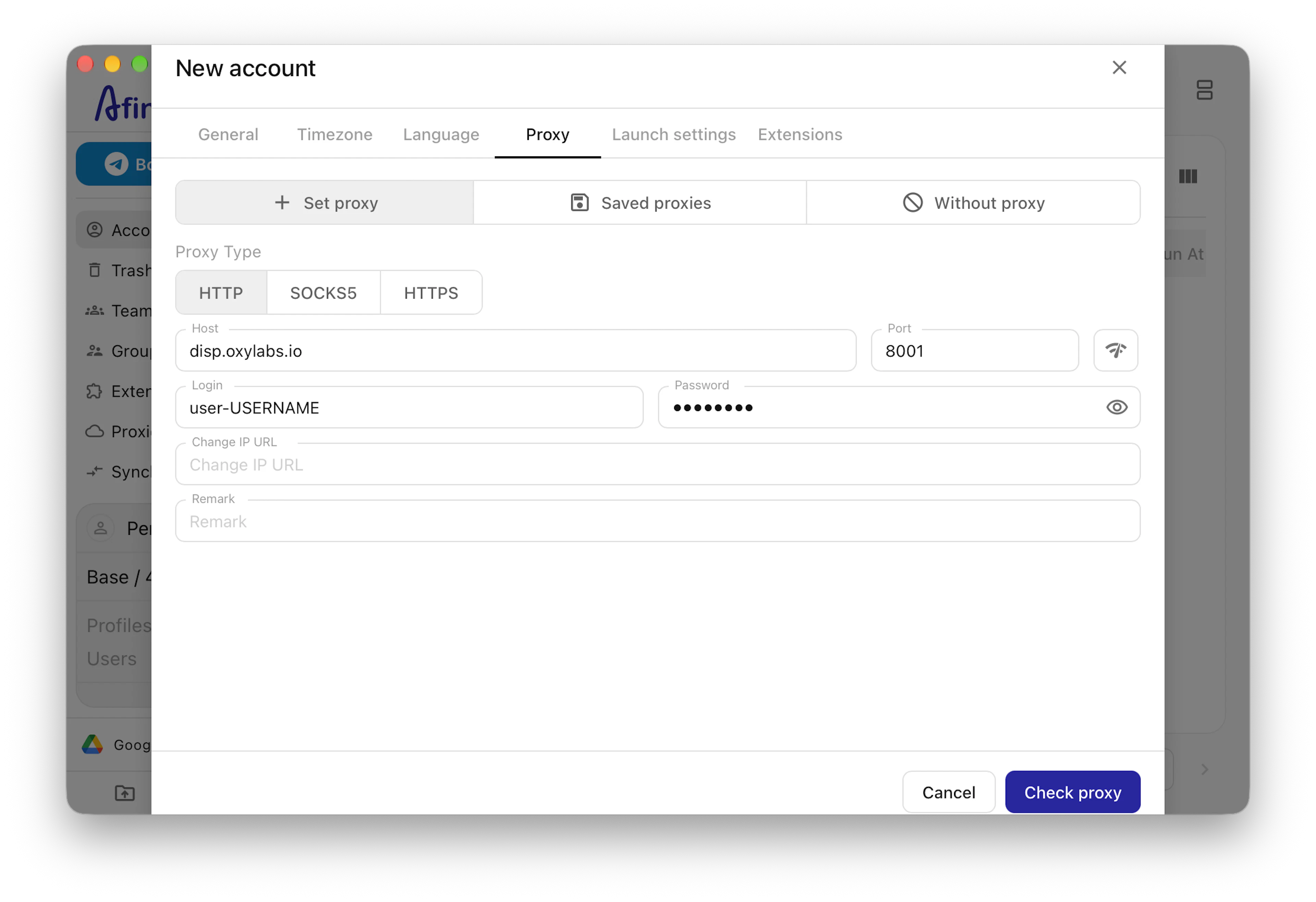
Host: disp.oxylabs.io
Port: 8001
Username: user-USERNAME
Password: PASSWORD
Note: Append user- to your username.
Step 3: Check the proxy connection
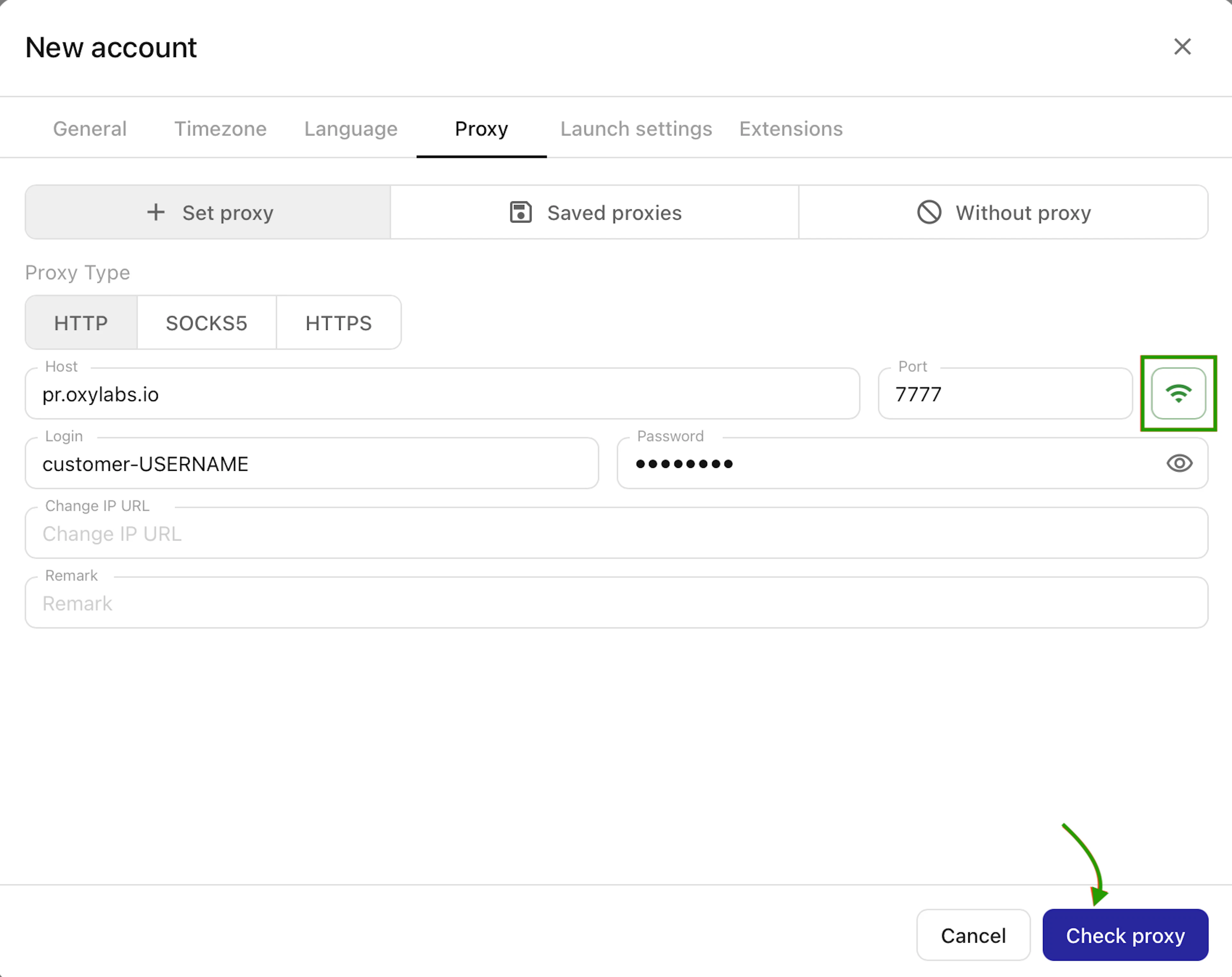
Click on the Check proxy button. If the Wi-Fi icon turns green and the window closes, that means you’re connected to Oxylabs proxies successfully.
Step 4: Launch the browser
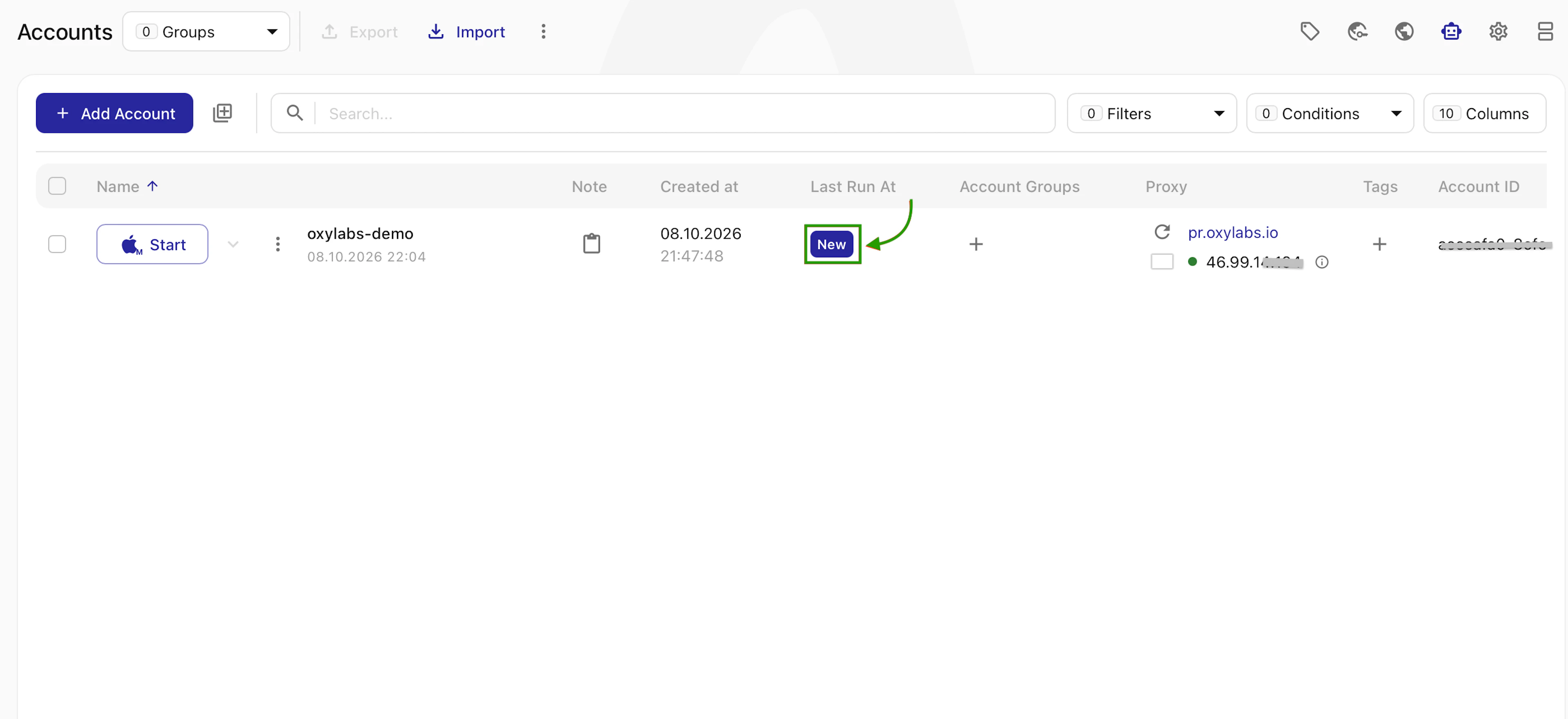
Once you’re done configuring the browser settings. Now, this new profile with proxies should be available in the Accounts tab. Launch the browser by simply clicking New.
Afina does not supply proxies itself. For a smooth web scraping and browsing experience, you need to be sure that you’re using the most reliable proxies. Oxylabs' Residential Proxies or Datacenter Proxies work well to avoid fingerprinting and IP-reputation issues.
Want to explore further? Check out our guides on the best AI agent frameworks, MCP vs A2A protocols, and our LlamaIndex and CrewAI integrations for building web-powered LLM applications in Python.
If you have questions about web scraping and integrations, email us on support@oxylabs.io or use the live chat on our homepage.
Please be aware that this is a third-party tool not owned or controlled by Oxylabs. Each third-party provider is responsible for its own software and services. Consequently, Oxylabs will have no liability or responsibility to you regarding those services. Please carefully review the third party's policies and practices and/or conduct due diligence before accessing or using third-party services.
Useful resources
How to Navigate AI, Legal, and Web Scraping: Asking a Professional
In this interview, we sit down with a legal professional to shed light on the ever-changing legal framework surrounding web scraping.
Web Scraping With LangChain & Oxylabs API
Follow our quick guide on combining LangChain with Web Scraper API for hassle-free web scraping process and AI-driven analysis.
OpenAI Agents SDK Integration With Oxylabs Web Scraper API
Learn how to build AI agents that scrape and analyze web content by combining OpenAI's Agents SDK with Oxylabs Web Scraper API for cost-effective web access.

Get the latest news from data gathering world