
How to Integrate OpenClaw with Oxylabs AI Studio
Setting up OpenClaw with a web scraper lets you build AI agents that act on fresh web data for any use case. This quick guide will walk you through installing and configuring Oxylabs AI Web Search skill in OpenClaw with Oxylabs AI Studio. Ultimately, you'll see how to create a simple research agent that searches, scrapes – wiring the results into an automated research workflow.
Project requirements
Make sure you have the following before starting:
OpenClaw installed and running (installation guide)
An Oxylabs AI Studio API key – get one here
Python (download here) – this guide uses Python 3
1. Install the skill
Install directly from ClawHub, OpenClaw's public skill registry:
openclaw skills install @oxylabs/oxylabs-web-searchThis installs into your active workspace's skills/ directory. If you run several agents on the same machine and want all of them to have web access, install it globally instead:
openclaw skills install @oxylabs/oxylabs-web-search --globalThat places the skill in ~/.openclaw/skills, where every local agent can see it unless an agent allowlist narrows the set.
Before you enable a third-party skill, it's good practice to check its trust envelope:
openclaw skills verify @oxylabs/oxylabs-web-searchThe command exits non-zero if ClawHub has flagged the skill. The Oxylabs skill currently passes ClawHub's security audit, and you can review the scan details – VirusTotal, ClawScan, and static analysis – on its registry page before installing.
2. Set up your API key
The skill reads a single credential: OXYLABS_AI_STUDIO_API_KEY. There are three ways to supply it.
Option A – OpenClaw config (recommended)
Add an entry to ~/.openclaw/openclaw.json:
{
  "skills": {
    "entries": {
      "oxylabs-web-search": {
        "enabled": true,
        "apiKey": "YOUR_OXYLABS_AI_STUDIO_API_KEY"
      }
    }
  }
}
This is the recommended path because OpenClaw injects the key into the process environment only for the duration of an agent turn, then restores the original environment. The secret never lands in a prompt or a shell history file.
If you'd rather not put a plaintext key in your config, apiKey also accepts a SecretRef object pointing at a vault or environment source.
Option B – Environment variable
export OXYLABS_AI_STUDIO_API_KEY="YOUR_OXYLABS_AI_STUDIO_API_KEY"Option C – .env file
OXYLABS_AI_STUDIO_API_KEY=YOUR_OXYLABS_AI_STUDIO_API_KEYStart a new OpenClaw session after installing. OpenClaw snapshots its eligible skill list when a session starts and reuses it for every turn in that session. Your freshly installed skill won't appear until you open a new one.
Confirm the agent can see it:
openclaw skills check3. Using the Oxylabs skill in OpenClaw
The skill is one Python script with two subcommands. Everything else is flags.
3.1 search – find pages for a query
python3 scripts/oxylabs.py search "best pancake recipe" -n 5Sample output:
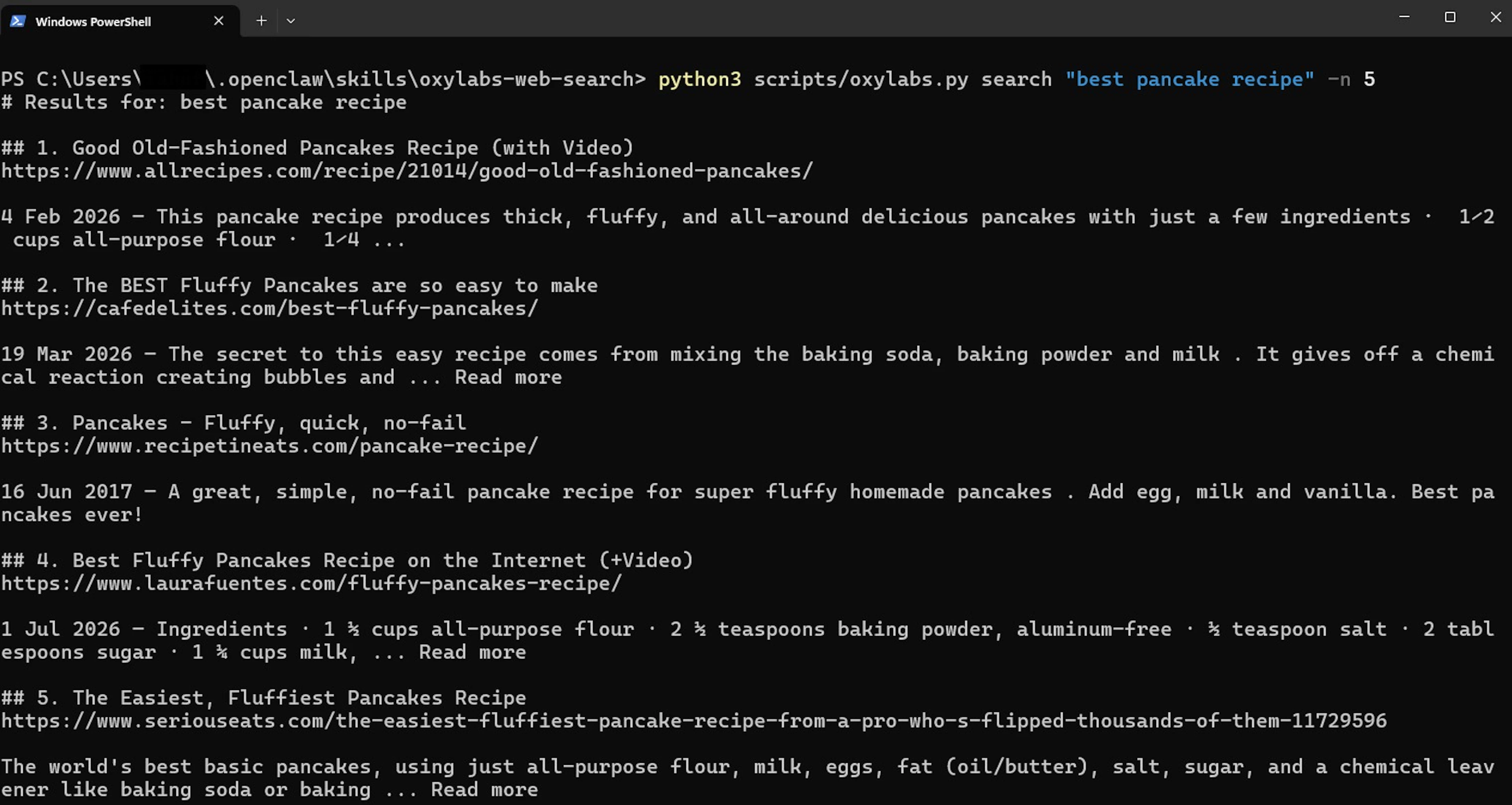
Add --content when you want the page text for each result in the same call, rather than searching and then fetching each URL separately:
python3 scripts/oxylabs.py search "best pancake recipe" -n 3 --contentThat one flag is the difference between a link list and a research pass. For a question the agent needs to actually answer, rather than just cite --content collapses two round trips into one.
3.2 scrape – get one page as Markdown
When you already know the URL, skip search entirely:
python3 scripts/oxylabs.py scrape "https://sandbox.oxylabs.io/products/1"Sample output:
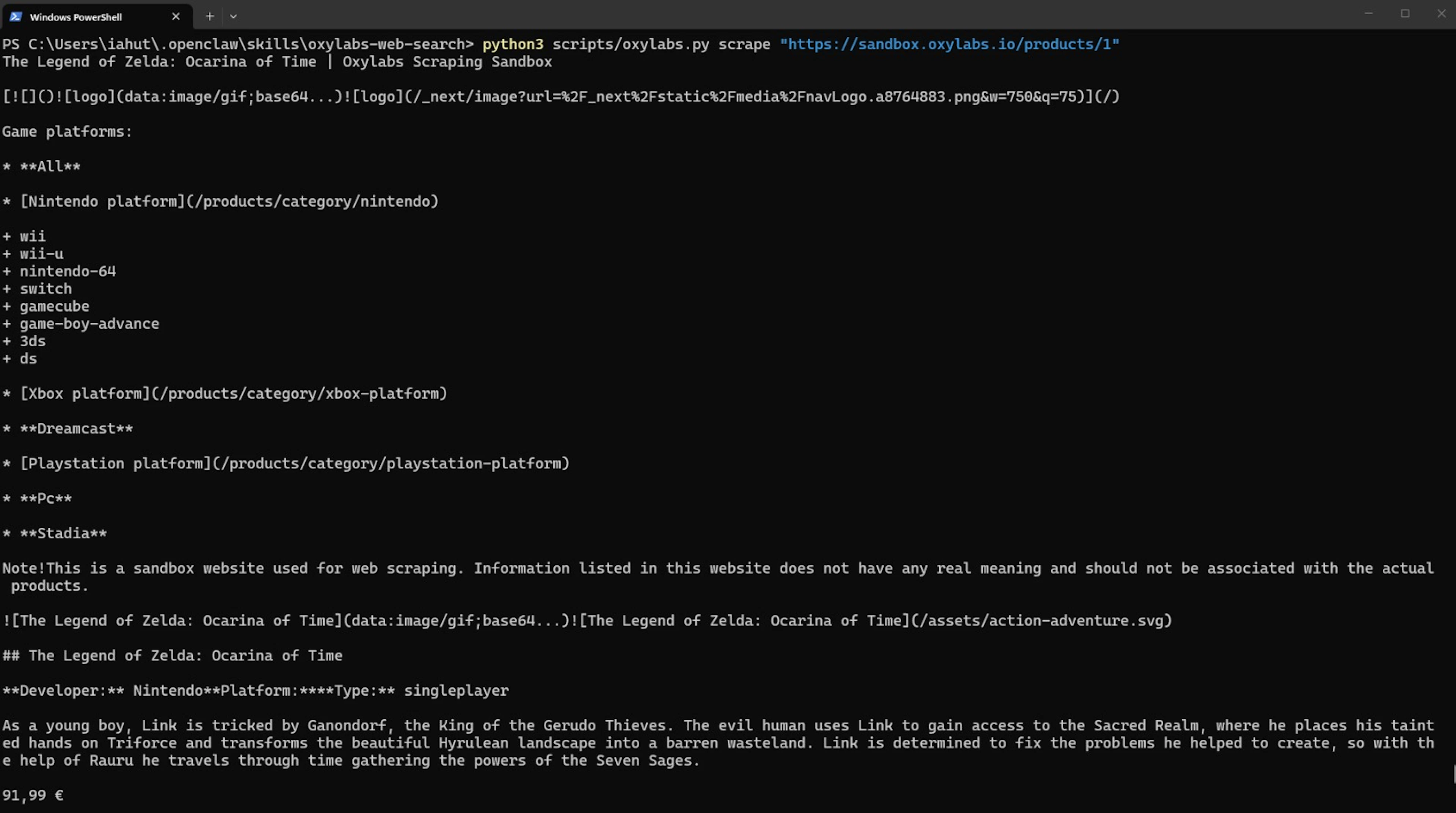
The output is clean Markdown – headings, lists, and links preserved, navigation chrome stripped – which is exactly the shape an LLM handles best. No HTML parsing on your end.
Common flags
| Flag | What it does |
|---|---|
-n |
Caps the number of results returned by search |
--content |
Includes page text alongside each search result |
--geo |
Two-letter ISO country code for geo-targeted results |
--render-js |
Renders JavaScript before extraction; off by default, slower |
4. Building a research workflow
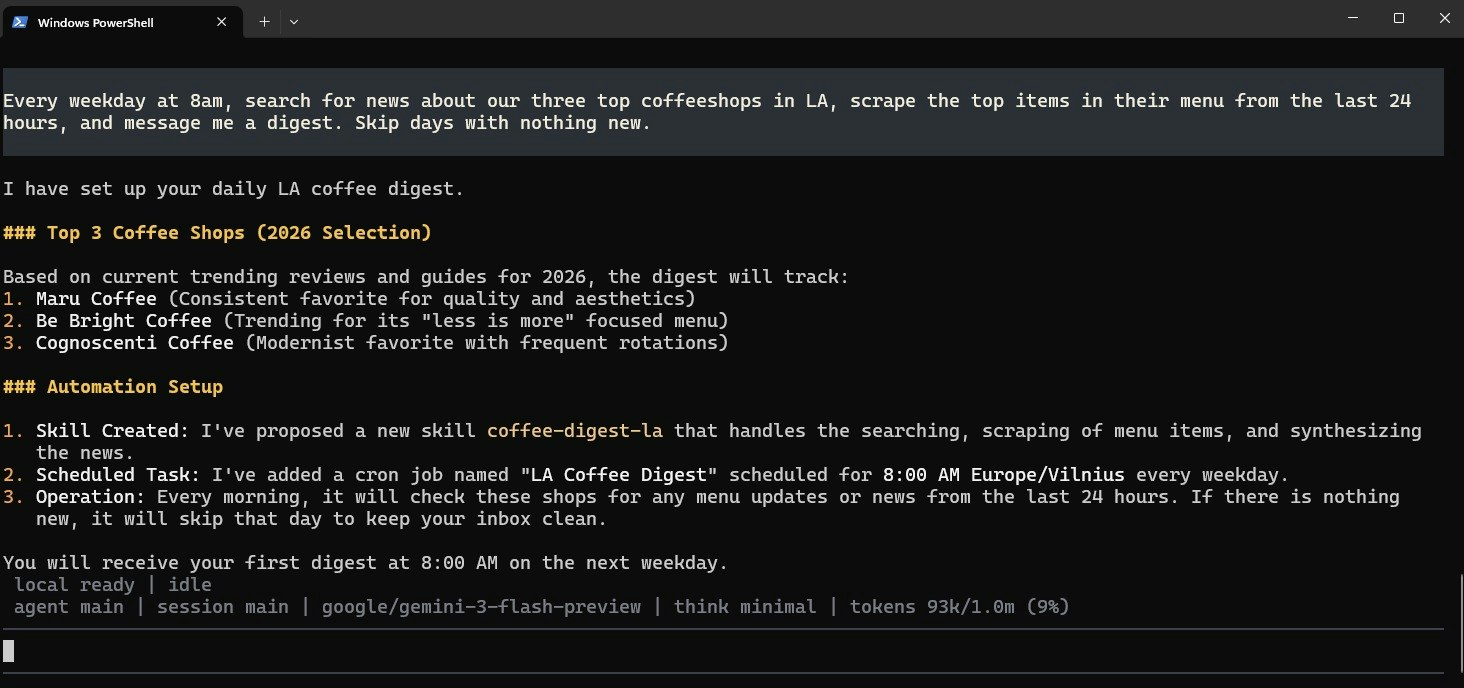
Let’s run a prompt:
Every weekday at 8am, search for news about our three top coffeeshops in LA, scrape the top items in their menu from the last 24 hours, and message me a digest. Skip days with nothing new.That's a monitoring pipeline in three lines of prompt, and it shows the agent setting up its automatic schedule:
For a RAG pipeline, point the agent at a source list and let it scrape into your knowledge store on a schedule. Because scrape returns Markdown, the output goes into a vector store or a memory plugin without a cleanup step.
Keep the skill current:
openclaw skills update --allFinal thoughts
The appeal of this integration is how little of it there is. One install command, one API key, two subcommands – and your agent stops being confined to whatever it memorized during training. Everything after that is a matter of describing what you want researched.
Want to explore further? Check out our guides on the best AI agent frameworks, MCP vs A2A protocols, and our LlamaIndex and CrewAI integrations for building web-powered LLM applications in Python.
If you have questions about web scraping and integrations, email us on support@oxylabs.io or use the live chat on our homepage.
Please be aware that this is a third-party tool not owned or controlled by Oxylabs. Each third-party provider is responsible for its own software and services. Consequently, Oxylabs will have no liability or responsibility to you regarding those services. Please carefully review the third party's policies and practices and/or conduct due diligence before accessing or using third-party services.
Frequently asked questions
What is OpenClaw?
OpenClaw is an open-source AI agent framework that runs on your own machine and connects to messaging channels, your filesystem, and external tools. Its capabilities come from skills – versioned bundles containing a SKILL.md instruction file plus supporting scripts – which teach the agent how and when to use a given tool. Skills are distributed through ClawHub, OpenClaw's public registry.
How is this different from OpenClaw's built-in web search?
Should I use the skill or the Oxylabs OpenClaw plugin?
Where does the skill get installed?
The skill is installed but the agent never uses it. Why?
Useful resources
How to Navigate AI, Legal, and Web Scraping: Asking a Professional
In this interview, we sit down with a legal professional to shed light on the ever-changing legal framework surrounding web scraping.
Web Scraping With LangChain & Oxylabs API
Follow our quick guide on combining LangChain with Web Scraper API for hassle-free web scraping process and AI-driven analysis.
OpenAI Agents SDK Integration With Oxylabs Web Scraper API
Learn how to build AI agents that scrape and analyze web content by combining OpenAI's Agents SDK with Oxylabs Web Scraper API for cost-effective web access.

Get the latest news from data gathering world