
How to Set Up Proxies With Sphere Browser
Combining Linken Sphere 2 with reliable proxies is one of the best ways to maintain stable and anonymous sessions, reduce detection risks, and manage multiple online identities. With Oxylabs Residential or Datacenter Proxies, you can improve Sphere browser anonymity and gain easier access to platforms or services that restrict or monitor incoming requests.

What is Linken Sphere?
Linken Sphere 2, better known as the Sphere Browser, is a well established and widely popular anti-detect browser focused at privacy and managing multiple online identities. It allows users to create isolated browser sessions, customize device or network parameters, and route traffic through proxies for improved anonymity.
How to use a proxy in Linken Sphere browser?
Linken Sphere 2 works with various third-party proxies, including HTTP and SOCKS5 protocols. As such, integrating high-quality proxies is one of the most effective solutions to ensure stable connections without interruptions.
Below, you’ll find a step-by-step guide on how to set up Oxylabs proxies within the Linken Sphere browser.
Step 1: Set up Linken Sphere 2
Download the Sphere browser from the official website, launch the app, and log in.
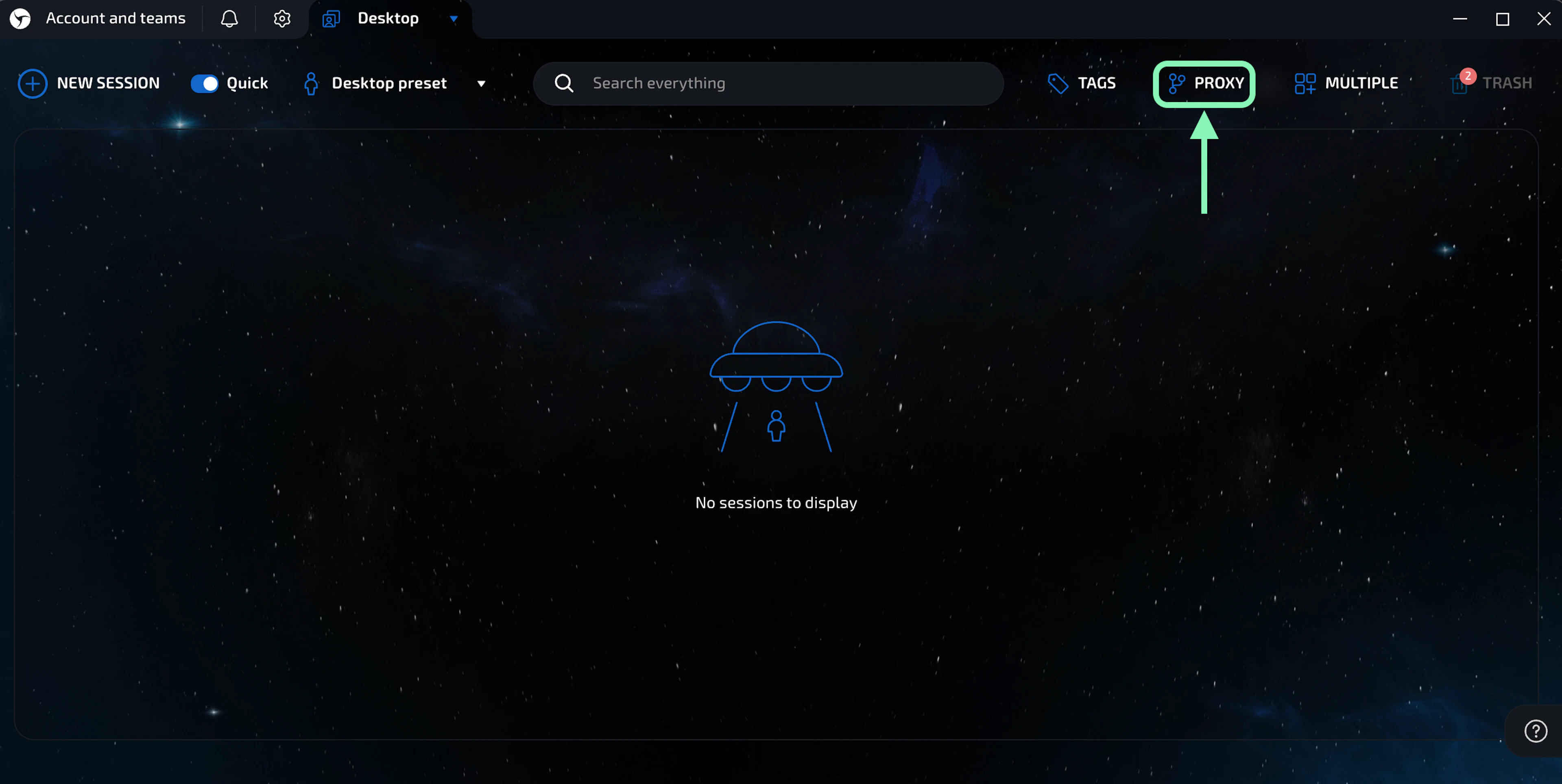
Step 2: Open the Proxy manager
Select Proxy on the home screen to open the Proxy manager window.
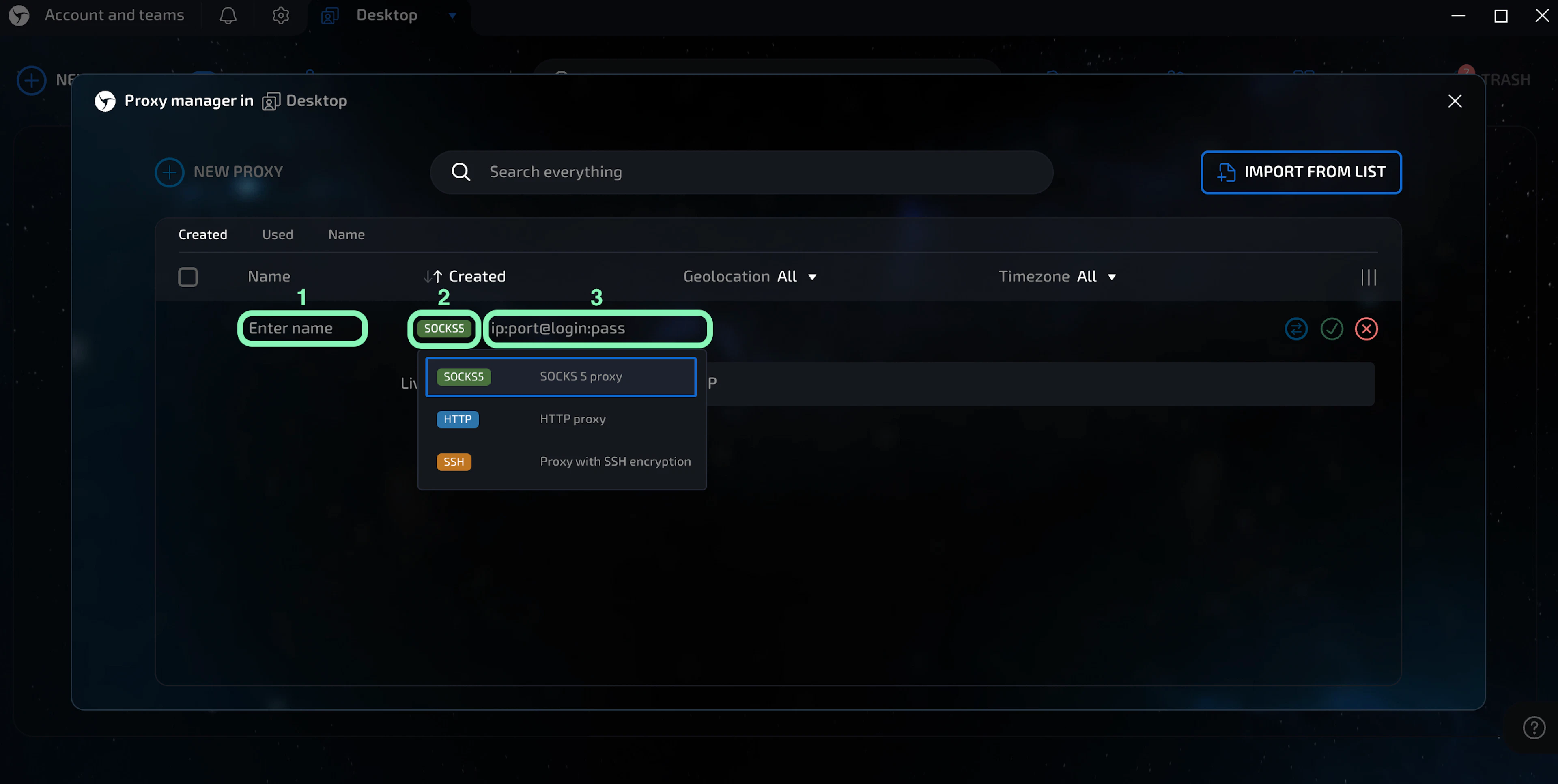
Step 3: Enter proxy details
Type the Name of your proxy, select the proxy protocol (HTTP or SOCKS5), and enter your proxy details (ip:port@login:pass) according to the proxy types listed below.
To enter your Oxylabs proxy user’s credentials, use the same username and password you entered to create a new proxy user in the Oxylabs dashboard.
Note: Include the user- or customer- prefix to your username if your proxy requires it.
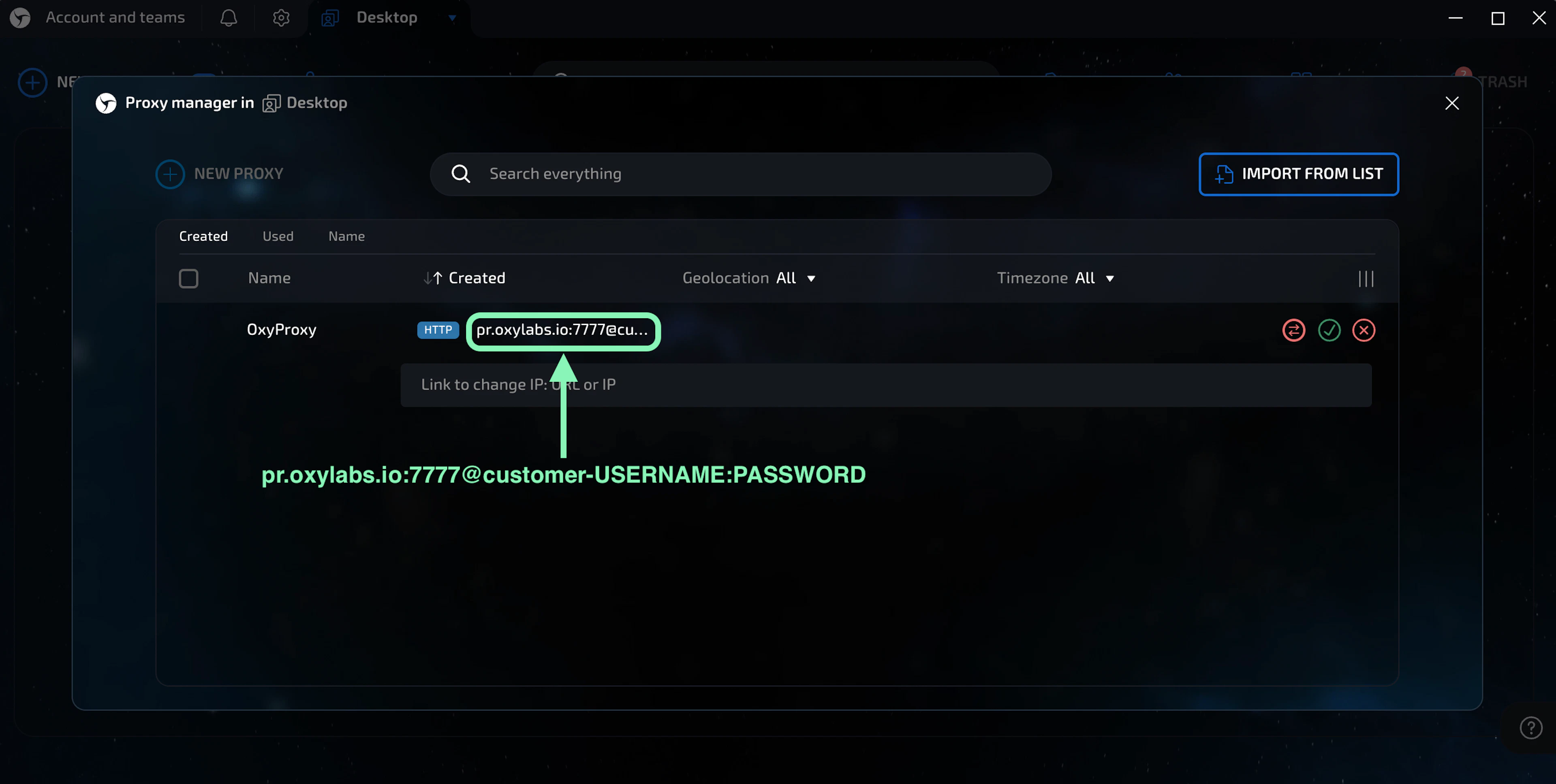
Residential and Mobile Proxies
Protocol: HTTP or SOCKS5
IP: pr.oxylabs.io
Port: 7777
Login: customer-USERNAME
Pass: PASSWORD
Note: Don’t forget to add customer- prefix to your username.
You can also use additional parameters to set the geo-location (country, city, state, etc.) and session control of your residential proxies.
| Proxy parameter | example | Protocols |
|---|---|---|
| Country entry node |
Host: //us-pr.oxylabs.ioPort: 10000 |
HTTP |
| Country |
User: customer-username-cc-US |
HTTP, SOCKS5 |
| State |
User: customer-username-st-US_texas |
HTTP, SOCKS5 |
| City |
User: customer-username-city-paris |
HTTP, SOCKS5 |
| Continent |
User: customer-username-cn-NA |
HTTP, SOCKS5 |
| Postal code |
User: customer-username-cc-US-postalcode-90210 |
HTTP, SOCKS5 |
| ASN targeting |
User: customer-username-ASN-21928 |
HTTP, SOCKS5 |
| Session |
User: customer-username-sessid-qwerty123-sesstime-30 |
HTTP, SOCKS5 |
| Sticky session |
Host: //us-pr.oxylabs.ioPort: 10001 |
HTTP |
Enterprise Dedicated Datacenter Proxies
Protocol: HTTP or SOCKS5
IP: 1.2.3.4 (IP address from your proxy list)
Port: 60000 (HTTP) or 1180 (SOCKS5)
Login: USERNAME
Pass: PASSWORD
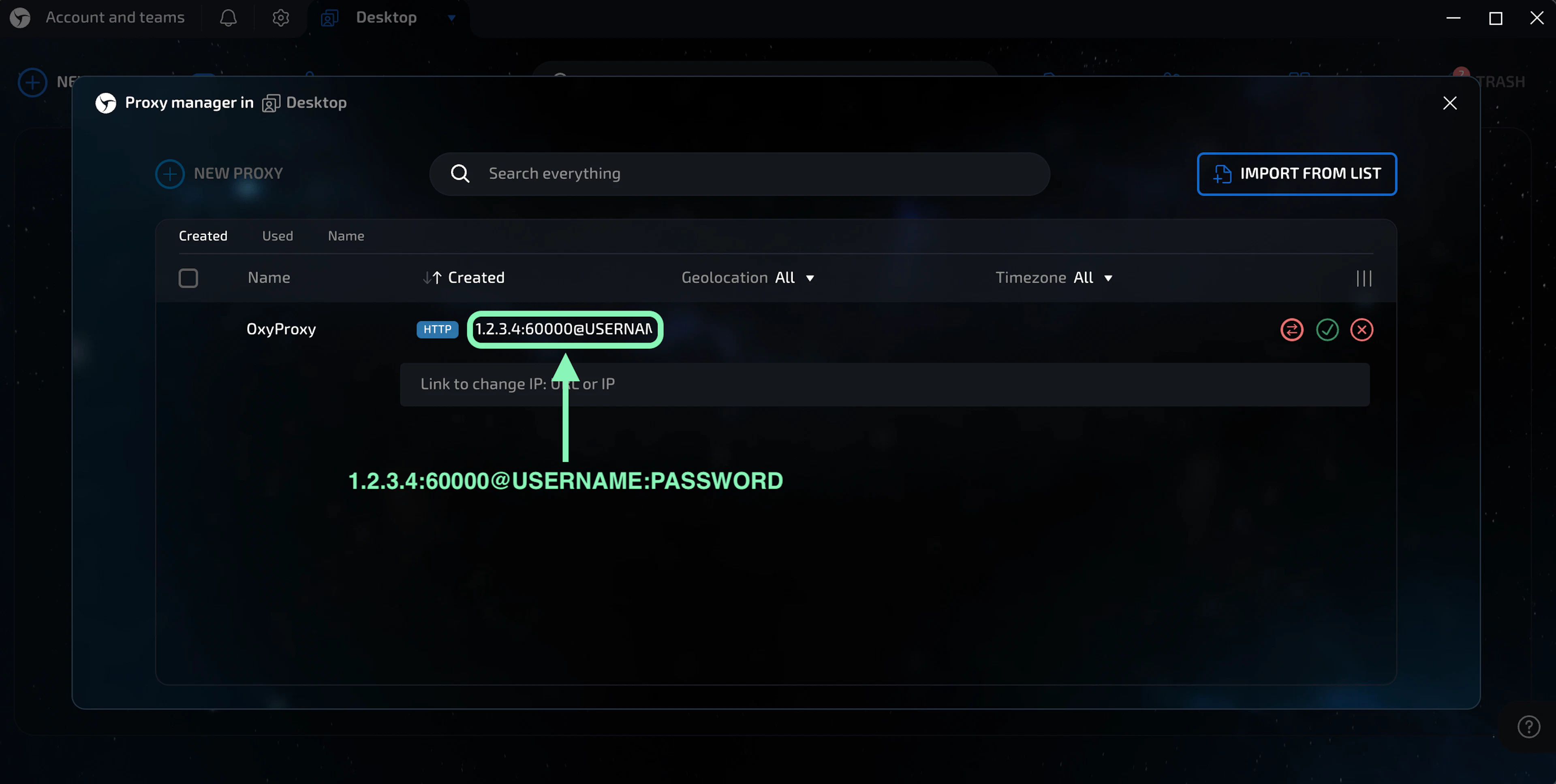
For Enterprise Dedicated Datacenter Proxies, you’ll have to choose an IP address from the acquired list. Visit our documentation for more details.
Self-Service Dedicated Datacenter Proxies
Protocol: HTTP or SOCKS5
IP: ddc.oxylabs.io
Port: 8001
Login: user-USERNAME
Pass: PASSWORD
Note: Don’t forget to add user- prefix to your username.
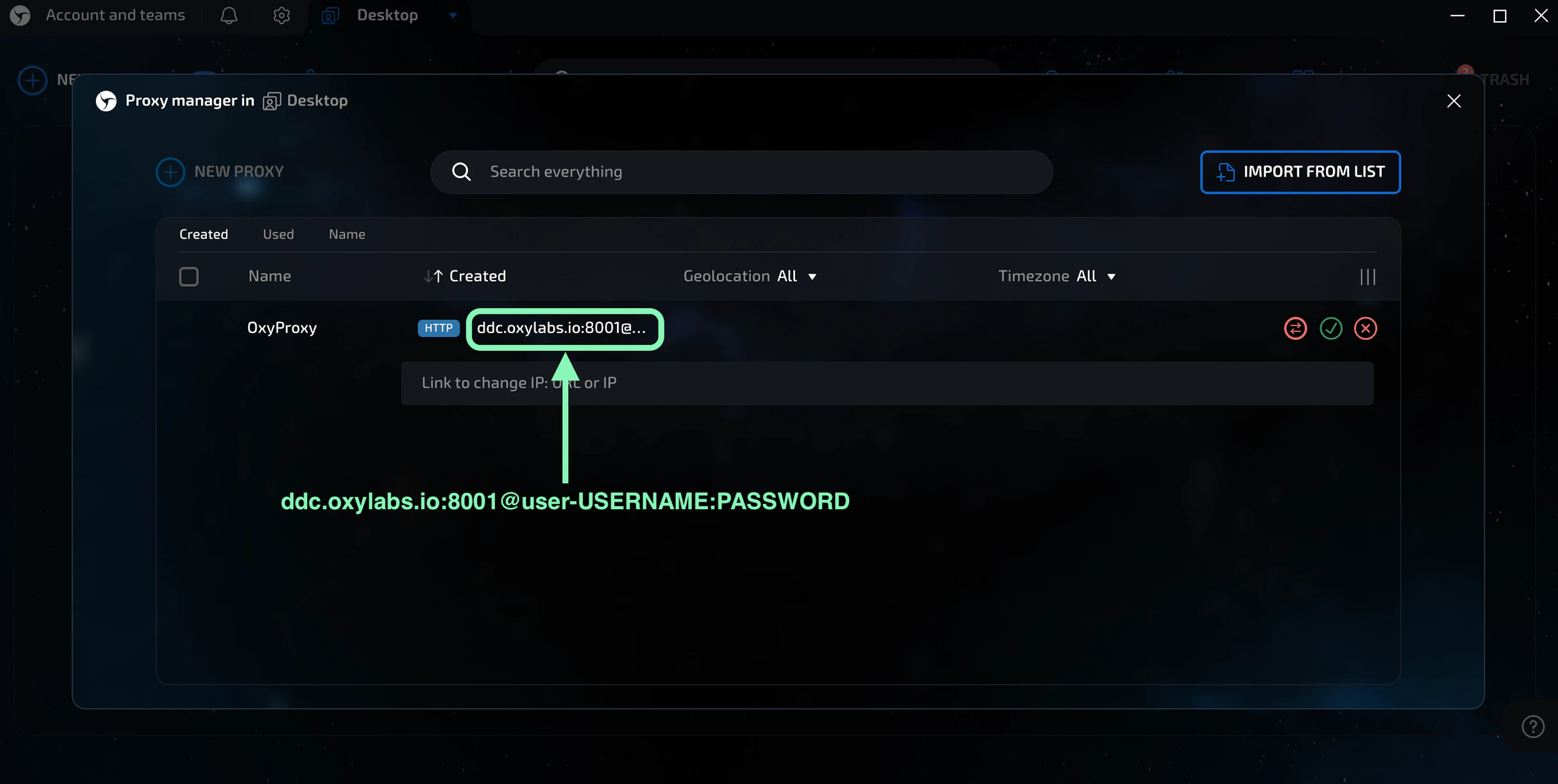
For Self-Service Dedicated Datacenter Proxies, the port indicates the sequential number of an IP address from the acquired proxy list.
If you want to get a different IP with each request, change the Port to 8000 to enable proxy rotation. Check our documentation for more details.
Datacenter Proxies
Protocol: HTTP or SOCKS5
IP: dc.oxylabs.io
Port: 8001
Login: user-USERNAME
Pass: PASSWORD
Note: Don’t forget to add user- prefix to your username.
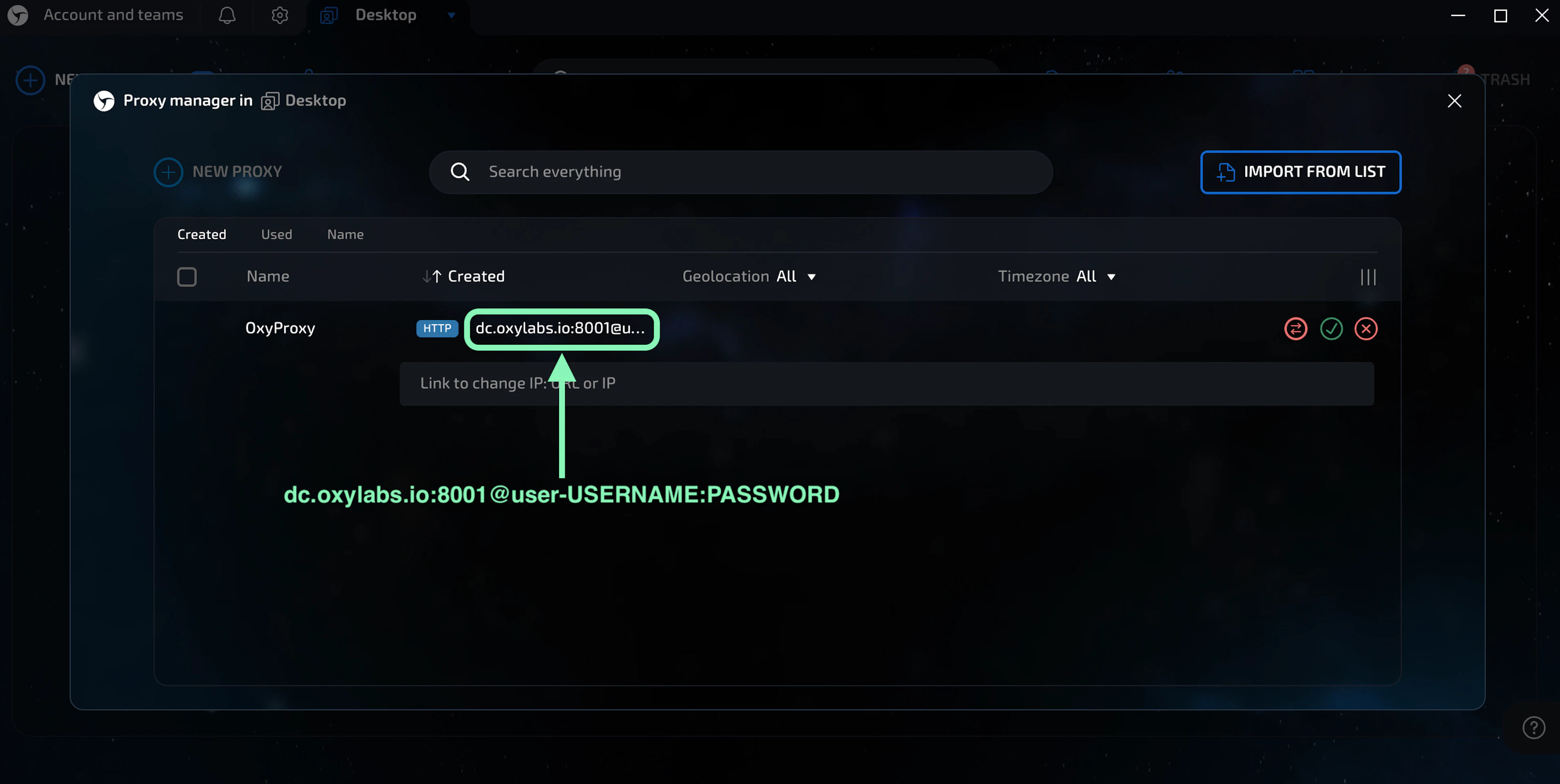
Pay-per-IP subscription
The port is the sequential number assigned to an IP address from the proxy list. Thus, port 8001 uses the first IP address from your list. You may also enable proxy IP rotation by setting the port to 8000.
Additionally, you can choose geo-location, such as the US, by setting the Proxy username to user-USERNAME-country-US.
Pay-per-traffic subscription
Port 8001 picks a random IP address but stays consistent during a session. Alternatively, you can rotate proxy IPs with each request by using port 8000.
You can also specify geo-location, for example, the US, by setting the Proxy username to user-USERNAME-country-US.
ISP Proxies
Protocol: HTTP or SOCKS5
IP: isp.oxylabs.io
Port: 8001
Login: user-USERNAME
Pass: PASSWORD
Note: Don’t forget to add user- prefix to your username.
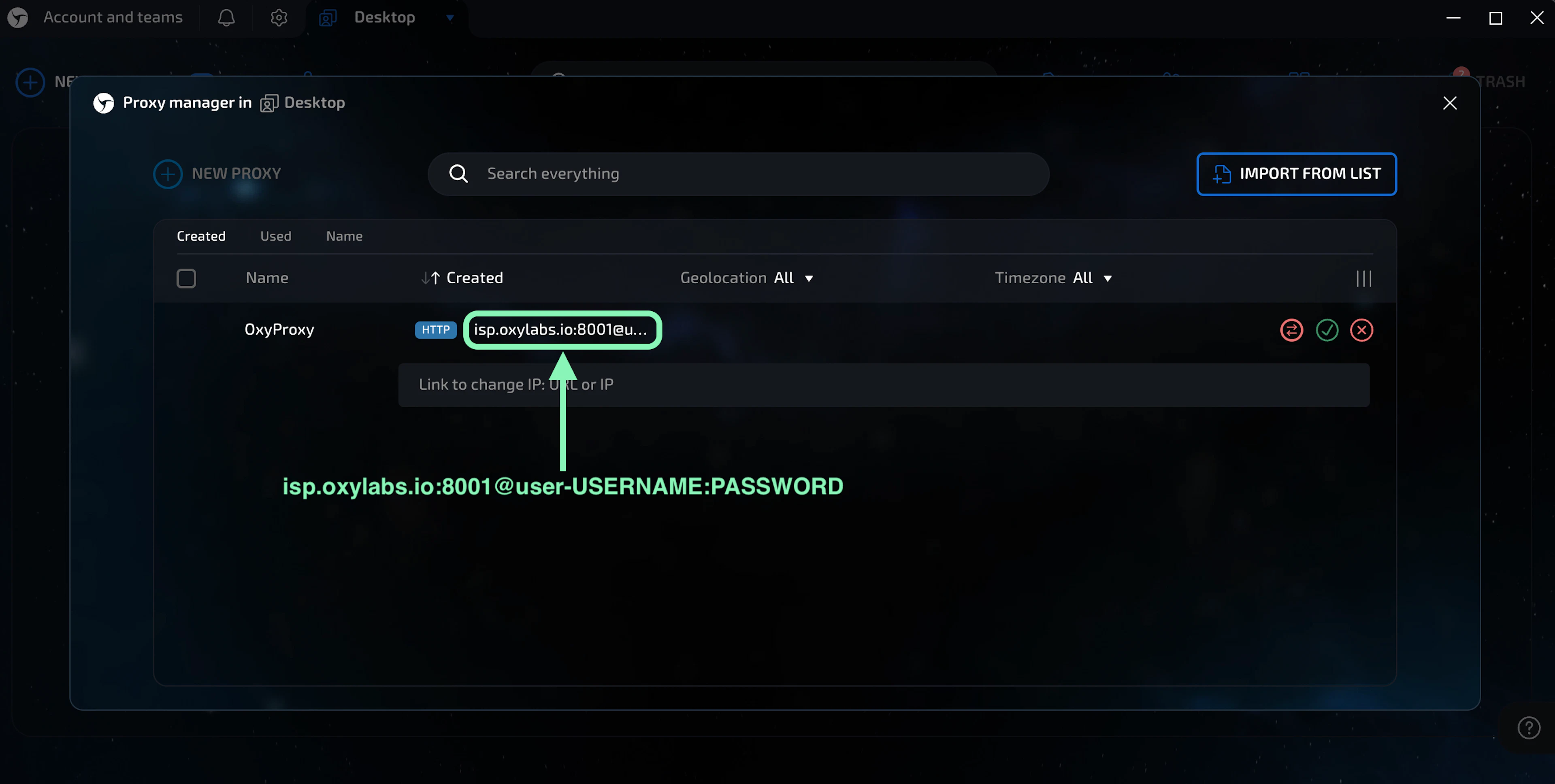
Dedicated ISP Proxies
Protocol: HTTP or SOCKS5
IP: disp.oxylabs.io
Port: 8001
Login: user-USERNAME
Pass: PASSWORD
Note: Don’t forget to add user- prefix to your username.
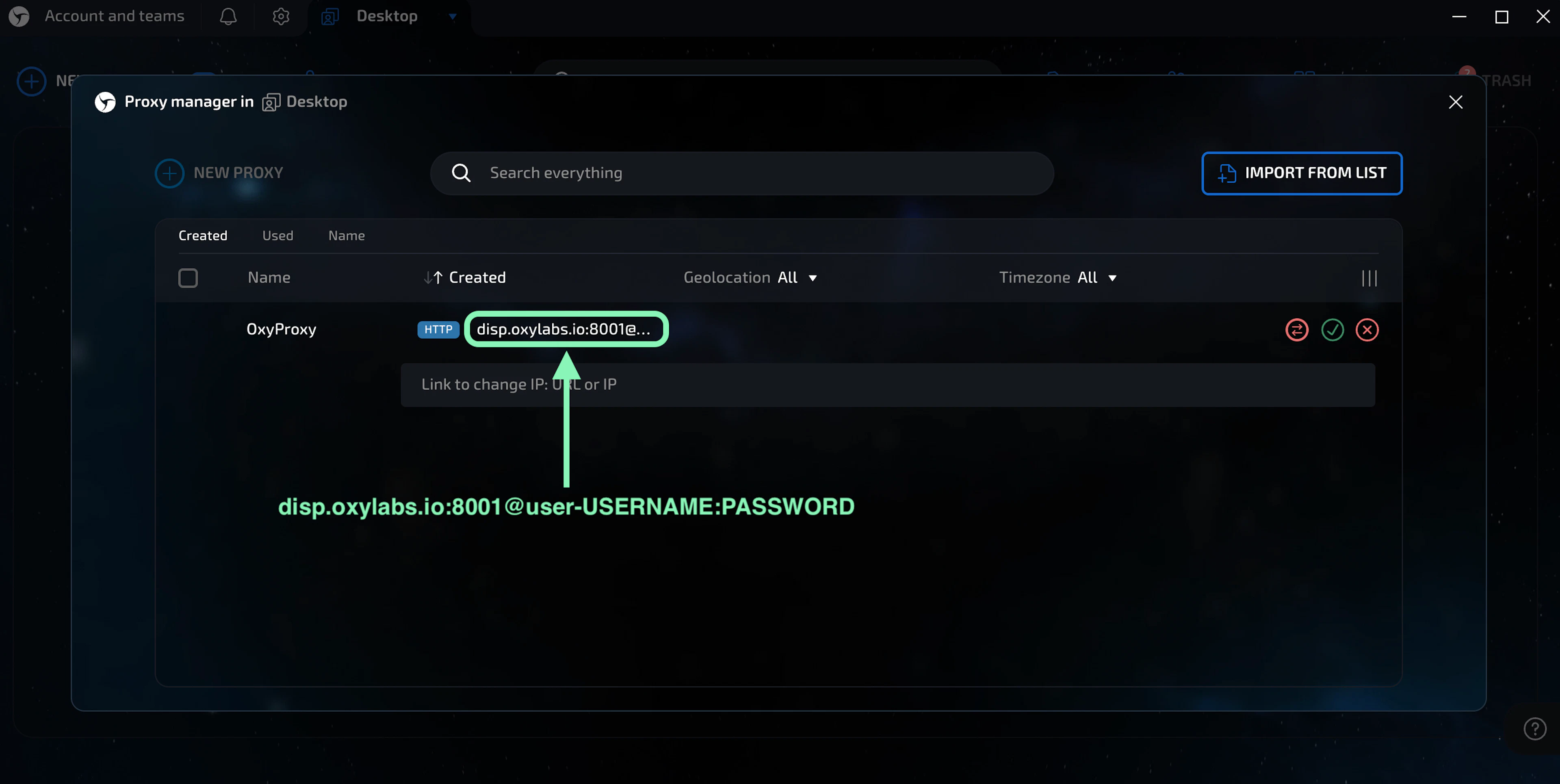
The port number indicates which IP address from your acquired proxy list will be used. Use port 8000 for automatic proxy IP rotation.
Step 4: Testing
To check proxy functionality, either click anywhere or on the dedicated proxy test button.
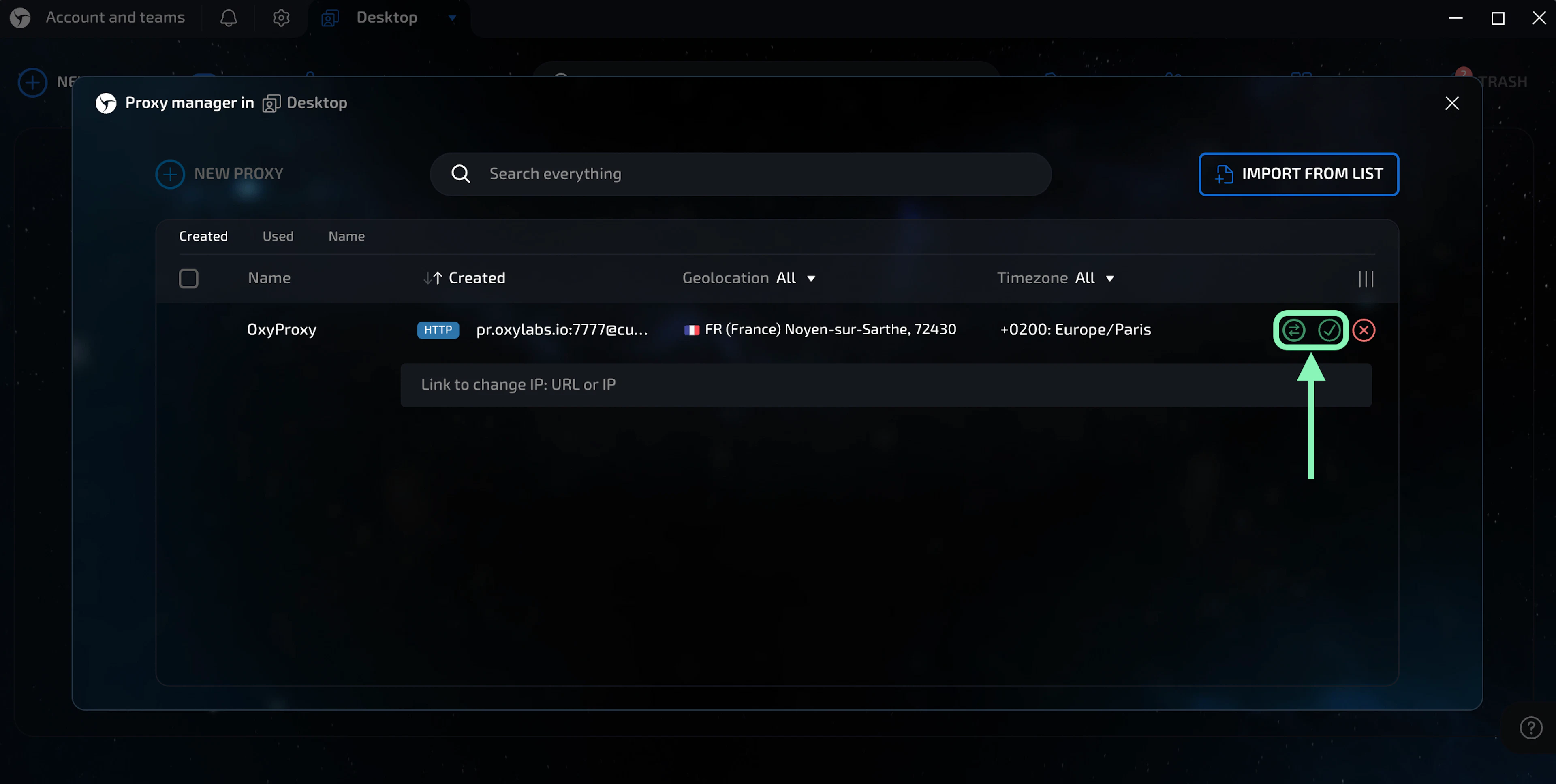
If the test is successful, a valid geolocation and its corresponding time zone will appear next to your proxy details.
Finally, click the green check mark (save proxy). You can add as many proxies as you like and pair or unpair them with different browser sessions.
Step 5: Create a browser session
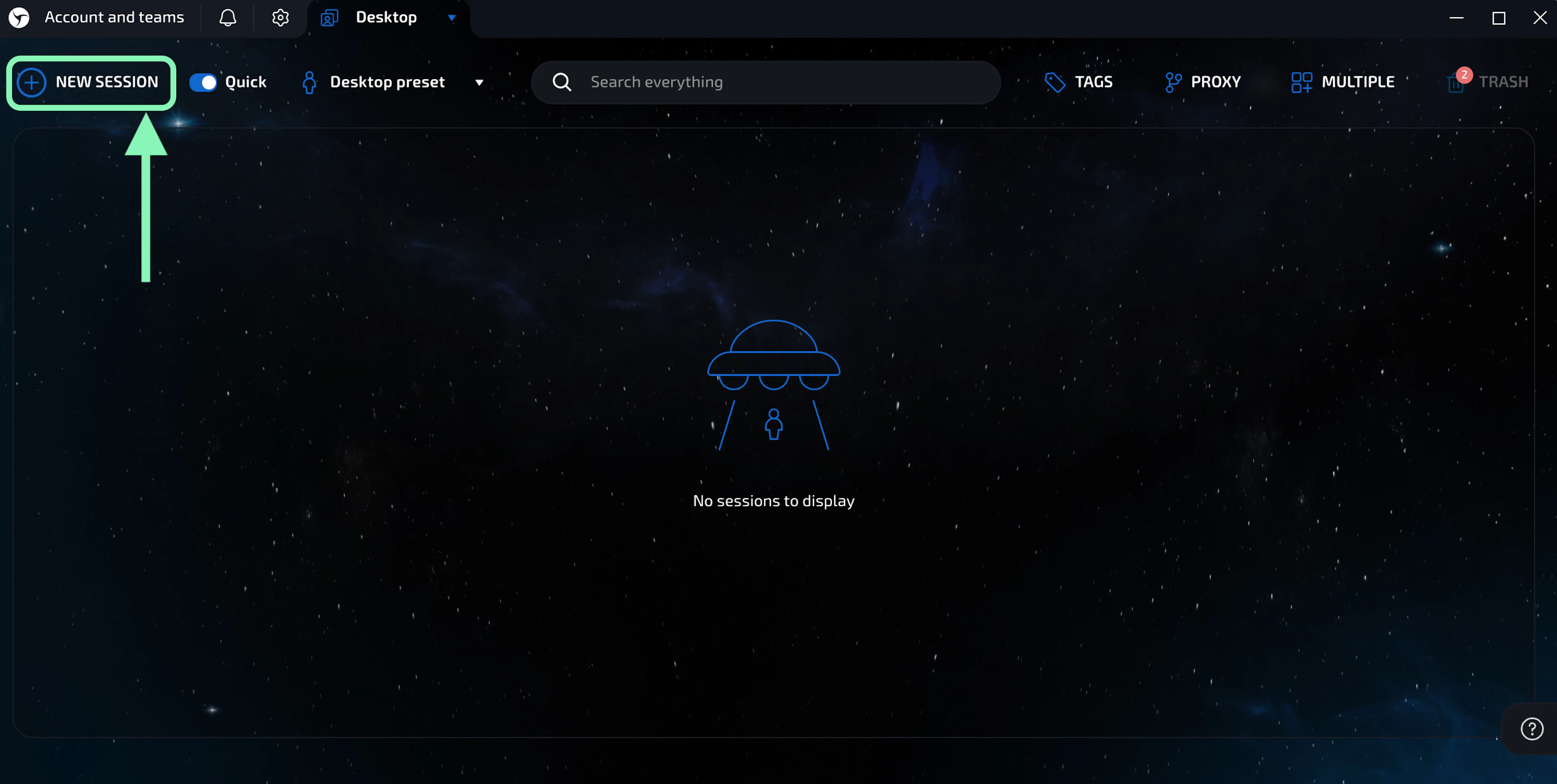
Return to the Linken Sphere home screen and click New Session.
Step 6: Set proxies
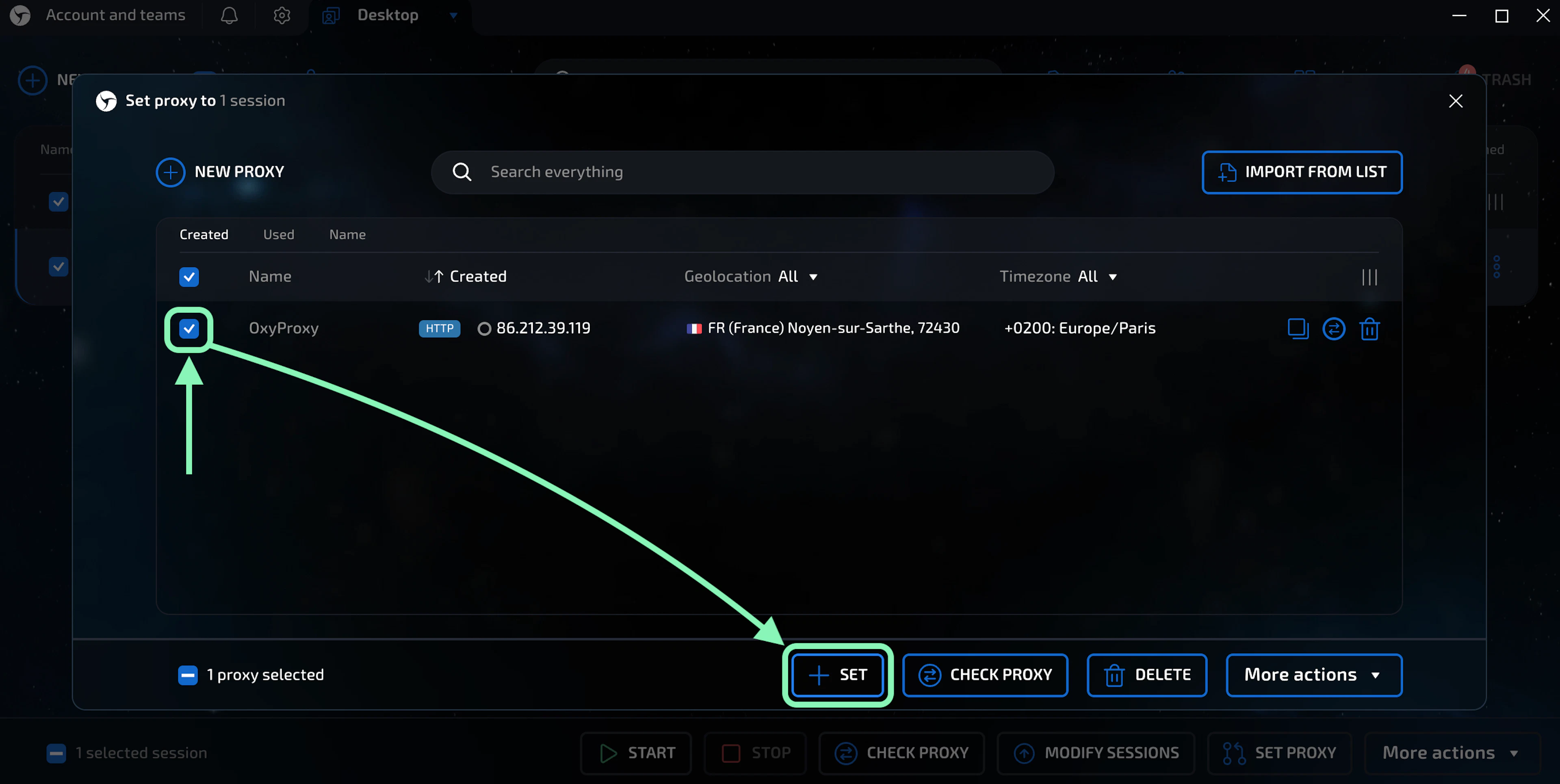
A new profile uses a direct connection by default, so to use your proxies with browser sessions, select a profile (the boxes on the left) and click Set proxy.
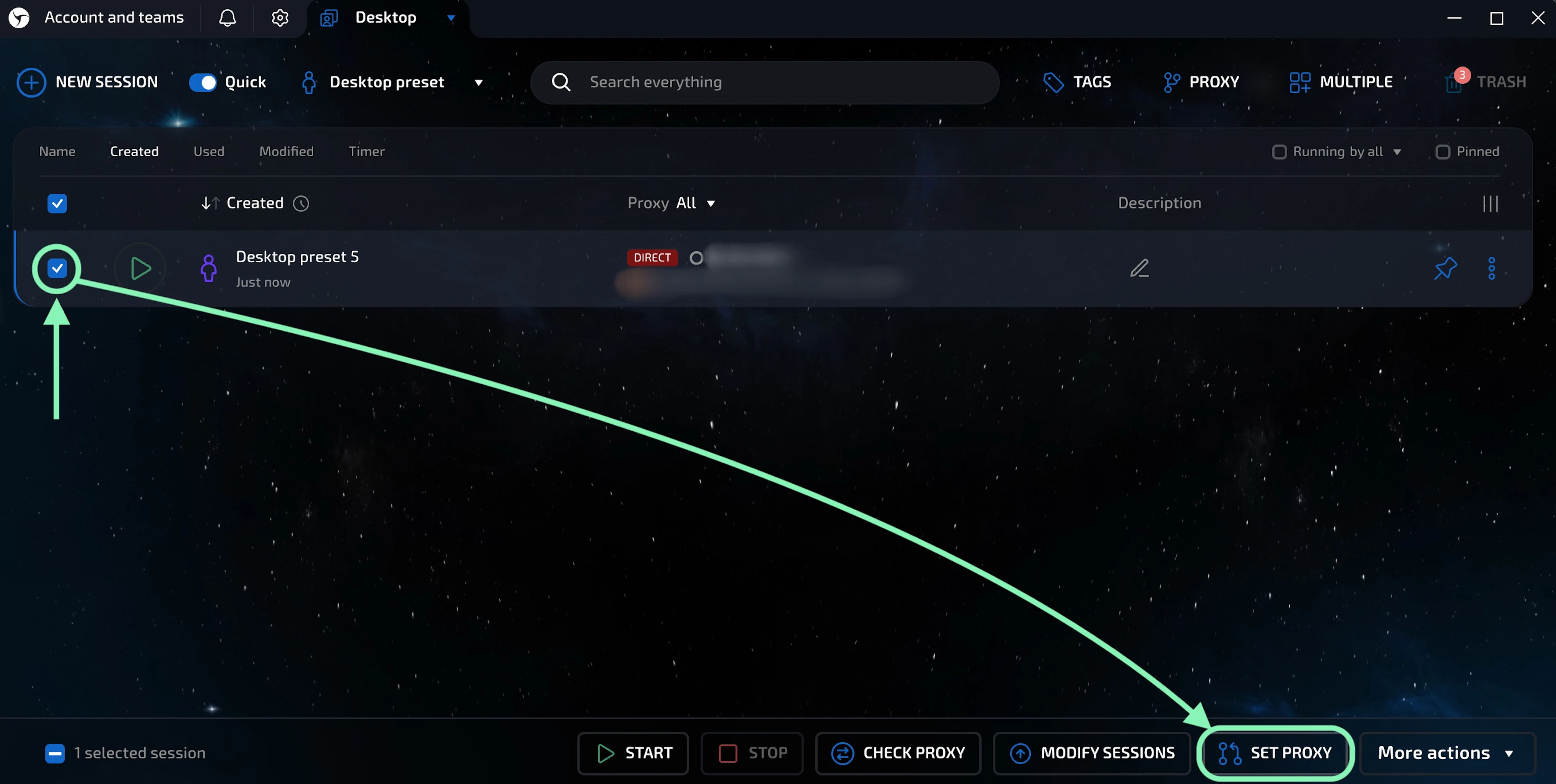
In the pop-up window, use the boxes on the left to select the proxies you wish to set on the chosen profile(s) and click Set to finish proxy setup.
Step 7: Run the browser
Click the green "play" button (Run session) to launch a private browser.
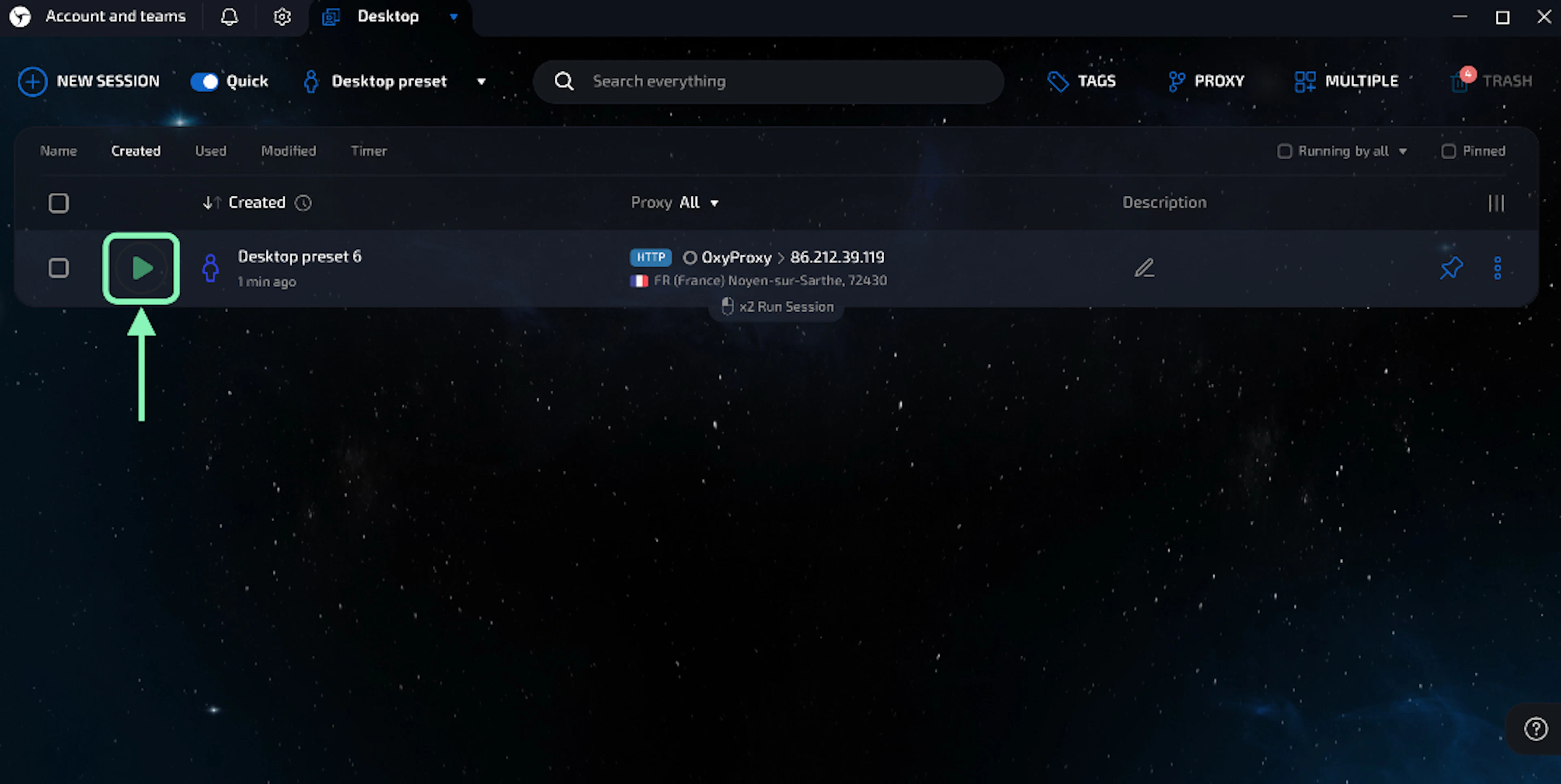
Optionally, you can also configure your browser details, such as fingerprints, by selecting the triple-dot button on the right and selecting Edit session.
And that’s it. You’ve successfully integrated your Oxylabs proxies with the Linken Sphere browser.
Final word
Linken Sphere 2 is a powerful and immensely popular antidetect browser for managing multiple private browser sessions and maintaining consistent digital identities for various tasks. Whether you look to reduce detection risks, maintain stable access, or scale operations efficiently, integrating reliable and high-performance proxies is by far one of the strongest upgrades for any workflow.
If you’re looking for similar setups or want to explore integrations for other tools, browsers, and automation platforms, check out our integrations hub.
For questions about Oxylabs proxies or the integration process, reach out via the live chat on our homepage or contact us at hello@oxylabs.io.
Please be aware that this is a third-party tool not owned or controlled by Oxylabs. Each third-party provider is responsible for its own software and services. Consequently, Oxylabs will have no liability or responsibility to you regarding those services. Please carefully review the third party's policies and practices and/or conduct due diligence before accessing or using third-party services.
Useful resources
What is Browser Automation? Definition and Examples
From routine task automation to web testing, the range of uses is vast. Read all about browser automation, its everyday use cases, its challenges, and how to get started with it.
Top AntiDetect Browsers of 2025
Learn how an antidetect browser helps with using several accounts for various marketing initiatives.
What Is a Rotating IP Address?
Rotating IP address is a widely used practice where assigned IP addresses are distributed to a device at random or at scheduled intervals.

Get the latest news from data gathering world