
How to Set Up Proxies With Zero Omega
ZeroOmega browser extension (formerly SwitchyOmega) is a powerful and reliable open-source proxy manager that works with all most popular browsers. This short integration guide will show you how to combine Oxylabs Residential or Datacenter Proxies with ZeroOmega.

What is ZeroOmega?
ZeroOmega is an open-source browser extension for managing and switching proxy connections directly inside Chrome-based browsers and Firefox. It’s a maintained community fork of SwitchyOmega for Manifest V3, keeping the familiar interface after the original project stopped active development. The extension lets users create multiple proxy profiles, define rules, and instantly switch between connections without changing system network settings.
How to use a proxy with ZeroOmega?
ZeroOmega supports third-party proxies over HTTP, HTTPS, and SOCKS5 protocols. To route browser traffic through Oxylabs proxies, you need to create a proxy profile and activate it from the extension menu. Below, you will find the full guide on how to do just that.
Note: Google Chrome does not support SOCKS5 proxy authentication in browser extensions. If you plan to use Oxylabs SOCKS5 proxies, choose the ZeroOmega extension for Mozilla Firefox.
Step 1: Set up ZeroOmega extension
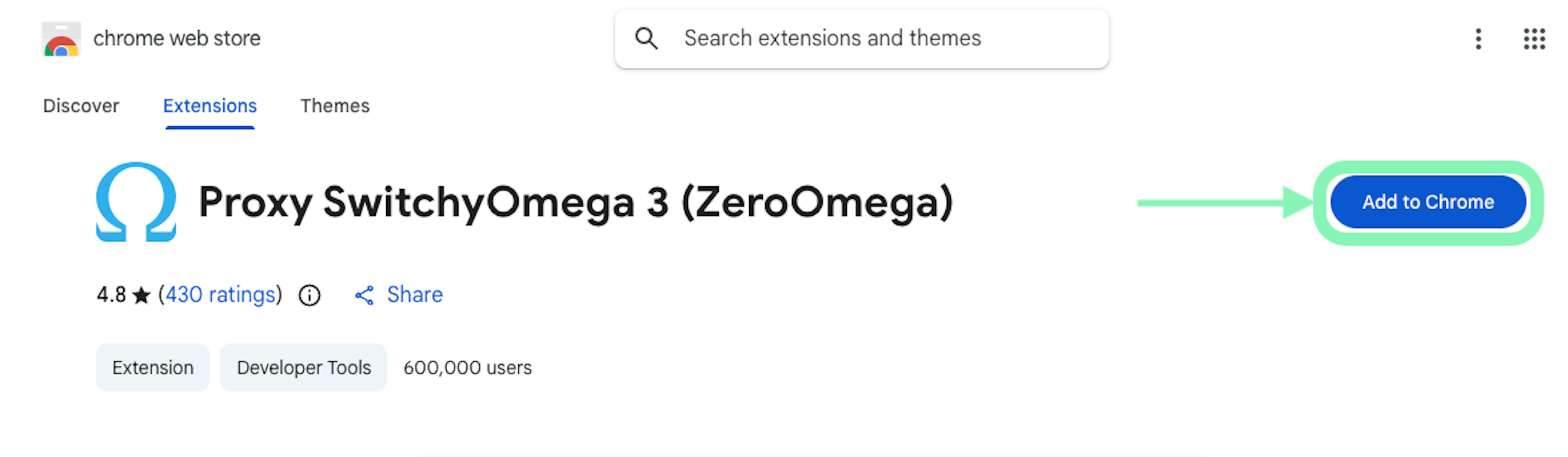
Install the official ZeroOmega extension on Google Chrome or Mozilla Firefox.
Step 2: Open ZeroOmega options
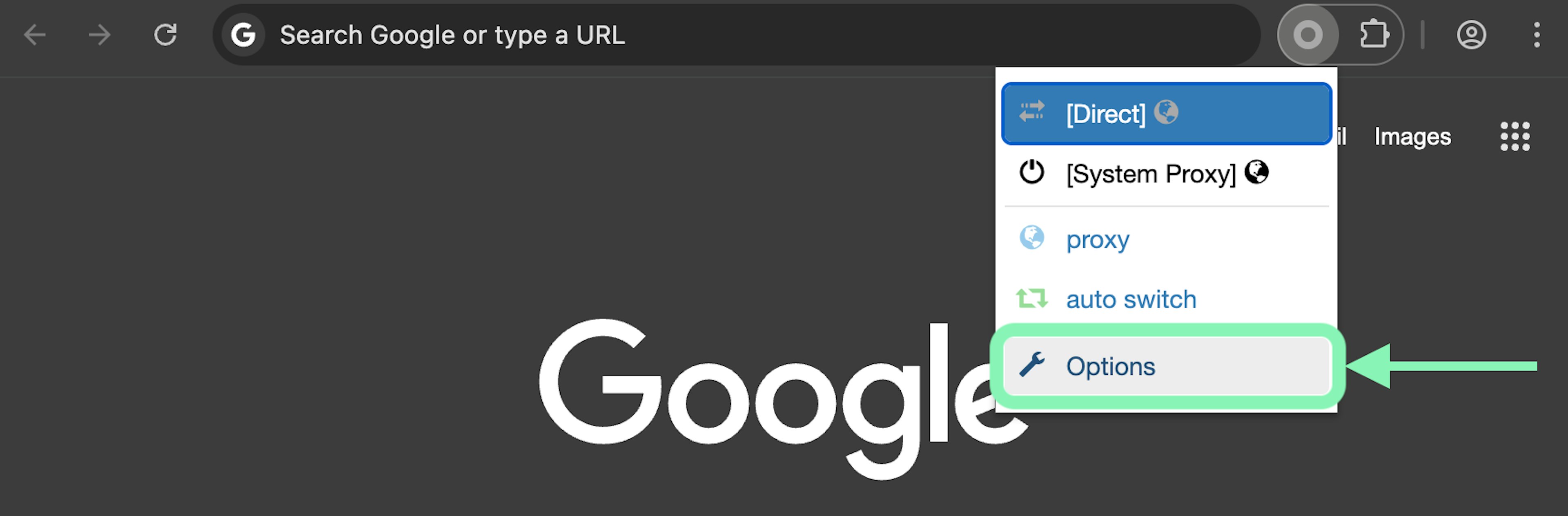
Look for the ZeroOmega extension, select it, and click on Options in the dropdown menu.
Step 3: Create a profile
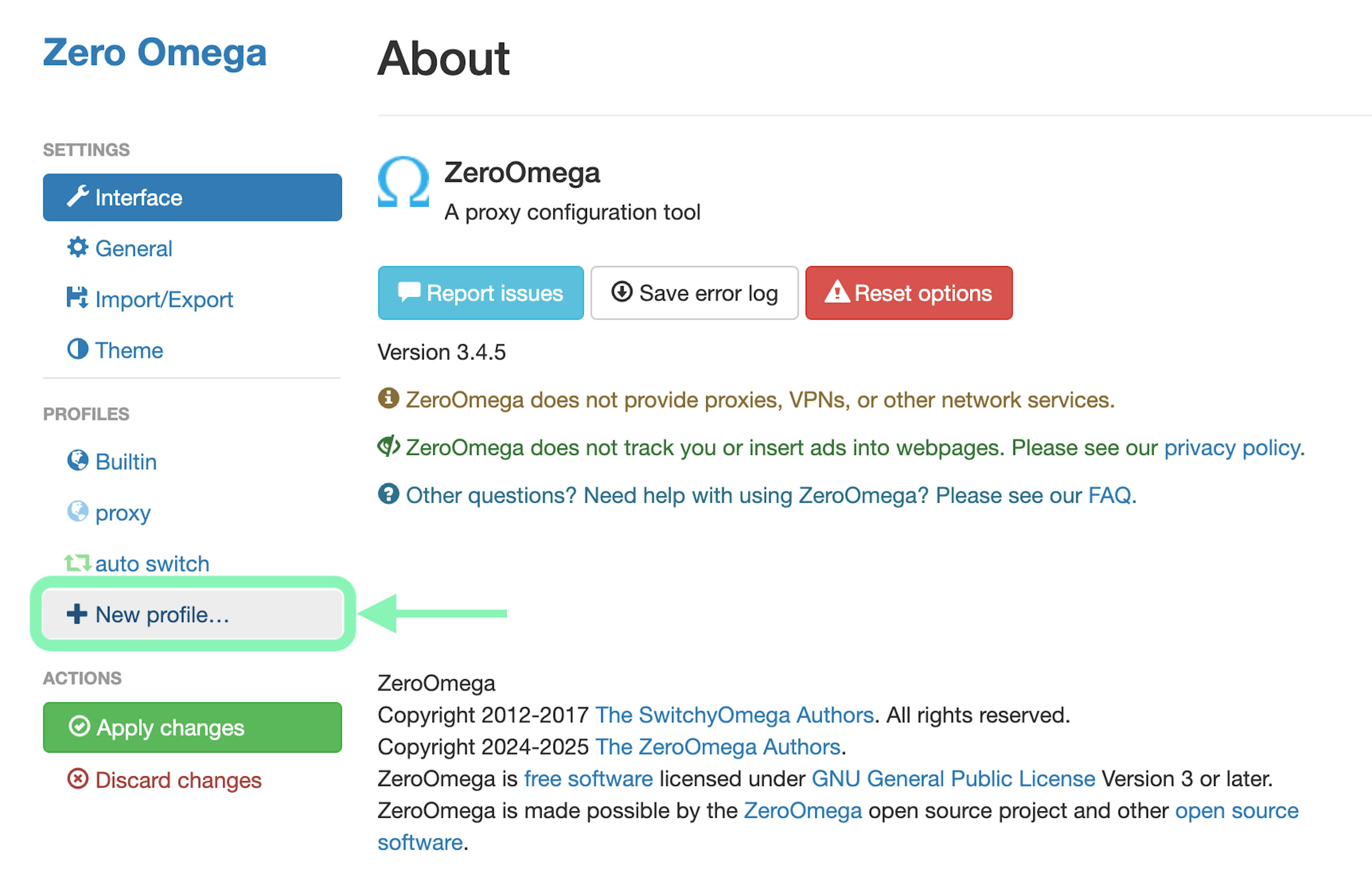
Look for the +New profile… button and click it.
Step 4: Enter profile details
Enter the Profile name, stick with Proxy Profile, and click Create.
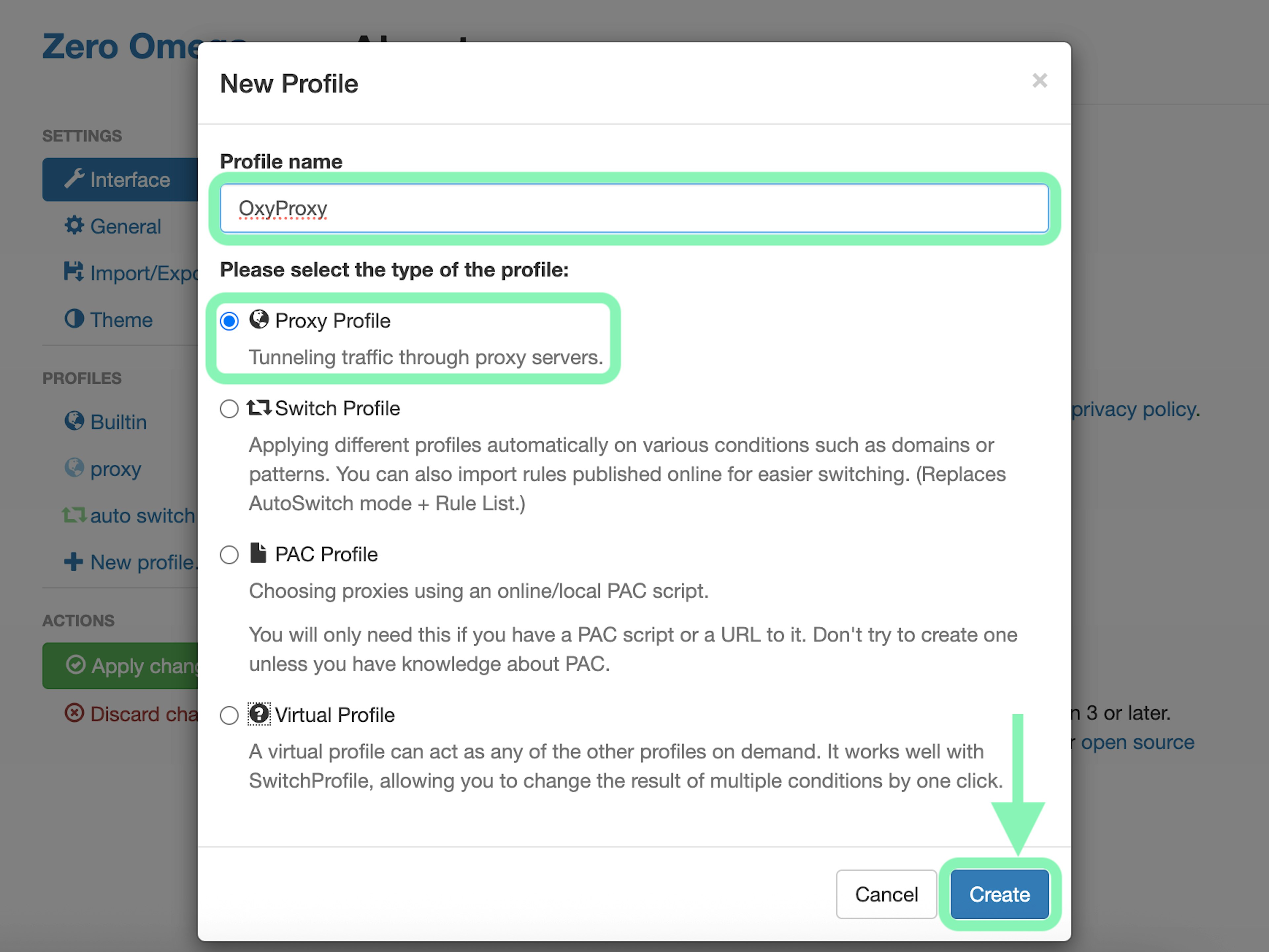
Step 5: Configure proxy details
Choose a proxy Protocol (HTTP, HTTPS, or SOCKS5) and enter your proxy details according to the proxy types listed below.
Note: Google Chrome does not support SOCKS5 proxy authentication in browser extensions. If you plan to use Oxylabs SOCKS5 proxies, choose the ZeroOmega extension for Mozilla Firefox.
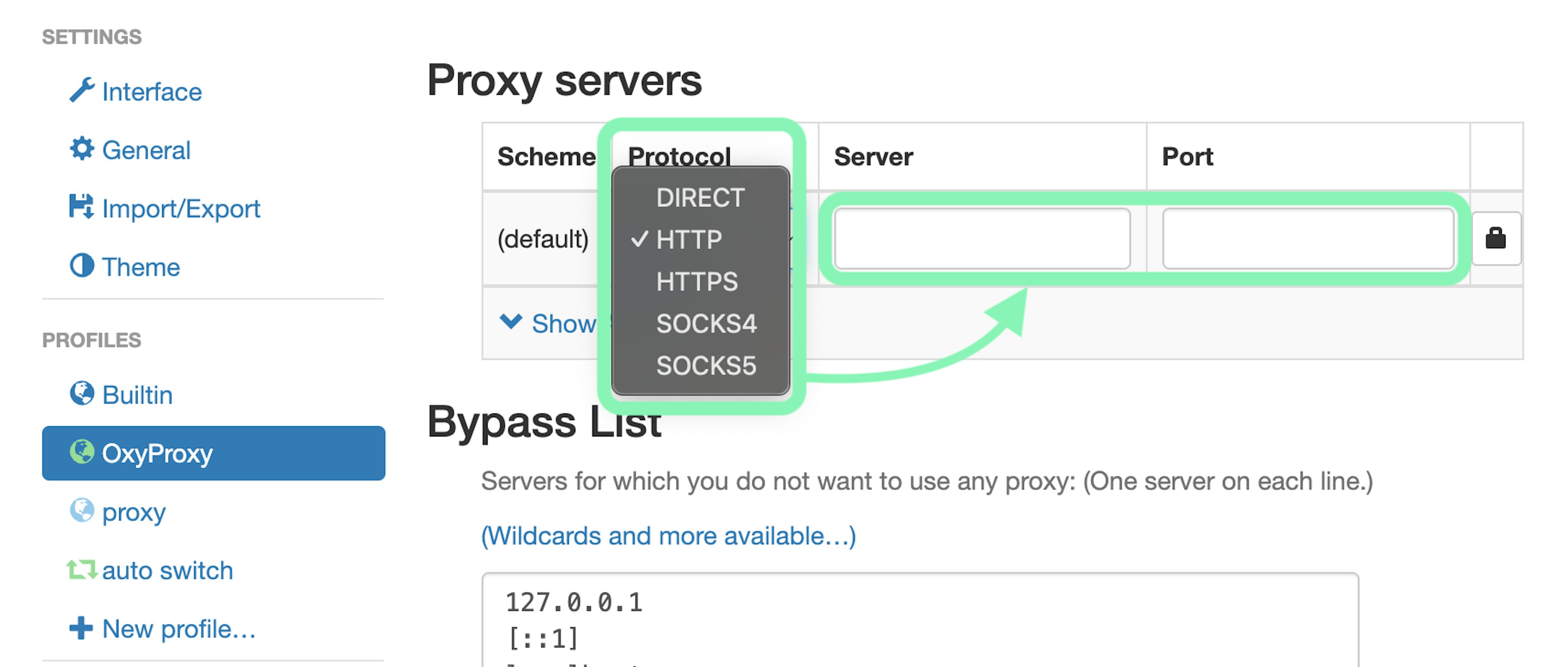
Residential and Mobile Proxies
Protocol: HTTP, HTTPS, or SOCKS5 (Firefox)
Server: pr.oxylabs.io
Port: 7777
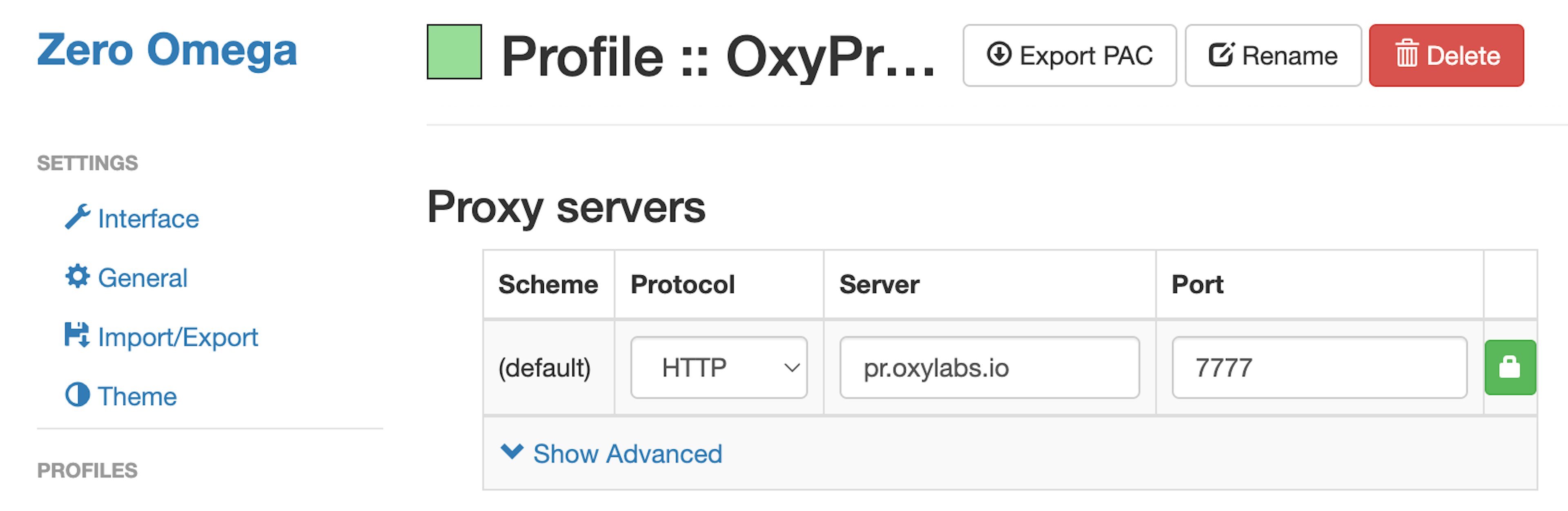
Enterprise Dedicated Datacenter Proxies
Protocol: HTTP, HTTPS, or SOCKS5 (Firefox)
Server: 1.2.3.4 (IP address from your proxy list)
Port: 60000 (HTTP/HTTPS) or 1180 (SOCKS5)
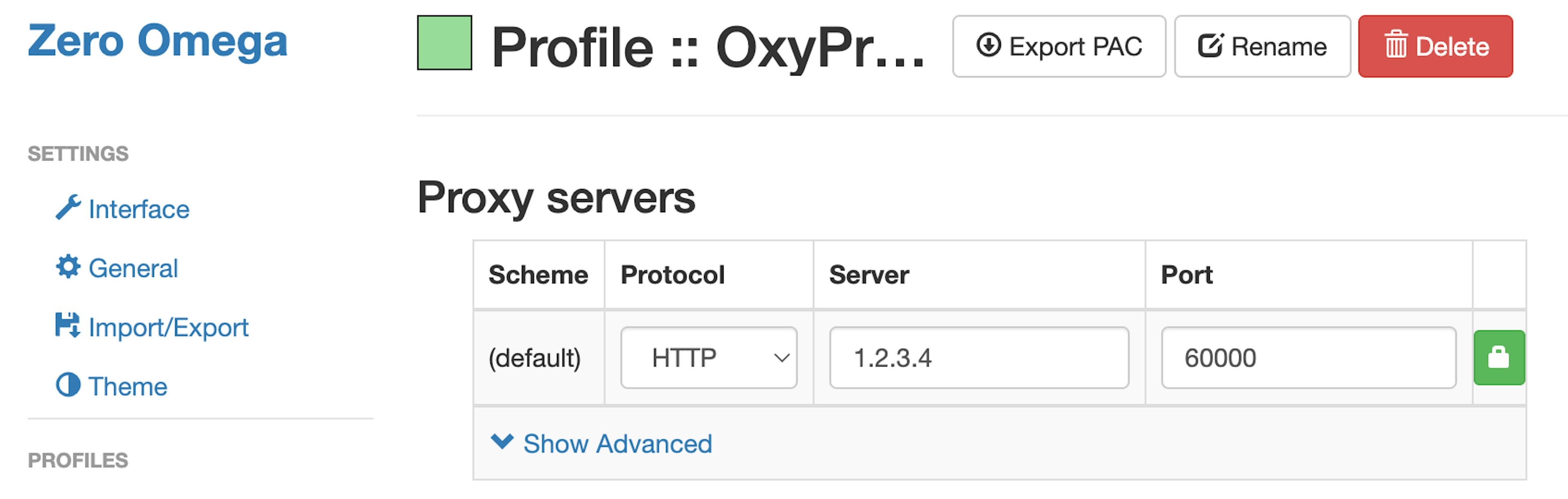
For Enterprise Dedicated Datacenter Proxies, you’ll have to choose an IP address from the acquired list. Visit our documentation for more details.
Self-Service Dedicated Datacenter Proxies
Protocol: HTTP, HTTPS, or SOCKS5 (Firefox)
Server: ddc.oxylabs.io
Port: 8001
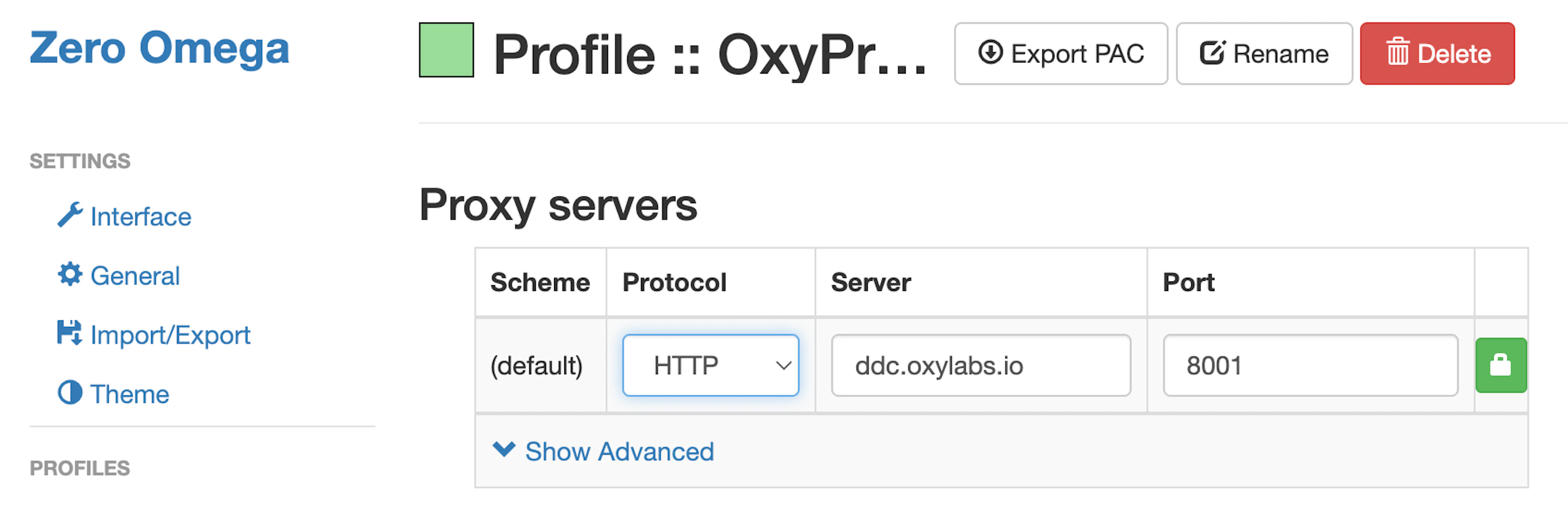
For Self-Service Dedicated Datacenter Proxies, the port indicates the sequential number of an IP address from the acquired proxy list.
If you want to get a different IP with each request, change the Port to 8000 to enable proxy rotation. Check our documentation for more details.
Datacenter Proxies
Protocol: HTTP, HTTPS, or SOCKS5 (Firefox)
Server: dc.oxylabs.io
Port: 8001
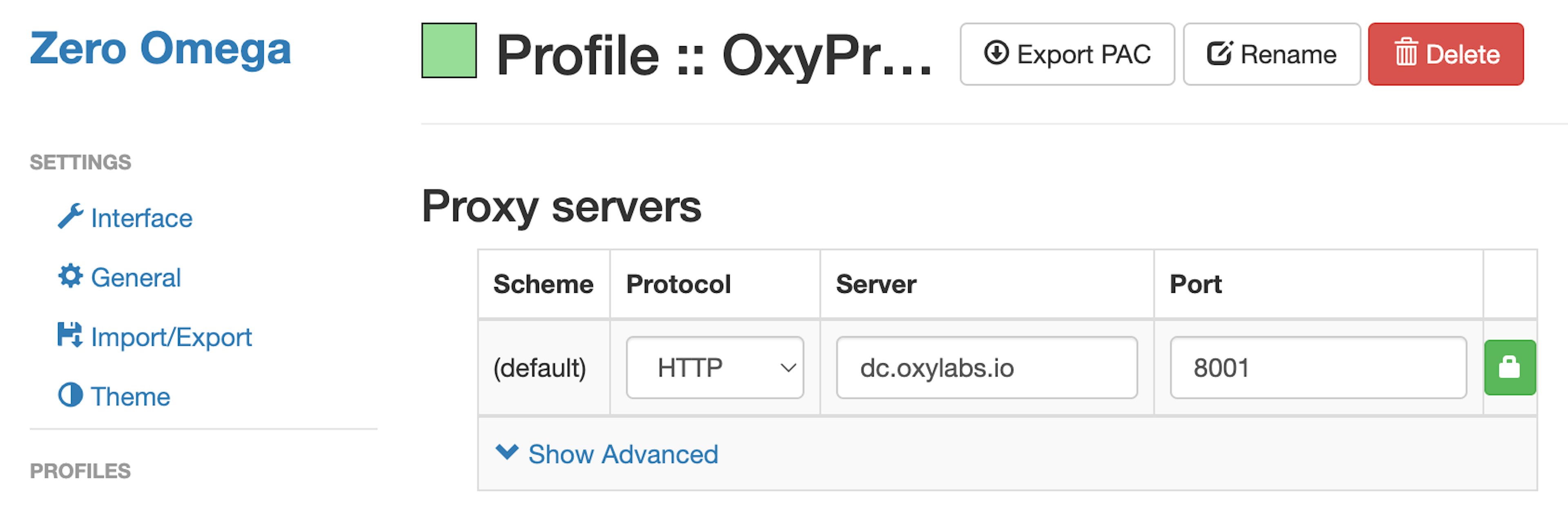
Pay-per-IP subscription
The port is the sequential number assigned to an IP address from the proxy list. Thus, port 8001 uses the first IP address from your list. You may also enable proxy IP rotation by setting the port to 8000.
Additionally, you can choose geo-location, such as the US, by setting the Proxy username to user-USERNAME-country-US.
Pay-per-traffic subscription
Port 8001 picks a random IP address but stays consistent during a session. Alternatively, you can rotate proxy IPs with each request by using port 8000.
You can also specify geo-location, for example, the US, by setting the Proxy username to user-USERNAME-country-US.
ISP Proxies
Protocol: HTTP, HTTPS, or SOCKS5 (Firefox)
Server: isp.oxylabs.io
Port: 8001
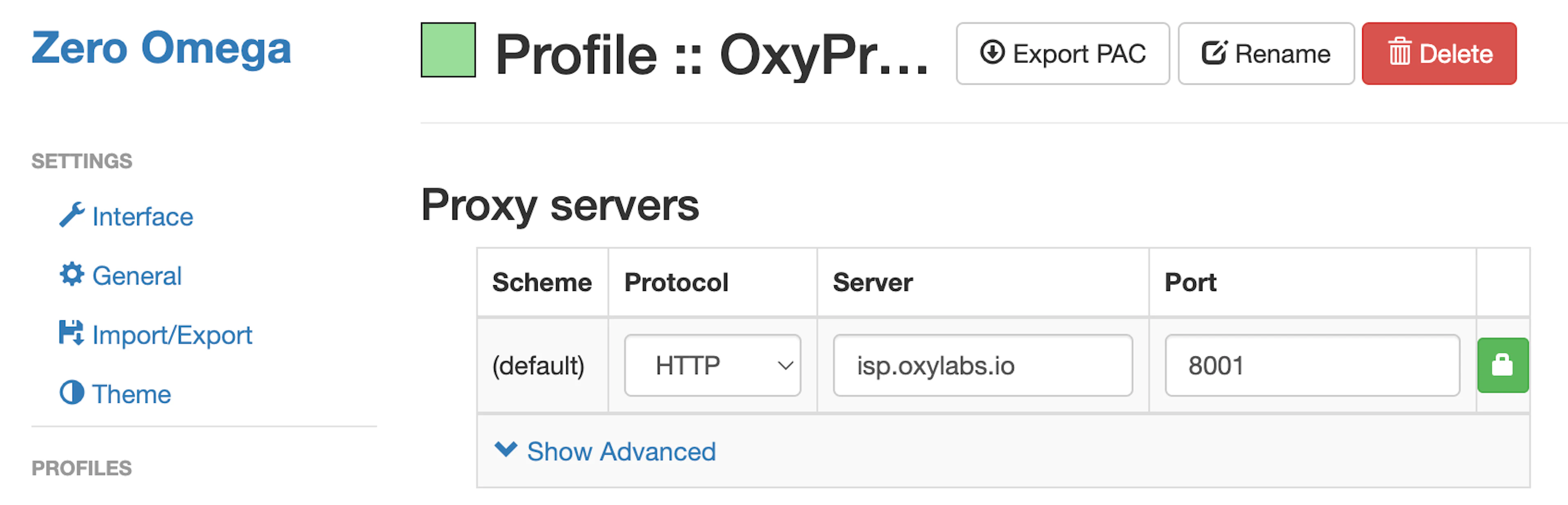
With ISP Proxies, the port is assigned to a specific IP address and location. Therefore, port 8001 will always pick the first IP from your proxy list.
If you want to get a different IP with each request, change the Port to 8000 to enable proxy rotation.
Dedicated ISP Proxies
Protocol: HTTP, HTTPS, or SOCKS5 (Firefox)
Server: disp.oxylabs.io
Port: 8001
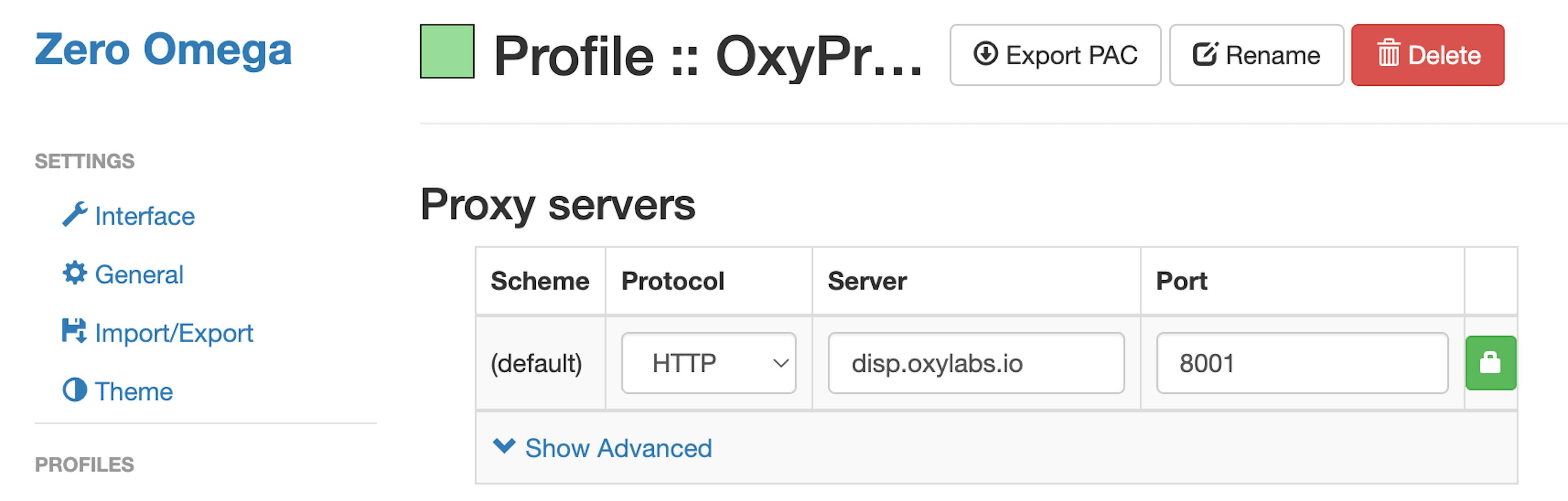
The port number indicates which IP address from your acquired proxy list will be used. Use port 8000 for automatic proxy IP rotation.
Step 6: Enter user credentials
To authenticate proxy access, click the lock icon next to the proxy port text field. Then, enter your Oxylabs proxy user’s credentials. Use the same username and password you entered to create a new proxy user in the Oxylabs dashboard. Finally, click Save changes.
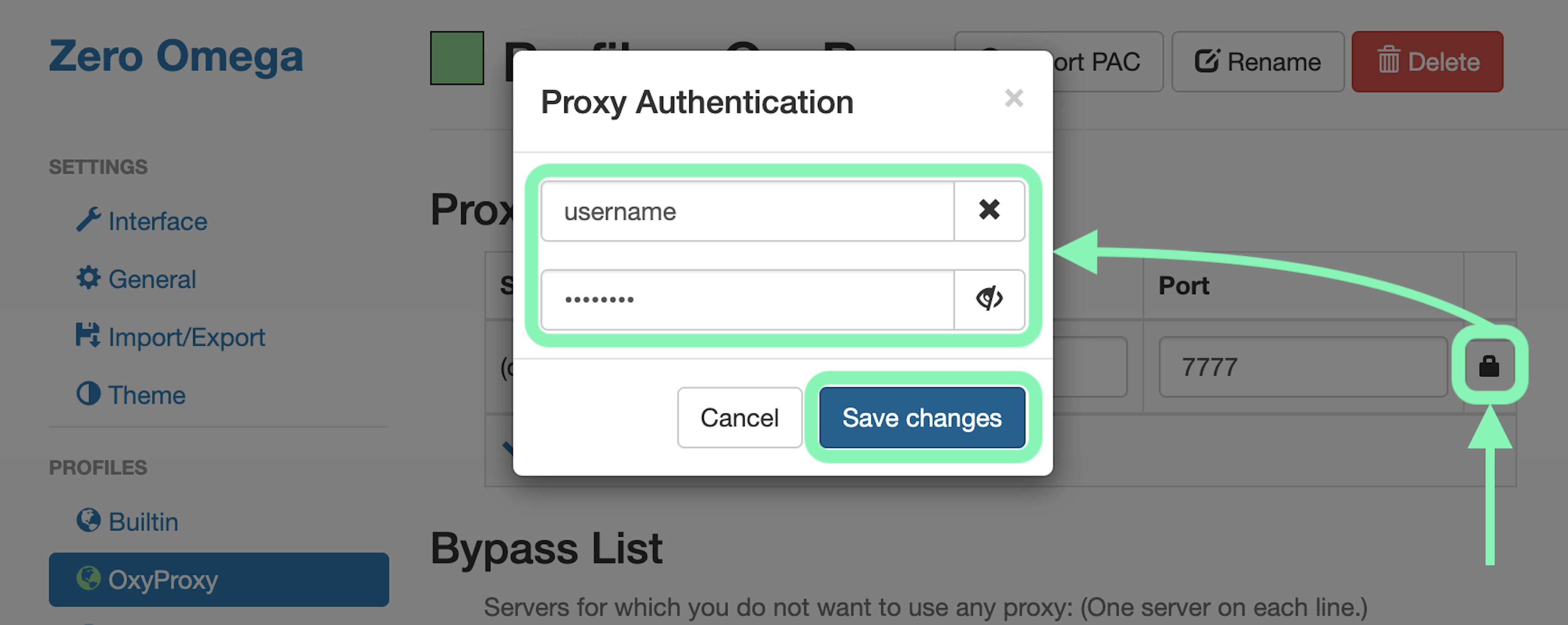
Step 7: Confirm new profile
Finish the proxy profile setup by clicking Apply changes in the Actions section on the left.
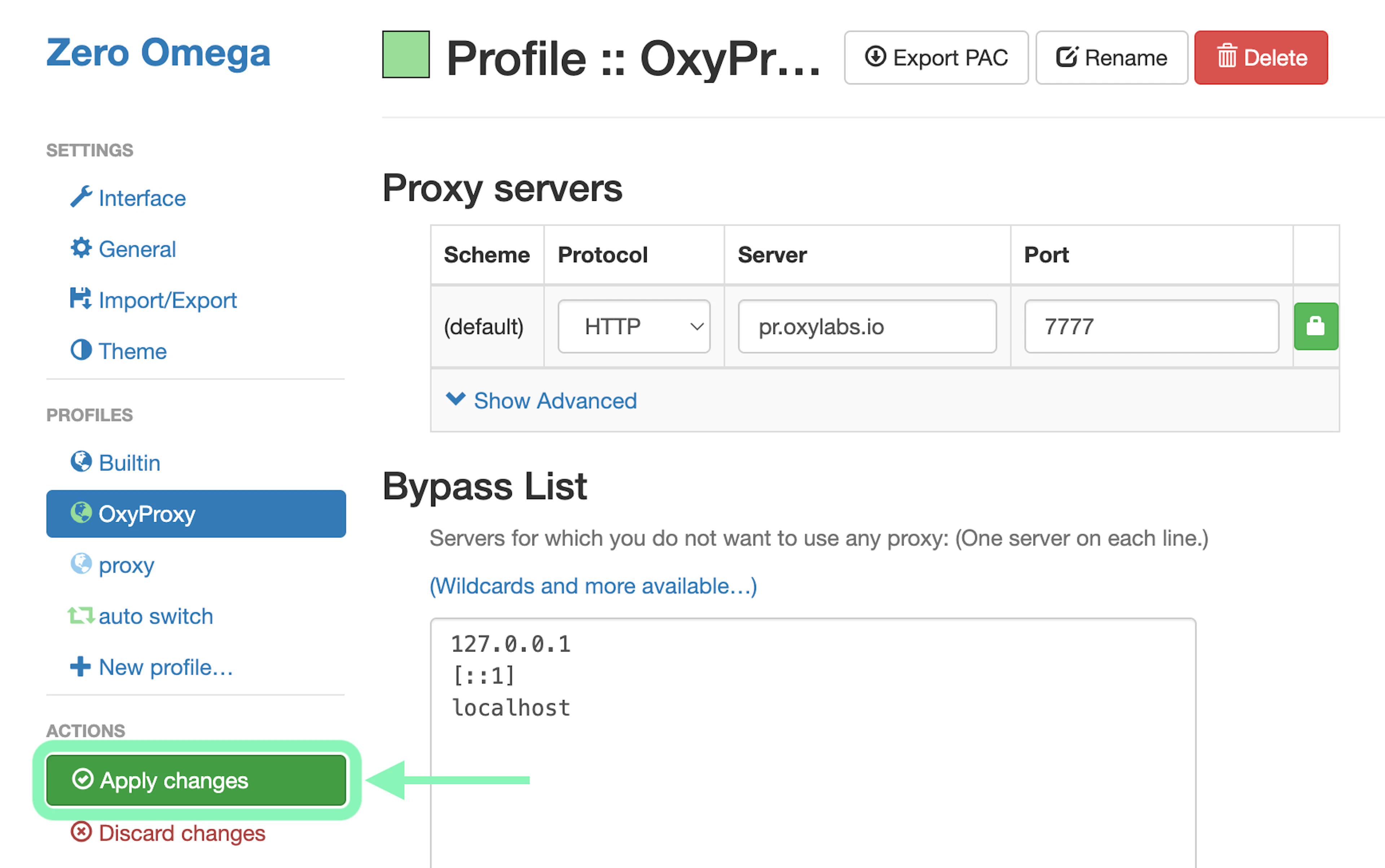
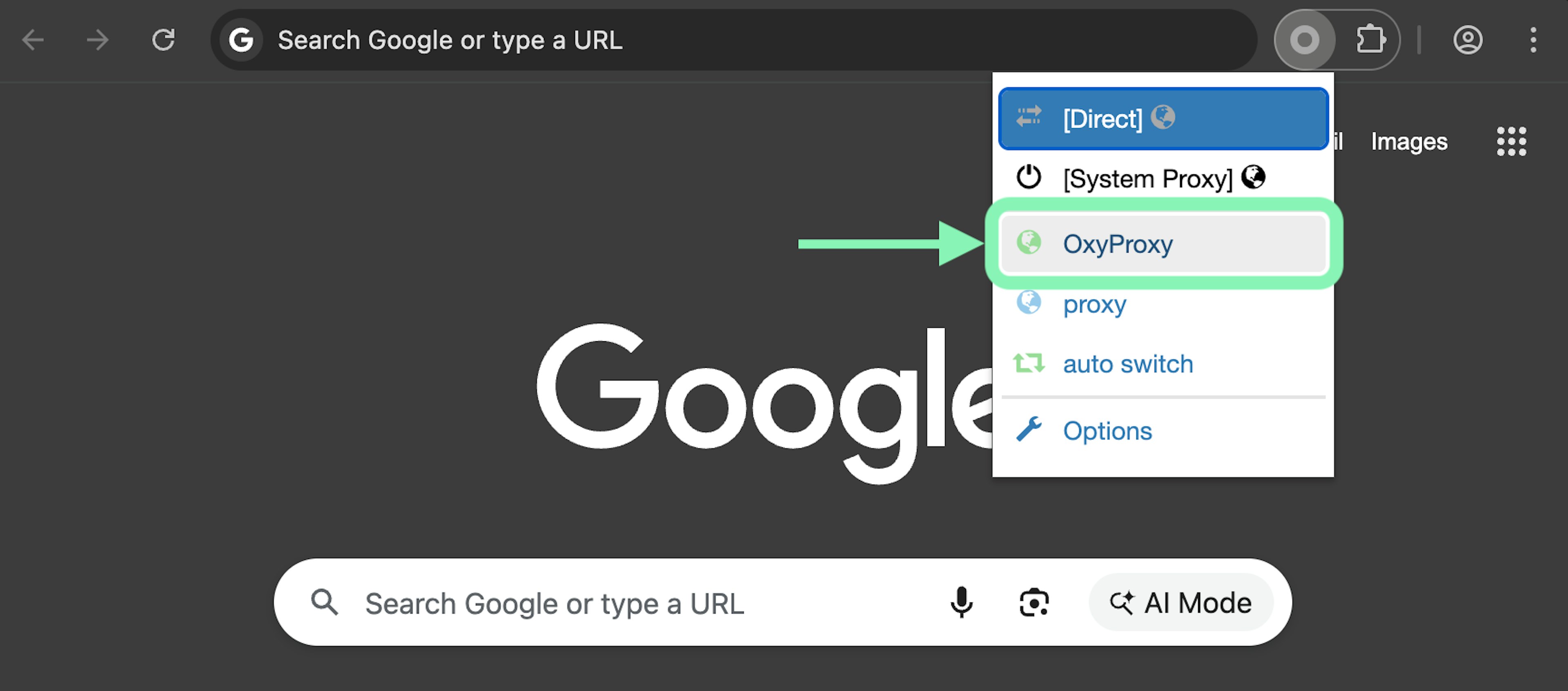
Step 8: Activate the proxy profile
To use the new proxy profile, click on your browser extensions, select the ZeroOmega extension (alt. Proxy SwitchyOmega 3), and choose the profile you wish to use.
You can also test your proxy connection by visiting IP2Location or an equivalent IP testing site to check your connection IP and proxy location.
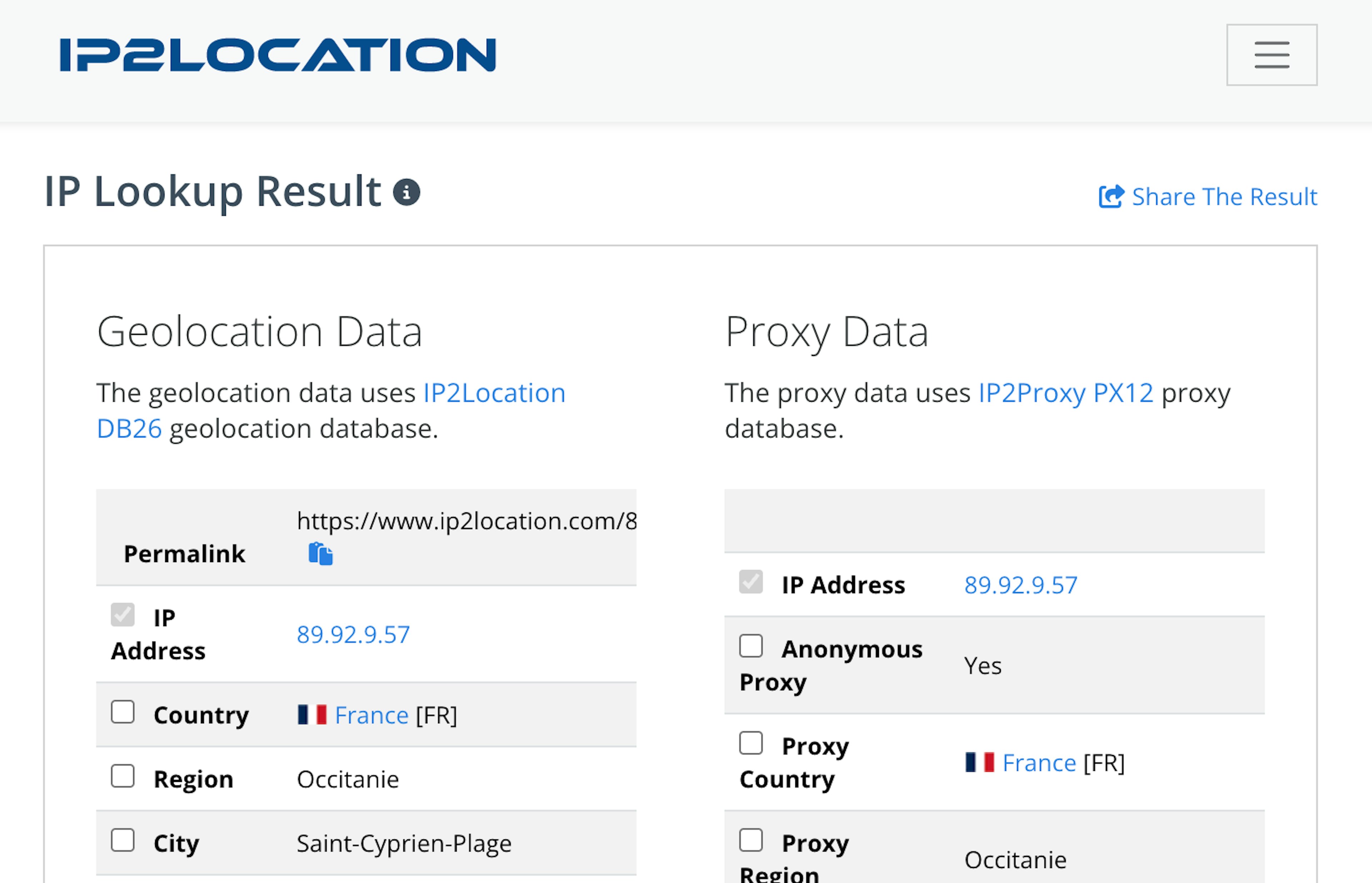
And that’s it. You’ve successfully integrated your Oxylabs proxies with ZeroOmega.
Final word
ZeroOmega (formerly SwitchyOmega) is one of the best open-source proxy managers out there, so go ahead and give it a try. Keep in mind, ZeroOmega does not provide proxies. In this case, you need to be sure that you are using the most reliable proxies for a smooth web scraping or browsing experience.
If you’re looking for similar setups or want to explore integrations for other tools, browsers, and automation platforms, visit our integrations hub.
For questions about Oxylabs proxies or the integration process, reach out via the live chat on our homepage or contact us at hello@oxylabs.io.
Please be aware that this is a third-party tool not owned or controlled by Oxylabs. Each third-party provider is responsible for its own software and services. Consequently, Oxylabs will have no liability or responsibility to you regarding those services. Please carefully review the third party's policies and practices and/or conduct due diligence before accessing or using third-party services.
Frequently Asked Questions
What is ZeroOmega?
ZeroOmega is a free, open-source proxy manager available as a browser extension for Chrome and Firefox that allows you to quickly switch between multiple proxies and proxy profiles. Together with a trusty proxy service, you can have a reliable tool for a more secure everyday browsing.
Where does ZeroOmega store config and profiles?
Useful resources
What is Browser Automation? Definition and Examples
From routine task automation to web testing, the range of uses is vast. Read all about browser automation, its everyday use cases, its challenges, and how to get started with it.
Top AntiDetect Browsers of 2025
Learn how an antidetect browser helps with using several accounts for various marketing initiatives.
What Is a Rotating IP Address?
Rotating IP address is a widely used practice where assigned IP addresses are distributed to a device at random or at scheduled intervals.

Get the latest news from data gathering world